


Review: SiteAssist 3.0

The Web design business is tricky. To produce good Web sites, you must be adept at creating compelling design layouts and making them work with fluid code writing; but to be successful at the business end, you must do it quickly. If time is money, then saving the former equates to earning more of the latter, and that’s where SiteAssist 3.0 from Macromedia offshoot WebAssist comes in.
SiteAssist ($199.99) is a template-driven extension to Dreamweaver MX, MX 2004, and Adobe Dreamweaver 8. It’s targeted at designers building standards-based, full-featured Web sites who lack the technical know-how (or time) to hand code.
Previous versions of SiteAssist offered the same general functionality, but they were heavily laden with table-based layouts that didn’t translate well between browsers and made site maintenance cumbersome. The 3.0 version of SiteAssist adds more and improved templates and, most importantly, the majority of those templates are built with CSS (though the table-based options remain).
Ask Mr. Wizard, Step 1
One of the first tasks in building a site within Dreamweaver is in the Site menu. You go to Define Site to tell Dreamweaver whether you’ll put the associated files for the project on a local disk or a server. SiteAssist starts working its magic after you’ve set this up.
After defining your site in Dreamweaver, SiteAssist provides a five-step wizard packed with possibilities. There are sixteen page-layout styles from which to choose, with titles like Corporate, Professional Consultant, and Intranet (Figure 1). These styles aren’t just visual; each one also comes with a posse of pages (filled out in subsequent steps) tailored to the features and functions visitors might expect from such a site. For example, if you’re setting up a store, there are product page templates; if you’re working on a photo gallery, the templates are laid out with fewer and smaller text blocks and more prominent images.
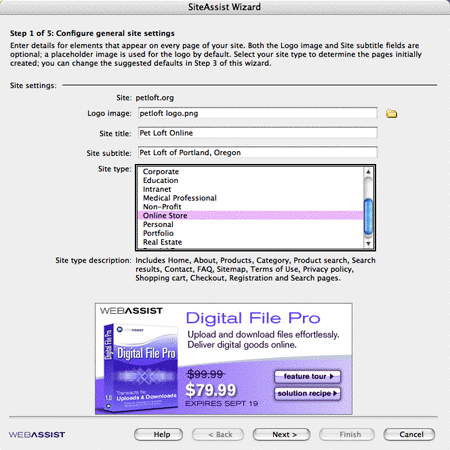
Figure 1. Step 1 of the SiteAssist Wizard: Define the range of pages to be generated.
Step 2
The fun stuff — defining the look and feel of your site — starts in the “Step 2 of 5” dialog box.
SiteAssist ships with 20 professionally designed templates and color schemes with matching graphic elements (Figure 2). The first step is to choose a design for the Home Page. Beware that only about half of the page layouts and seven of ten navigation layouts offer CSS versions.
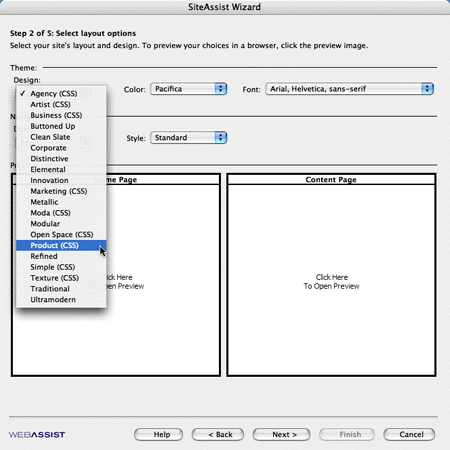
Figure 2. SiteAssist Wizard, step 2: 20 vanilla but slick designs.
SiteAssist then auto-generates the content pages based on your template choice’s characteristics. Additional formatting choices include color schemes in a range of dark pastels; the standard Dreamweaver font ranges; ten options for the navigation look-and-feel; and capitalization options (lowercase, UPPERCASE, U P P E R C A S E, and Standard).
The Windows version of SiteAssist shines in step 2, but unfortunately, the Mac version feels quite clunky by comparison (Figures 3a and 3b).
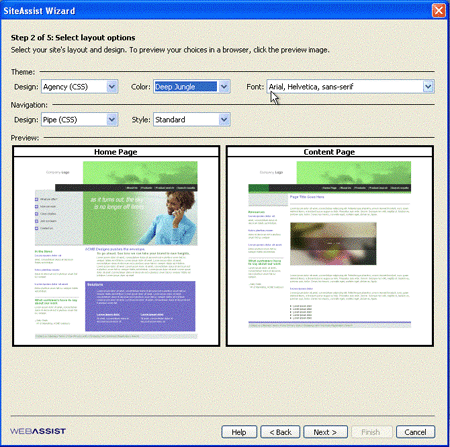
Figure 3a. Selecting a layout in SiteAssist for XP nets a quick preview with a click…
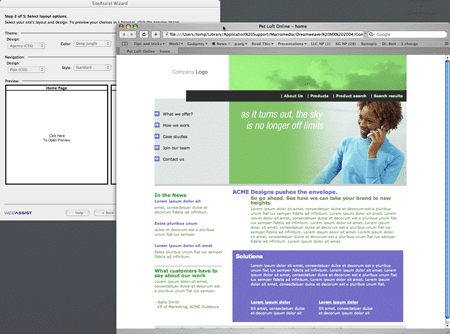
Figure 3b. …but on the Mac, you’re forced to make an extra “Click here to Preview” and a trip to a Web browser.
The Windows XP version of SiteAssist ties tightly into the built-in browser, while the Mac preview is offered (albeit at full real-time size and clickability) in a separate browser window. This is a small annoyance from the usability perspective, but when the application’s aim is to provide a speedy selection process between twenty layout options, ten navigation options, four capitalization choices, and eleven colors, those clicks add up.
Step 3
In what amounts to a mini-sitemap, Step 3 of 5 of the wizard lets you apply layout choices to individual pages within the various sections of the site that you determined in step 1 (Figure 4).
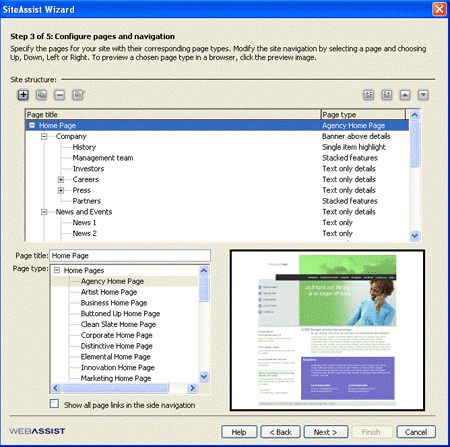
Figure 4. Customize individual page layouts to achieve a higher level of personality.
The types of customization are many and useful: Do you have products that need multiple views? Check. Or a product for which a single image is sufficient? Got that, too. There are also options for interactive galleries, varying levels of detail, and image placement.
This is another screen with dozens of options that may leave SiteAssist’s Mac community with tired fingers. Traveling between Safari and Dreamweaver every time you make a color change gets old quickly.
Step 4
Step 4 of the process is for building the footers of your site and assigning different page orders and design templates to the different types (Figure 5). It seems a bit much to devote a whole dialog box to generating footers, but SiteAssist offers its full gamut of options for the pages listed in the footer as well.
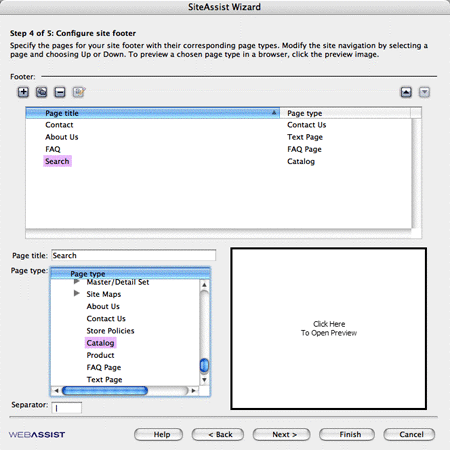
Figure 5. It’s easy to organize footers.
Step 5
Step 5 is a review of the page titles you created in steps 1 through 4. It’s not a printable page, but it’s easy to copy the content into a text file so you can make a to-do checklist (Figure 6).
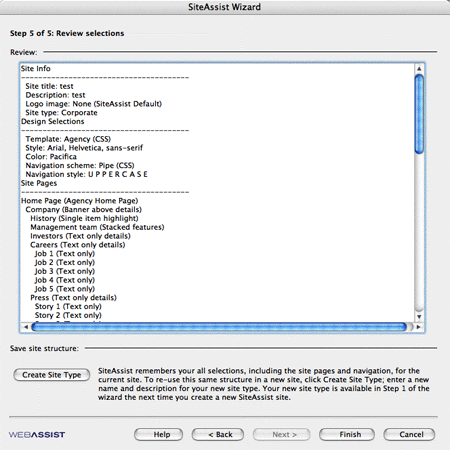
Figure 6. This site hierarchy review is a handy checklist of which pages need content. You can copy and paste it into other document formats.
After this point in the process, SiteAssist commits some dialog box hocus-pocus and moves your Web site into Dreamweavers’ Files palette (Figure 7), then gets out of the way. The rest of the editing is a matter of either authoring the content or copy/pasting into the appropriate pages in the list.
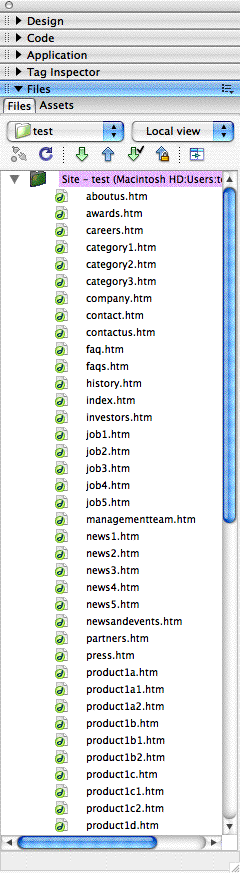
Figure 7. Back into Dreamweaver with a whole site you made richer in just a few minutes.
Dreamweaver at Heart
The SiteAssist developers have boiled down the design process to its elements (what pages does a site need, what looks good, and what interface features do people want) and created templates that deliver much of the aesthetically pleasing functionality of the modern Web.
Unlike Contribute, another application in the “Web sites made easy” category, SiteAssist’s mission is to help Web-savvy design professionals build professional-strength Web sites from the ground up. Contribute, on the other hand, is meant to deliver webmasters from the chore of basic copy-editing by allowing them to restrict most areas of existing sites while keeping only the content areas available for editing.
SiteAssist is for semi-technical Web personnel creating pages that flow consistently and play well with each other. Contribute is about giving non-technical personnel the ability to do very basic editing and content entry to existing Web sites. The two products serve different ends of the non-technical Web editor market.
The Windows version of SiteAssist comes much closer to offering the “quick” part of the quick and easy path to comprehensive and professional-looking Web sites. The Mac version’s inability to use the biggest area of its interface as it was intended is confusing, frustrating, and time-consuming.
SiteAssist offers plentiful options, attractive layouts, and a tight and progressive feature-set for the designer lacking in time or the skills necessary to start from scratch. However, the templates and other choices start looking familiar and homogeneous after you’ve seen them a few times. In addition, the Mac version needs to be equal to the Windows counterpart. Nonetheless, SiteAssist works seamlessly with Dreamweaver so semi-technical or time-challenged Web workers can employ advanced Web features quickly and with very little knowledge of the code.
This article was last modified on January 8, 2023
This article was first published on September 27, 2006
Commenting is easier and faster when you're logged in!

Recommended for you
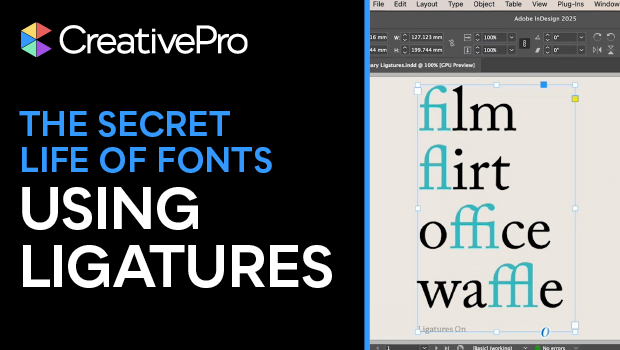
Using Ligatures to Elevate Your Typography
Use ligatures to solve your spacing problems — or add flair to your text.

Matching Spot Colors Across the Suite
Sometimes InDesign users have trouble matching spot colors between Photoshop and...

InDesign Magazine Issue 107: Photoshop and InDesign
Issue 107 of InDesign Magazine features articles on using Photoshop and InDesign...