



Every so often a plug-in comes along that is both productive and just plain fun to use. MirrorMe, an inexpensive plug-in for Illustrator CS5–CC from Astute Graphics, is one of those plug-ins. As the name suggests, MirrorMe can reflect objects in Illustrator across axes, but it’s far more than a fancy version of Illustrator’s Reflect tool. If you think of a child’s kaleidoscope, you’re closer to understanding how much more MirrorMe can do quickly and easily.
Like most Astute Graphics plug-ins, MirrorMe comes with its own tool and a panel that can be docked in your workspace. The panel provides access to all the tool’s functions, as well as preferences to customize the tool’s behavior. When working with the tool, you’ll either select artwork, then use the tool to reflect it around a moveable point of origin on axes you customize, or you can use the tool to establish reflecting axes before you start drawing. MirrorMe creates normal paths that are editable with Illustrator’s tools, or with Astute Graphics own tools, such as InkScribe or DynamicSketch.

The expanded panel is docked with other panels in Illustrator, and displays most of the tool’s functions. The butterfly icon is used for the tool as well.
Reflecting Created Artwork
For an addictive and playful experience, create and select an object first, then grab the MirrorMe tool and hover over the object. Move the cursor without clicking to see a preview of your selection mirrored around at least one axis with the origin point for the reflection displayed directly beneath your cursor. Move your cursor over different areas on the artboard and the reflecting origin changes, changing what’s reflected. Use the right or left bracket keys on your keyboard to change the number of axes, and click once to place the reflecting origin. Next move the cursor somewhere off the origin and drag to change the angle of the reflecting axes. Drag on the origin or the axes, or keep using the bracket keys to alter the number of axes until you like what you see.

A shape (colored) made with Astute Graphics’ Dynamic Shapes plug-in, is reflected by changing the origin, number of axes, and angle of axes.
The next step is where the crazy fun really begins. Click once to stop the mirroring, then choose Apply to Selection in the Annotator (or panel). Hover again with the MirrorMe tool and it now starts mirroring the object you just created. You can repeat this entire process as long as you like, constantly coming up with new designs. When you no longer want to reflect the selected object, select another tool or choose Apply to Layer (Persistent) to retain the mirroring axes.
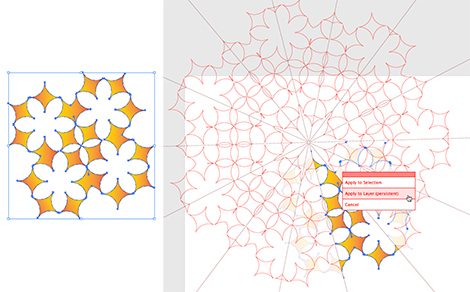
The original shape is reflected with a different origin, number of axes, and angle of axes two more times. The last time the result is applied to the layer, not the selection.

Upon applying the mirrored results to the layer, the axes are maintained and will reflect any other changes you make in the active segment.
This article was last modified on July 20, 2021
This article was first published on July 31, 2013
Commenting is easier and faster when you're logged in!

Recommended for you
CreativePro Tip of the Week: Identifying Fonts in Photoshop
This CreativePro Tip of the Week on identifying fonts in Photoshop was sent to C...

Take a Deeper Look at Your Documents with Art View
The Mac’s QuickLook feature is pretty handy for previewing files before yo...

How to Rescue a Poorly Lit Image with Photoshop’s Shadows/Highlights Adjustment
Photoshop’s Shadows/Highlights adjustment is the perfect tool for rescuing...