



To jump to specific sections in this review, click any of the following links:
1. Multiple Page Sizes; Span, Split, and Balance Columns
2. Simplified Transformations and Selections
3. The Gap Tool; Gridified Frames and Super Step-and-Repeat; Layers Rebuilt
4. Metadata Captions; Mini Bridge
5. Interactive Documents
6. Workflow and Collaboration; (Not Quite) All The Little Things
7. Buying Advice
Workflow and Collaboration
Text Track Changes. Do you love the idea of tracking changes but don’t want to set up an InCopy workflow to do it? InDesign CS5 solves that dilemma by building in track changes. This is a text-only feature, however. It won’t track that someone re-sized an image or deleted a Master Page item, nor will it show you the change activity in the layout. You only see marked-up changes and details about who made them in the Story Editor (Figure 16).
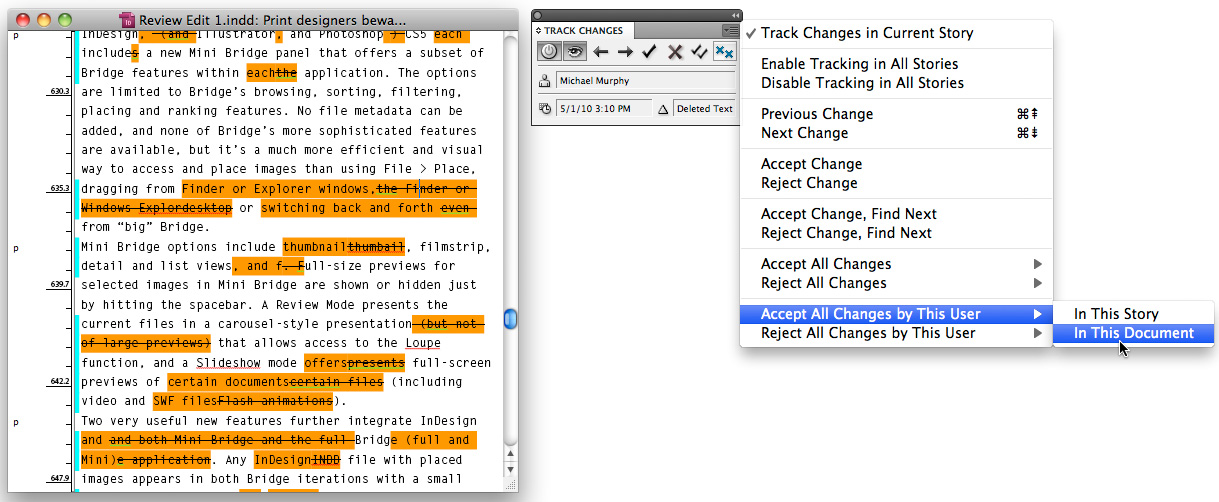
Figure 16. Tracked changes are highlighted and identified by user in the Story Editor, where the options in the new Track Changes panel become available. Click this image to see a larger version.
You can enable Text Track Changes on a story-by-story basis or turn it on for all current stories in a document. Sadly, there’s no preference or option available that auto-enables Track Changes for all new text frames.
Track Changes is helpful even if you just want to preserve for yourself a history of changes you’ve made. It’s also a good way to build in a non-linear level of un-do functionality for all the text in your document.
CS Review. If your workflow doesn’t involve sharing native InDesign files among users, but still requires distribution of proofs for comment and review, CS5 includes free access to several new online services that Adobe has collectively named CS Live. The services — hosted on Acrobat.com — include InDesign integration with Adobe’s online word processing tool, Buzzword, and a new collaboration and commenting service called CS Review.
The start-to-finish online workflow path Adobe envisions for InDesign is that “source” documents begin on Acrobat.com through Buzzword, are shared and collaborated on “in the cloud,” and are then placed into InDesign (File > Place from Buzzword…) for layout. Work-in-progress layouts are then shared — again online — with CS Review, available directly within InDesign from the new CS Review panel. One or more pages of a layout can be added to a review, and authorized reviewers can be invited to participate in the review without needing any of the CS5 software. All they need is a free Acrobat.com account.
The CS Review commenting interface is deliberately simple, allowing for call-outs and text comments which are immediately recorded to the online review and available instantly in InDesign’s CS Review panel (provided you’re online, of course). You can select any comment in the review and, from the CS Review panel menu, jump right to where the content in question appears in the InDesign document (Figure 17).
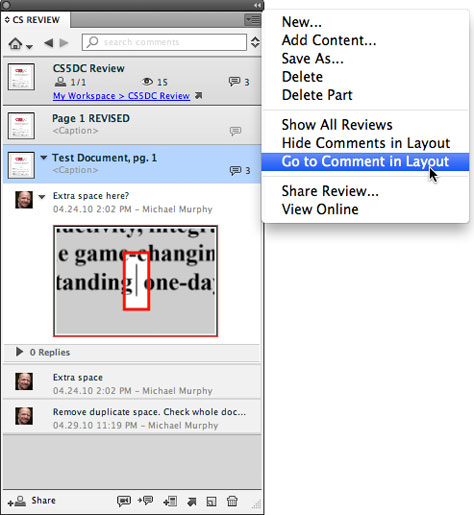
Figure 17. The CS Review panel tracks and updates comments made to an online review and displays them right in your InDesign document.
Online review of PDFs has been a part of Acrobat.com for some time, but the subject of that review process always had to be a PDF, regardless of the native application from which it was produced. That step is no longer necessary. The review process is integrated directly into InDesign, eliminating the need for a side-by-side comparison of the native file and one (or more) commented PDFs.
The services are described as “complimentary for a limited time,” and it’s not yet known whether Adobe plans to ultimately charge for them.
Document-installed Fonts. Because of licensing restrictions and subtle differences between fonts with the same name, font management has been a long-standing problem when documents are shared between users, or released to a printer or service bureau. The new Document-installed Fonts feature aims to combat this but only succeeds in a limited way.
When you package a job for output, InDesign gathers fonts into a Document Fonts folder that’s in the same folder as the InDesign file. When someone else opens the document in InDesign CS5, InDesign automatically loads the fonts in that folder for that document only. No other document or application can use the fonts, and when the document’s closed, InDesign immediately unloads the fonts. When active, Document-installed Fonts appear at the top of InDesign’s Font menu.
You can do this without using the Package feature just by creating a folder named “Document Fonts” in the same directory as the InDesign file. It’s a welcome way to avoid copying, installing and un-installing fonts needed only for a limited time, but the feature disappoints in its lack of support for anything other than OpenType fonts on the Mac platform. Older PostScript Type 1 and TrueType fonts are not activated automatically.
Background Tasks. Did you ever wonder how much of your time is wasted waiting for a PDF to finish processing before you can get back to work in InDesign? That’s all over. PDFs now process in the background, letting you get immediately back to work — even in the same document that you’re exporting.
(Not Quite) All the Little Things
At the release of any new version, the little things tend to get overshadowed by the big features, but they’re often what makes some users positively giddy. The biggest “little thing” in InDesign CS5 is that the ubiquitous “Preview” checkbox in the application’s modal dialog boxes is finally sticky. Whatever state it was in last is the state it stays in until you change it, even after you quit and re-launch application. Also cause for celebration: Times Roman is no longer the default font used by No Paragraph Style and Basic Paragraph. It’s been replaced by Minion Pro, which ships and installs with InDesign.
The Control panel now includes a pop-up iteration of the Swatches panel. More than just a selectable list (like style menus in the Control panel), it has all the options for applying color to the fill or stroke of text or an object; specifying a tint percentage; and all Swatches panel menu items. And it’s expandable, so you can get a full look at very lengthy swatch lists.
In previous versions you couldn’t move a locked object, but you could change its proportions, fill or stroke, edit a text frame’s text, or reposition a graphic frame’s content. Now, you can’t modify the object in any way until you unlock it. Gone, too, are the days of the “hover and hunt” method of determining which objects are locked. There’s now a honking big lock icon on the edge of any locked object.
Among the other notable little touches:
• You can now vertically justify text in non-rectanguar frames and frames affected by a text wrap object.
• A new Convert URLs to Hyperlinks feature searches for URLs, converting them to InDesign hyperlinks and applying the Character Style of your choice.
• A new Delete All Guides on Spread option does just that, and similar options include Unlock All on Spread and Clear Frame Fitting Options.
• A new view option — Presentation Mode — puts InDesign in full-screen mode, hides all UI elements and allows you to move through a document using the forward and back arrow keys.
This article was last modified on January 18, 2023
This article was first published on May 6, 2010
Commenting is easier and faster when you're logged in!

Recommended for you

TypeTalk: Keep Words Together
Q. What is a nonbreaking space? A. This space is actually a command that prevent...

This Week in InDesign Articles, Number 123
Last week was “pi approximation day” (22/7) so I’ve been thinking a lot about es...
TypeTalk: Font Sizing Guidelines Part 1, Design Characteristics
Q Are there any guidelines for selecting fonts for use at a range of sizes? A. I...