



To jump to specific sections in this review, click any of the following links:
1. Multiple Page Sizes; Span, Split, and Balance Columns
2. Simplified Transformations and Selections
3. The Gap Tool; Gridified Frames and Super Step-and-Repeat; Layers Rebuilt
4. Metadata Captions; Mini Bridge
5. Interactive Documents
6. Workflow and Collaboration; (Not Quite) All The Little Things
7. Buying Advice
Metadata Captions
Graphic frames can now use the metadata built into the images within them to generate captions. The process is as simple as right-clicking an image, choosing Caption Setup and designating the desired metadata field(s) you want to use (Figure 9). Once all options have been set, you need to exit the dialog, right-click the image and choose either Generate Live Caption or Generate Static Caption.
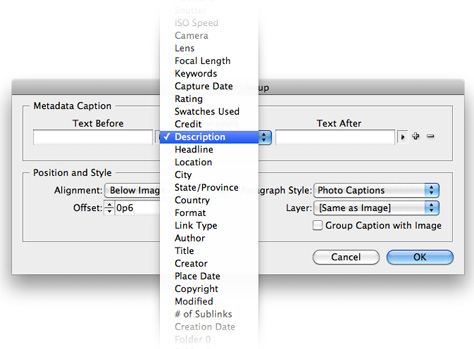
Figure 9. In the Caption Setup dialog, static text can be appended before and after the metadata, and you can assign the caption’s paragraph style, position relative to the image frame, offset value, and its destination layer.
Live captions have the advantage of dynamically adapting to changes to the file’s metadata. If the metadata is updated, the Links panel shows the image as modified, and updating the image updates the caption. Unfortunately, live captions have the same disadvantage as Text Variables — they can’t wrap, so they have to fit entirely on one line or the text is crushed together to fit. This is because live captions are, in fact, a new kind of Text Variable added to support this feature.
One way around the text wrapping limitation is to generate a static caption, which populates a text frame with a caption produced from the current metadata. That text will wrap and behave like any normal text, but it’s not dynamic. If the metadata changes, the caption won’t.
The Caption Setup dialog and the caption generation options make this a full-featured text variable, but some of its other behaviors make it more limited. Changes made in the Caption Setup dialog will not automatically update the “live” caption. Unlike every other type of text variable, metadata captions do not auto-update when their parameters are changed. You must generate a new caption.
Limitations aside, the live option is ideal for short captions that don’t need to wrap (think product names, catalog item numbers, etc.), and even the static caption option should encourage designers who aren’t already doing so to start building metadata into their images so information and images don’t become separated from project to project.
Mini Bridge
InDesign, Illustrator, and Photoshop CS5 each include a new Mini Bridge panel that offers a subset of Bridge features within each application. The options are limited to Bridge’s browsing, sorting, filtering, placing, and ranking features. You can’t use Mini Bridge to add file metadata, and none of Bridge’s more sophisticated features are available, but Mini Bridge is a much more efficient and visual way to access and place images than using File > Place, dragging from Finder or Explorer windows, or switching back and forth from “big” Bridge (Figure 10).
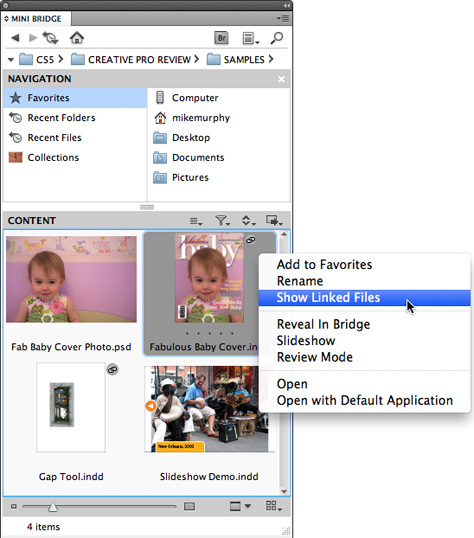
Figure 10. Any InDesign file with placed images appears in both Mini Bridge and “big” Bridge with a small link icon. Right-clicking the file’s thumbnail and choosing Show Linked Files from the context menu builds an instant temporary collection of all linked files in that document. Also, a new InDesign file-handling preference enables the full Bridge application to preview the first page; first 2, 5, or 10 pages; or all pages in the document.
Mini Bridge options include thumbnail, filmstrip, detail and list views, and full-size previews for selected images in Mini Bridge are shown or hidden just by hitting the spacebar. A Review Mode presents the current files in a carousel-style presentation that allows access to the Loupe function, and a Slideshow mode offers full-screen previews of certain documents (including video and SWF files).
This article was last modified on January 18, 2023
This article was first published on May 6, 2010
Commenting is easier and faster when you're logged in!

Recommended for you

Scanning Around With Gene: The Signs, They Are A Changin'
Return to page 1. In 1949 you could get pot roast, French-fried potatoes, lima b...

The Seven Lively Sins: Try These InDesign Type Effects
Some people think it’s a sin to alter a typeface. But I say that, used with skil...

25 Gorgeous Typographic Experiments
Ah, typography! Is there anything that inspires print designers more? No? Then g...