



By Cristen Gillespie with Sharon Steuer
Adobe announced in May that the set of applications they called the Create Suite (CS) has been rolled into their set of applications and services that is the Creative Cloud. Henceforth, to access any new features, you will have to subscribe on a monthly or annual basis. You can join the Creative Cloud with a membership to either a standalone application such as Illustrator, or to the entire Creative Cloud set of applications and services. A perpetual license for CS6 will continue to be available and supported for awhile.
The new Splash Screen for Illustrator sports the “CC” designation for Creative Cloud
For simple organizational purposes, we’ve divided our review between creative features and productivity. However, as you all know, we’re more creative when we can work without constantly bumping up against the interface, and we’re more productive when our creative tools are easier to work with. The Illustrator team has concentrated on improving our entire workflow and come up with a full list of enhancements for this Creative Cloud release.
Creative Enhancements:
Automatic Corner Generation for Pattern Brushes
In CS6, if we wanted to create a Pattern brush that turned sharp corners, we had to create separate artwork for inner and outer corners in addition to the tiles needed for the main path. The task required fitting the artwork very precisely to the tiles, and many of us found the construction of Pattern brushes with corners a daunting effort. The Adobe team came up with four automatic methods that work well in this situation: Auto-centered, Auto-between, Auto-sliced, and Auto-overlap.
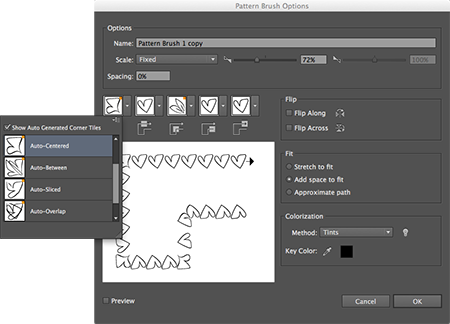
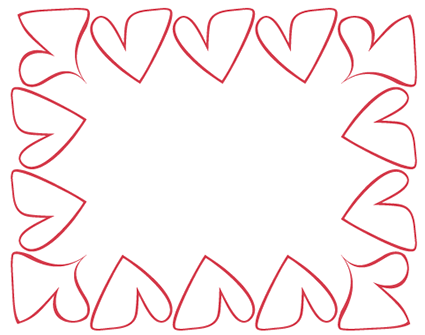
For The Adobe Illustrator WOW! Booklet for June 2013 CC release (Peachpit Press, July 2013), Sharon Steuer created a pattern brush with single heart— the auto-generated corner tile (shown above) enhanced the hand-drawn quality effortlessly.
Many times one of the automatic corners works well, but it’s based on math, not magic. When it doesn’t work, you can still make and load your own corners or edit the corner tile that the program generated. Whether you edit the corner tile itself (a bit tricky), or use it as inspiration for creating a new separate tile, you’ve gotten a pretty good head start. Now that Illustrator does much of the heavy lifting when creating Pattern brushes, we can spend more of our time looking for all the creative reasons to use them.
Raster Images in Brushes
Art, Scatter, and Pattern brushes got yet another creative lift—now you can use raster images to create them! There are a couple points to remember, however, before you go hog wild using raster images in your brushes. The brushes are still raster, and won’t have the same infinite scaling and “stretching to fit” properties that vector is known for.
This article was last modified on January 18, 2023
This article was first published on June 24, 2013
Commenting is easier and faster when you're logged in!

Recommended for you

Batch Process Images with PhotoBulk
If you work on a Mac and regularly have to process images to size, optimize, or...
Create Beautiful Contact Sheets Easily With DiapoSheet
If you need to build a contact sheet of images you have lots of options. You can...

Scanning Around with Gene: When Sparks Fly
I suspect every American kid, especially every boy, has vivid memories of Fourth...