



Jamie McKee identifies a strange hidden character, tells where it came from, and how to get rid of it easily.
Q: I’m setting chapters for a book that contains endnotes. My Word documents are properly styled, but when I place them into my InDesign template, they’re filled with hidden characters—always at the start of the text and usually before each endnote callout. I want my InDesign files error-free and these characters make me nervous. Any idea what they are and how to get rid of them?
A: Kudos to you for wanting your files clean and error-free—I wish more people worked that way! I’ve set quite a few Word documents as you describe and have run across this very issue.
The hidden character you’re describing is the Text Anchor character—a type of hyperlink destination. When you turn on Type > Show Hidden Characters, you can see a colon character (Figure 1). And if you choose Edit > Edit in Story Editor, you’ll see a colon followed by brackets around a bullseye.
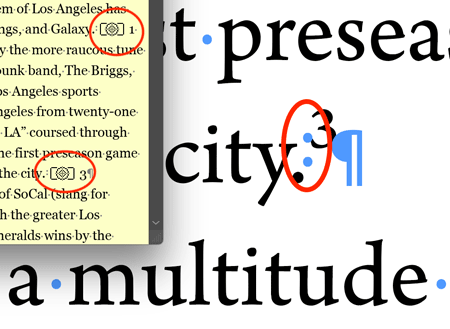
Figure 1. Text as seen in both Normal View and the Story Editor with the Text Anchor special characters circled.
InDesign has a plethora of special characters, which you can see in the InDesignSecrets Guide to Special Characters. Another special character—the Cross-Reference Definition character—looks similar to the Text Anchor special character, except it doesn’t have the colon preceding the brackets and bullseye.
You can see all the Text Anchors in your text if you open the Bookmarks panel (Window > Interactive > Bookmarks). A bookmark is a type of link that makes it easier to navigate documents exported as Adobe PDF. Bookmarks within an InDesign document appear
in the Bookmarks tab on the left side of the Acrobat or Adobe Reader window as long as the Include Bookmarks option was selected when the PDF was created. Each bookmark jumps to a text anchor or page. For example, entries in a generated table of contents are automatically added to the Bookmarks panel. In addition, you can further customize your document with bookmarks to direct a reader’s attention or make navigation easier. If, however, your book is only going to print, you have nothing to worry about—Text Anchor special characters don’t print and introduce no spacing issues into your document.
Removing Unwanted Text Anchors
To rid your InDesign document of the Text Anchors, simply select them all in the Bookmarks panel, and click the Delete button.
If you’re wondering where they came from, well, they originated in the Microsoft Word file. You can view the bookmarks in the Word file by choosing Insert > Bookmark (Figure 2). Make sure to turn on the “Hidden bookmarks” option to see all of them. Unfortunately, you can only delete bookmarks one at a time in Word, so for this reason I ignore them in Word and delete them all at once in InDesign.
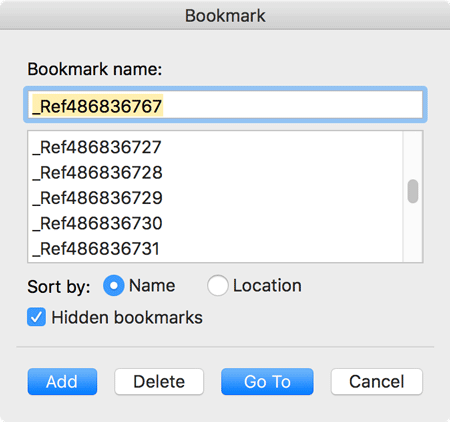
Figure 2. Microsoft Word’s Bookmarks dialog box.
Finally, I should point out that if you are placing .docx files, you will end up with at least one Text Anchor named “_GoBack” when you place the file into InDesign. This is an artifact of the feature in Word that allows you to jump back to the previous location of your cursor by pressing Cmd+Option+Z on the Mac or Ctrl+Alt+Z on Windows. This seems to be unique to .docx files. You won’t see _GoBack bookmarks when you place .rtf, .doc, or .txt files into InDesign.
Commenting is easier and faster when you're logged in!

Recommended for you

Using the Rectangle Frame Tool to Add Hyperlinks
by Ben Richardson Adding hyperlinks to interactive PDF files in InDesign isn’t a...

InDesign Tip: Fixing Multiple Hyperlinks at Once
Need to edit several hyperlinks that all point to the same destination? You don...
Tip of the Week: Adding a Shortcut to Create Hyperlinks
How to speed up the process of creating hyperlinks in InDesign by adding a custo...