




Peachpit Press is offering this book at a discount to creativepro.com readers. Follow this link.
The Default Layer and Master Pages
Before I get into the details of creating and manipulating layers, I need to mention two kinds of layers that appear in every document you create. The first is the Default Layer, which cannot be deleted. This is the layer that your objects live on when you don’t specify any other layer-it’s the basic layer that you’re probably used to from earlier versions of XPress.
The other “layer” is the master page layer. While the Default Layer appears as a separate layer in the Layers palette (see figure 1), this one does not. Sadly, there is no way to assign master page objects other layers while viewing the master page (see Chapter 4, Building a Document, for more on master pages). Instead, when you place an object (a box, line, or whatever) on a master page, XPress always assigns it to the Default Layer, but on your document pages these objects appear below the other objects on your Default Layer-as though there were a separate master page layer.
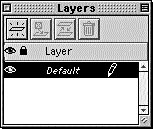
Figure 1: The Layers palette.
Of course, you can always select a master page item on your document page and assign it to another layer, but that breaks the link between this item and the master page (so changes to this item on your master page won’t change this object on your document page anymore).
Switching Layers
You can move one or more items from one layer to another by selecting the object(s) and clicking the Move Item to Layer button in the Layers palette. This displays the Move Items dialog box, where you can pick the destination layer. XPress always moves the item(s) to the exact same page coordinates on the new layer.
Another way to move a one or more selected objects is to drag the Active Item icon (it looks like a small box of squares in the far right column of the Layers palette)to the desired layer. If that icon is confusing, note that it’s a miniature version of the standard eight handles around a selected item on your page-that is, the “active item.”
A third method to move items from one layer to another is using Cut or Copy and Paste. This is the slowest method (you have to select the object, cut it, click on a different layer in the palette, and then select Paste). Worse, the object is always centered on the screen when you paste it rather than ending up with the same page coordinates.
Of course, when you move an item to a new layer, the object assumes the attributes of that new layer. That is, if the target layer is turned off (is invisible), then that object will suddenly disappear when you assign the layer.
Tip: Duplicating Among Layers
If you want the same object to be on more than one layer, you can hold down the Control key (on both Macintosh and Windows) while dragging the Active Item icon from one layer to another. Multiple items can also be duplicated, as long as they are on the same layer.
Read more Real World Tips for QuarkXPress 5 here.
Peachpit Press is offering this book at a discount to creativepro.com readers. Follow this link.
This article was last modified on February 22, 2022
This article was first published on June 12, 2002
Commenting is easier and faster when you're logged in!

Recommended for you

Kapitza Releases Two New Animal Fonts
KAPITZA SHOP, a new online shop specialising in picture fonts and illustrations,...

InDesign How-to Video: How to View Extra Image Information
In this week’s InDesignSecrets video, Anne-Marie Concepción shows us how to view...

How to Make Patterns in Illustrator
Patterns can add branding, texture, tone, style, and even greater meaning to a d...