



MLee wrote,
I am designing a pictorial directory (like a high school yearbook) using InDesign. Is there a way to auto fill the pics to the frame?
Technically, this e-mail has just one specific question (“possible to change Fitting defaults?”) but it’s hard to resist the real underlying question, “Is there any way to automate this nightmare?”
Sure, there’s a way to “auto fill the pics to the frame” in InDesign-provided you’re using InDesign CS3 or CS4. It wasn’t until CS3 came along that we got the Frame Fitting Options dialog box (in Object > Fitting). You can use this to preset how an image will fit an empty image frame.

So, you can drag out a bunch of empty image frames on your master page (assuming you need to do more than one pictorial page), select them all, and assign the Frame Fitting Option you want. If you choose “Fill Frame Proportionally” or “Fit Frame Proportionally,” any image you place into the frame will automatically do just that.
If this were my job, I’d configure a single empty image frame manually (fitting option, stroke, drop shadow, text wrap, etc.), use it as a source for a new Object Style, and then make sure all my pictorial frames on the master had that object style applied. That way I could easily change how all my pictures looked just by editing the object style, should I ever need to.

(Although CS2 had object styles, it didn’t include the Frame Fitting Option attribute because it hadn’t been born yet.)
Now just create enough empty document pages based on that master required to hold all your images. Go to the File > Place dialog box, shift-select all the images you want to place, and then click OK to load them up in your Place gun. In a few seconds you can just click, click, click away, one click per frame, to bring in each image and have it automatically fit as you specified.
Tip: If you zoom out to see multiple spreads, you can unload all your images, page by page, just with a rapid series of clicks.
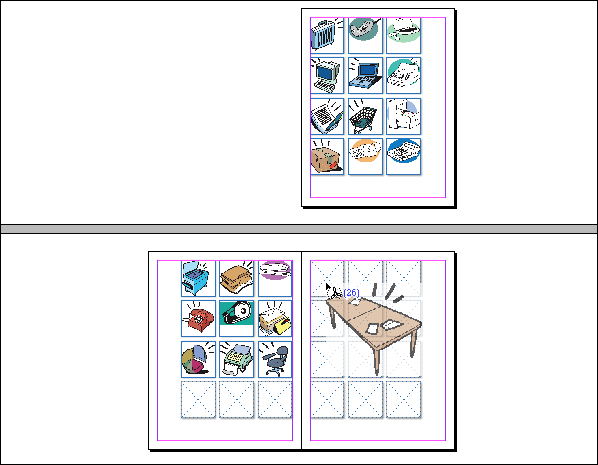
One thing about that “click click click” … regardless of the order you select your images in the Place dialog box (perhaps you selected by Last Modified Date), as soon as they’re loaded into the Place gun, InDesign re-sorts them in alpha order by filename. In the Place gun loaded with multiple images, the thumbnail preview labeled “(1)” is the one whose filename comes first in the alpha order, even if you selected it last in the Place dialog box, thumbnail “(2)” is the next one alphabetically, and so on.
So, if you’re trying to quickly lay out a series of head shots in alpha order by last name, and you want to be able to quickly click-place row by row, make sure the filenames for your images are already in alpha order (such as Smith_John.tiff instead of John_Smith.tiff). Otherwise you’ll need to scroll to the correct location for each image before clicking to place it in its frame, or use your Up and Down Arrows to cycle through the thumbnails to get the one you want “on deck” before clicking.
Two more options for automatically placing images in pictorial layouts are DataMerge and the InDesign Contact Sheet script in Bridge (free with CS3, available for $25 for CS4). I hope you don’t mind following those links for more info, because I want to jump right into two CS4-only features that could speed this up even more.
Even Faster in InDesign CS4
One of my favorite new features in InDesign CS4 is how, when your cursor is loaded with images to place, InDesign’s new default behavior is both “fit frame to content” and “fit content proportionally.” Clicking on the page places the image at 100% with a kiss-fit frame as in earlier versions. What’s new is that dragging out a custom frame as you place results in a proportionately-scaled image that perfectly fits the frame. If you drag out a little frame, you get a little image, a big frame, a big image. But always proportional and always kiss-fit.
So, if all the images you need to place are the same size (or share the same width/height proportion), you don’t need any image frame placeholders to do the pictorial job in InDesign CS4. Just set up a guideline grid on your pages, load the cursor with the images to place, and drag out a series of same-sized image frames on the fly, snapping to the guidelines as you go.
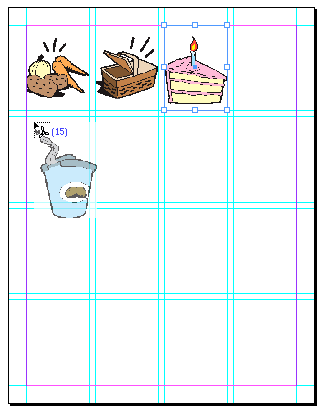
If the images aren’t the same size or proportion, hold down the Shift key as you drag out consistently-sized frames. The Shift key lets you drag out a frame of any proportion (tall and skinny for example, even for a landscape image) while placing an image. As long as the proportions aren’t too far off, the images still look fine, because in CS4 they always come in proportionally scaled to fit the frame. You’ll just end up with a little extra frame area to the right or below the image.
For the ultimate in speed layout of picture grids, though, you’ll want to use the new Contact Sheet Place feature. You load multiple images into the Place gun as normal. But instead of dragging out images frame by frame as I just described (which could get mighty tedious), you can just drag once on each page, and InDesign creates the individual image frames for you, each one the same exact size, each containing a proportionally scaled image.
Here I’m dragging out a contact sheet of twelve images (in a 3×4 grid) onto a page:
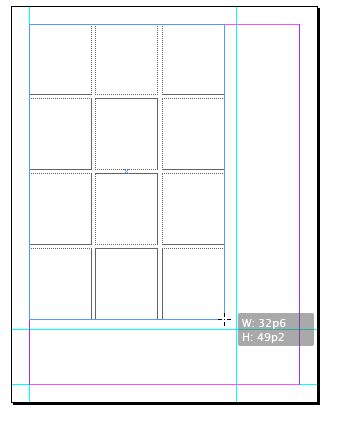
You can’t see the images yet (they’re loaded into the cursor) but as soon as I hit that guideline intersection I’m aiming for, and release the mouse button, InDesign fills each of the image frames with a proportionally-filled image.

See how my cursor reverted to the normal Place gun? It shows I still have some images to place. I can just go to the next page in my document and continue dragging out contact sheets, page after page, each drag resulting in a perfectly sized grid of twelve images. Now that’s fast!
To go into “contact sheet mode” in CS4, load the cursor with images from the File > Place dialog box and then hold down the Command and Shift keys (Control and Shift on Windows). The cursor changes to a grid preview (greatly enlarged here):

Start dragging the cursor diagonally, beginning at a corner of the page area where you want the grid of images to appear, and the grid preview grows as well. Drag until the contact sheet preview covers the area you want to fill up with images. (As soon as you start dragging you can release the modifier keys; you’ll remain in contact sheet mode. But keep that mouse button down – as soon as you release it, the images get placed in whatever contact sheet arrangement is in effect. Undo if that happens by accident.)
Sometime during your drag, you’ll probably want to use the arrow keys on your keyboard to define the number of rows and columns of image frames in your grid. The Up and Down Arrows change the number of rows, and the Left and Right Arrows change the number of columns (remember, keep the mouse button held down while you tap the keys). The contact sheet preview updates to reflect your changes. The size of the image frames is completely dependent on the the number of rows and columns, the amount of space in between each image, and the size of the area you drag out. but InDesign will always put 9pt (.125″) of space between the images
By default, InDesign adds a gutter of 9 pt. (.125″ or 3.175mm) between each image in all directions, but you can adjust that while dragging out the contact sheet. Use the Page Up key to increase the measure and Page Down to decrease it. To limit your adjustments to just the horizontal or vertical spacing, use Shift-Left/Right arrow or Shift-Up/Down arrow, respectively. [You can thank the commentators on this post for these tips! –AMC]
When you’ve got the rows/column number set, finish your drag and release the mouse button. The images get placed in the frames, as shown in my example above.
To continue placing more contact sheet’s worth of images, go to the next page and repeat the Command/Control-Shift drag (assuming you still have images loaded in your cursor … if not, go back to the File > Place dialog box and grab some more). InDesign remembers the most recent settings for columns, rows and gutter measures in your contact sheets, so assuming each page should have the same number of pictures in it, you won’t have the tap the arrow keys again, and the rest of the job goes very quickly!
This article was last modified on December 19, 2021
This article was first published on February 2, 2009
Commenting is easier and faster when you're logged in!

Recommended for you

What’s The Break Keyboard Character?
Terre Dunivant wrote: What is that icon/shortcut next to Type > Insert Break...
Create a Flat-bottomed Stroke
Our guru of strokes reveals another trick: How to create a stroke that has round...
FindBetween: A Useful GREP String
Hey, with the help of Peter Kahrel's GREP in InDesign CS3 book, I was able to fi...