





Reproduced with permission of Planet Quark
Better Importing from Microsoft Word
One of the best ways to avoid trouble with Microsoft Word documents provided by your clients is to ask them to save them in RTF format. (Or, you can open them in Word and resave them in RTF format.) This strips out all Word-specific code and allows QuarkXPress to import the text properly.
If the document contains equations or complex tables, save those parts as graphics in PDF format.
Reset Rulers’ Zero Point
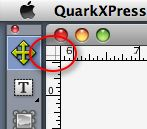
QuarkXPress lets you to drag the origin (zero) point of its rulers to anywhere on your document page. That way, you can measure the location of one item in relation to another.
To restore the ruler origin to its original position, option-click the square where the rulers meet. That’s it!
A Printing Fix for New Printers, or After Upgrading QuarkXPress
One of the more obscure options in Quark’s Print dialog can really help when you have trouble printing to a particular printer — especially after upgrading to QuarkXPress 7 or 8. It lives here:
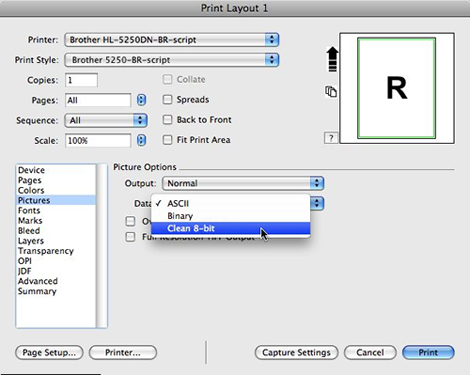
The “Clean 8-bit” Data choice under Picture Options in the Pictures section tells Quark to simplify the data being sent to your PostScript-compatible printer. By default, this is set to “Binary”. If that doesn’t work, try “ASCII”. This sends twice as much code to the printer, which takes longer, but may simplify the data enough to get the job printed.
Scissors Cuts Paper — and Paths
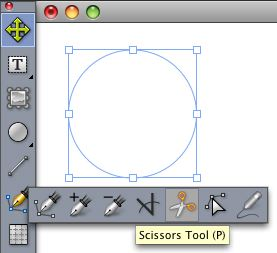
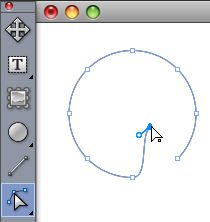
Just click anywhere on a box of any shape, and it will become an open path at that point. Try it with an oval, and then put text on the path!
Preview Changes with the Sticky Apply Button
The Character, Paragraph, Tabs and Rules dialog boxes in QuarkXPress have an Apply button that lets you preview your changes before committing to them. If you’d like to preview your changes as you make them, hold down the Option/Alt key and press the Apply button. This makes the Apply button “stick.” Then, any changes you make in the dialog box will be immediately reflected in your document.
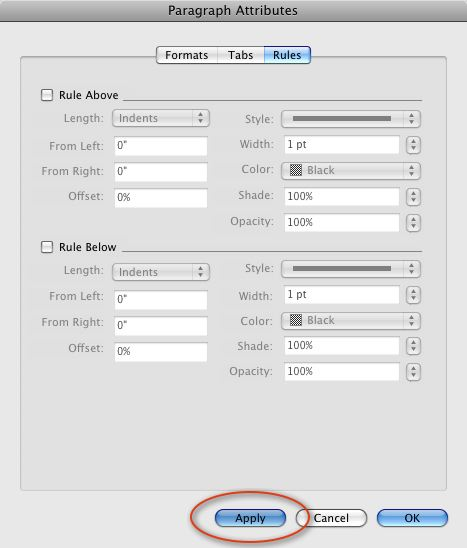
Note to keyboard jockeys: you can also type Command-A to press the Apply button, or Option-Command-A to make it stick. That’s Ctrl-A and Alt-Ctrl-A for Windows users.
This article was last modified on December 17, 2022
This article was first published on June 11, 2009
Commenting is easier and faster when you're logged in!

Recommended for you


App Recalls What Using a Typewriter Was Really Like
A while back, I wrote about an iPad app that simulated the awesomeness that was...
InDesign Magazine Issue 121: Big Design
We’re happy to announce that InDesign Magazine Issue #121 (May 2019) is now...