



Multiple Undo
Quark is late to the picnic on this one, but it finally got there. You can now undo up to 30 actions by several methods including undo and re-do buttons that appear at the bottom of the project window. In addition to the multiple undo capabilities, Quark has added new actions that can be undone, like, Get Picture, Crop to Box, and certain layers features. But not all items can be undone (like adding guides and some master page changes, and the Get Text command), so this isn’t a foolproof feature. But after putting up with a puny one-level undo for so long, even a less-than-perfect tool looks like manna from heaven.
There is an undo history pop-up menu that appears when you click and hold the undo icon (see Figure 5). This tracks the undos and acts as a navigation tool should you wish to go back to a certain step. This allows you to undo multiple actions (but only sequentially). XPress empties the undo history when you close the document, but saving the document along the way does not disrupt the undo history. Redos are also handled in a pop-up menu, so you can redo multiple successive actions. But the labels Quark uses for these menus are pretty simplistic and may not tell you enough to pinpoint a specific action.
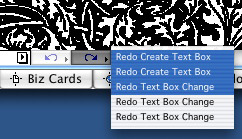
Figure 5: Multiple undo and redo actions are available through simple buttons (as shown by the arrows) or by bringing up a pop-up menu that lists all previous actions. However, the descriptions of these action are rather simplistic, and not terribly helpful as a navigation aid.
Sadly, Quark is beginning to suffer from the “too-many-palettes-and-menus-syndrome” that has cluttered our workspace and is one of the more intimidating things you notice when you first open InDesign. But of course you can turn them all off if you want and work with keyboard or menu commands in most cases.
Enhanced Tables
You’re either a person who uses tables extensively, or you hate them and avoid them at all costs. I’m afraid I fall into the latter category, so some of these improvements are hard for me to judge. The Table Tool was added in version 5.0, which gave very basic table capabilities — a far cry from the advanced table features (extensive enough to be a menu item) of InDesign. In 6.0 you can now link text cells in a table to any text box in an XPress layout and you can link cells to one another. You can also set the tab order of cells, and there are some improvements to the way you format table elements (see Figure 6). It is also now possible to convert tables to a group, and to apply clipping settings and other specifications to a picture imported into a picture cell within a table.
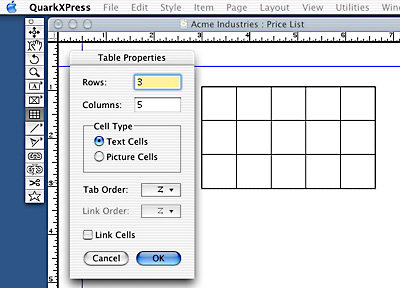
Figure 6: Tables are improved in 6.0, but still considerably behind those of InDesign. Here the Table Properties dialog box asks for only the most basic information. The table creation tool is the multi-boxed item highlighted in the toolbar.
But you cannot flow tables across multiple pages, or import tables from Microsoft Word and Excel (as most table are created in these programs, this is an essential feature and one that InDesign has). And the alternating pattern options Adobe built into InDesign tables is sorely missed here, as is the option of splitting cells horizontally and vertically. Power table users will surely be disappointed with XPress 6.0.
Improved Layers
XPress introduced the layers palette in version 5.0, which allows the grouping of objects into separate layers. Each layer can then be locked, suppressed, hidden, merged, printed, or arranged in front of or behind other layers. This gives you a lot of flexibility in making multiple versions of a document, for example, and brings to XPress the capabilities we’ve grown accustomed to in Adobe products for many years. Neither company allows you to change a layer’s name without opening a dialog box, but they both allow you to delete all unused layers with one click. Unfortunately, you cannot share layers across layout spaces.
In version 6.0, the options for printing various layers has been improved, and you can now firmly lock a layer so that no changes can be made, regardless of the locking status of each individual item on that layer (see Figures 7 and 8). You can also easily select all items on a layer through the layers palette context menu and make global changes.
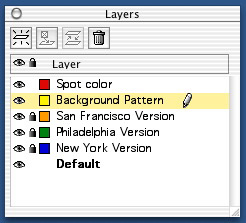
Figure 7: Layers are well executed in XPress, and can be locked, suppressed, merged, etc. through the Layers palette. But you cannot copy layers between documents in a project.
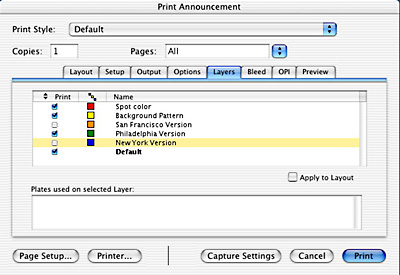
Figure 8: You can choose to print only certain layers right in the print-dialog box, which is handy for proofing and versioning.
By combining synchronized text and multiple layers, designers can create much more flexible documents of the kind that change often or have multiple versions. I think Quark missed some innovative interface options, though, that might have broken new ground in how we visualize the interconnectivity of versioned and linked text.
This article was last modified on January 18, 2023
This article was first published on July 8, 2003
Commenting is easier and faster when you're logged in!

Recommended for you

FontShop Announces the Winners of FontHunt2005
New York City in July – with TypeCon2005 in town and mayor Michael Bloombu...

New Contest! The Riddle of the Ring
Solve this InDesign mystery for a chance at winning a great prize.

How to Set Up Document Bleeds for Printing
Learn how to set up a document with a bleed, which is needed for printing design...