



Most people would like to see a preview before opening an InDesign file to make sure they’re picking the right document. InDesign has had the ability to save previews with its files for several versions, but only of the first page of documents (or all pages of a template).
Wouldn’t it be great to preview some of the other pages in an InDesign file before you open it? You can now in InDesign CS5?if you have set your preferences to do so ahead of time. You can do this in InDesign’s File Handling preferences shown below.
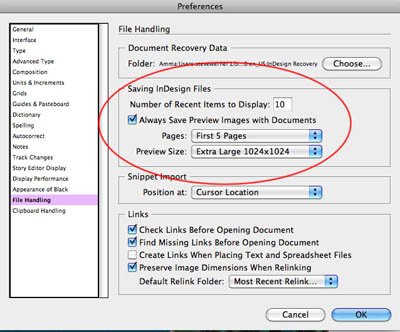
File Handling Preferences
Make sure you check Always Save Preview Images with Documents. Then choose how many page previews you want to save (First Page, First 2, 5 or 10 Pages or All Pages) and the size of the Preview (from the small to extra large). The default is the first 2 pages and 256×256 pixels.
Where can you see these previews? Adobe would like you to use Adobe Bridge, its file previewing and management application which comes with InDesign and the Creative Suite. So the page previews can be viewed in Bridge’s Preview panel. The quality and number of pages you can preview will depend on the settings you chose when you saved the file. Click the arrows below the preview or enter a page number to choose from multiple pages.
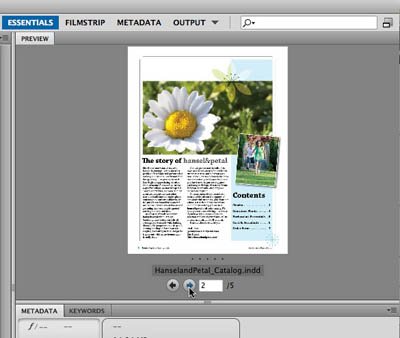
Bridge Preview Panel
So this should work in InDesign CS5’s spiffy new Mini Bridge panel, right? Sadly, no, you can’t preview more than the first page in the Mini Bridge panel. (If you’re not seeing a Preview Pod in Mini Bridge like you see below, select it from the Panel View menu at the top.) However, if you want to see more than the first page, you can right/Control-click the file in the Content panel of Mini Bridge and choose Reveal in Bridge. This will quickly switch to Bridge and open with that InDesign file currently previewed.

Mini Bridge Panel
What if you would like to preview your InDesign files outside of Bridge? I must confess that while I use Mini Bridge and Bridge sometimes, I also spend spend a good deal of my time working outside of Bridge. I’d like to see InDesign previews when I’m working at my Desktop, in the Open dialog, or perhaps even when in another application like Apple Mail, and selecting a file to attach to an email. But Adobe doesn’t provide this capability at all.
I work on a Mac, and my choice for doing this is by using an indispensible utility called SneakPeek Pro. I wrote about this a few years ago. Not only does it preview InDesign files, but also Illustrator, Adobe Swatch Exchange, EPS and Freehand files. Fortunately, in May Code Line Communications, the creators of SneakPeek Pro, released an update which supports InDesign CS5, and supports preview for multiple pages in InDesign CS5 and some Illustrator (PDF Compatible) documents. It makes use of the QuickLook technology built into Leopard and Snow Leopard versions of Mac OS X. It previews like the example below?in the Finder, dialog boxes and other applications.
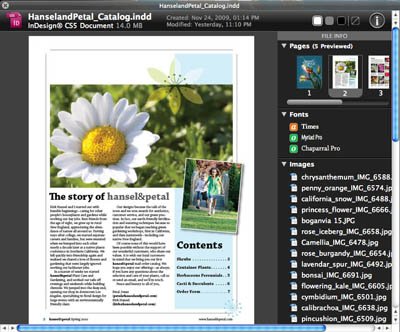
SneakPeek Pro
Notice the option to select a preview from multiple pages at the upper right. You can also view the automatically saved InDesign metadata for fonts, placed images, and swatch colors below that. And you have settings for controlling which metadata previews as well.
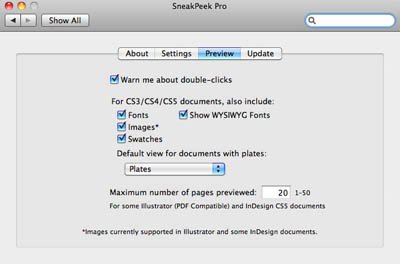
SneakPeek Pro Preview Options
For me, this is one of the few indispensable utilities I always have installed. The utility installs as a Preference Pane, and costs $19.95 with a free 15-day demo. I have no idea whether such a utility exists for Windows, but I’m sure that my readers will quickly let us know if it does!
ADDENDUM
Since F vd Geest added a couple comments about the quality of type in a saved InDesign preview, I thought this was the best way to show you my results. Below are screen captures of one of the pages I illustrated above, enlarged as large as I could make it to show the font quality. The size of the type (using the Magnifier in Bridge to see it larger) is 14 point.

Type Quality Shown in Bridge

Type Quality Shown in Sneak Peek Pro
I set the resolution of saved previews to 1024 x 1024. I’m viewing this on a MacBook Pro with Mac OS X 10.6.4. Perhaps others can relate their experiences with the quality of InDesign Previews to clear up this mystery.
This article was last modified on December 20, 2021
This article was first published on August 14, 2010
Commenting is easier and faster when you're logged in!

Recommended for you
Formatting Numbers and Fractions
If your numerical figures are looking off, you may need figure styles! Nigel Fre...

Diagonal Headings in InDesign Tables
Making headings in a table appear diagonally isn't that hard, but you have to us...

How to Quickly Navigate a Long Document in InDesign
Learn how to quickly navigate around a long InDesign document, by creating bookm...