



It is always frustrating when a table formatted in InDesign needs to have its contents changed for whatever reason. Take for instance the following table that has largely been created with table and cell styles with the exception of the yellow rows.
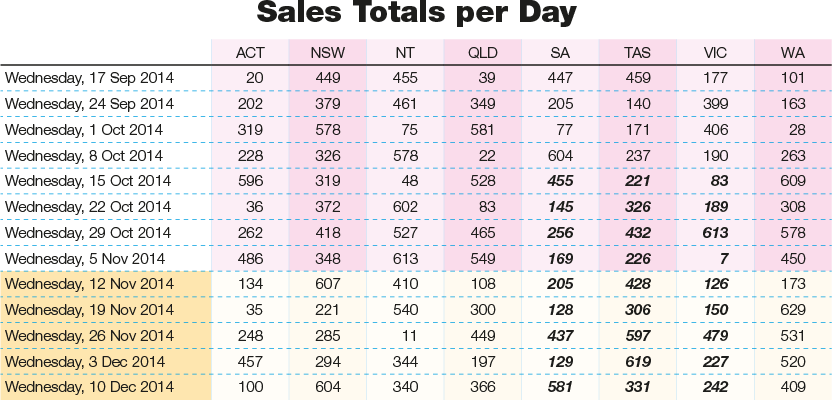
Unfortunately, the data in the table is incorrect and needs to be replaced with a newly supplied Excel file. The amount of rows and columns are the same, so it should be a matter of placing the table into InDesign and cutting and pasting the data, shouldn’t it?
Let us try what looks like the easiest solution: cut and paste directly from Excel over the top of the old figures. The header row is the same, so only the changed cells are copied from Excel and the same selection is made in InDesign and pasted. Did it work?
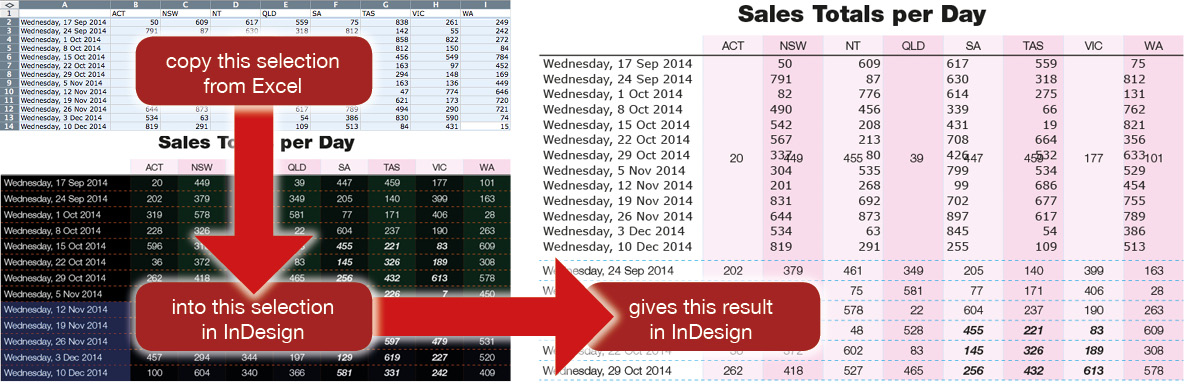
No… instead the data has pasted as a table with the first table cell. What about instead of paste, we try using the paste without formatting option instead? No… the same thing happens.
New strategy. Paste the data into a new text frame into InDesign, then copy and paste the data from there. Did that work?
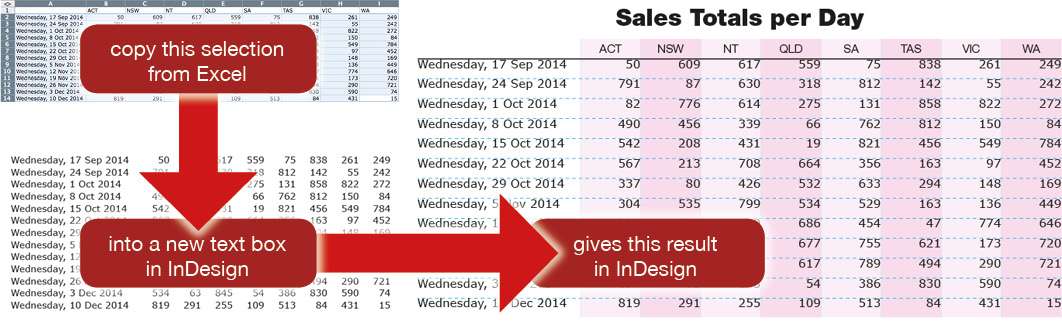
It pasted, but the formatting of the text in the table has been lost, and some colors in the table have changed. How about the paste without formatting option? In this instance, nothing is being pasted!
Solution 1: Change a key preference
Let’s go back a few steps and try copying the data from Excel again, but before pasting the data into InDesign, change a key preference from the Clipboard Handling section of the Preferences dialog box. For the option When Pasting Text and Tables from Other Applications, make sure Text Only is selected, and click OK.

It worked! The numbers have changed while the table formatting remains the same.
However, there is a consequence of changing this preference: from this point forward until the preference is changed again, any text that is copied and pasted from another application will be pasted as text only, and that isn’t good if you want to maintain formatting for other items that will be copied and pasted in the future, so you might want to reset the option back to All Information.
Solution 2: Change an import option
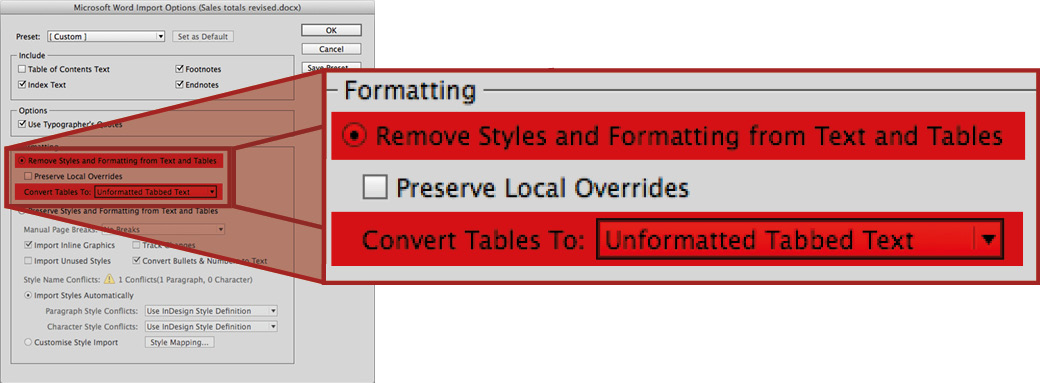
Another solution lies in placing the Excel file into InDesign rather than copying it. For this method, select the file using File/Place, making sure Show import options is turned on, and click Open. In the new dialog box that appears, particularly in the Formatting portion, look for the Table: dropdown and select Unformatted Tabbed Text and click OK.
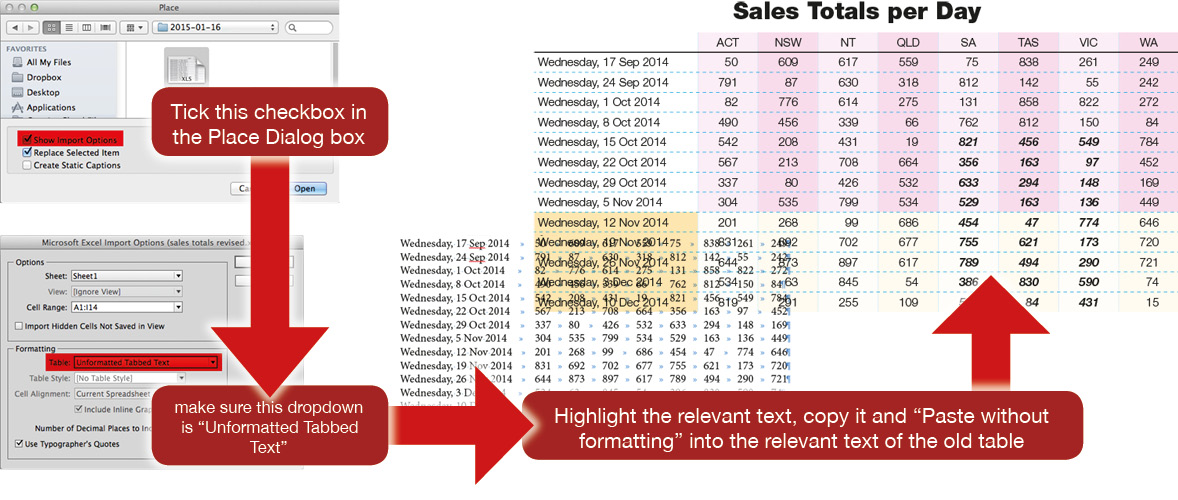
Note that only the text has been copied and nothing else – the column strokes have been replaced by tabs, and the rows have been replaced by returns. The text can be placed as a new text frame and its contents copied. From here, highlight the same selection to change and use the Paste Without Formatting option.
This will also work if the table was supplied in a word file, the import option just looks a little different.
But this last method involves taking in a whole file, when only a portion of the chart needed to change. This is inconvenient if the table is only a small part of a much larger Excel file.
Solution 3: Copy to a text-only editor
My favorite solution does not rely on InDesign preferences being changed, nor does it rely on importing a complete file. Instead, it works by pasting into a text editing program first. So once again, the text will be copied from Excel, but this time the data will be pasted into a text editing program – in this instance, a Mac application called TextWrangler (one alternate Windows application would be Notepad).

Again, note that only the text has been copied and nothing else. Select the text in the text editor, copy it, return to InDesign, select the cells to be replaced, and hit paste. Voila – Success!
As a bonus
The other good news is that this method works from table contents that have been cut and pasted from Word, Excel, Web pages, or tables that are already in InDesign.
The catch
Unfortunately, this method too has its drawbacks, including the fact that type being copied must:
- Be in a table where the cells being copied/pasted don’t contain merged cells;
- Not contain any tabs, soft returns, or hard returns.
Why not linked tables?
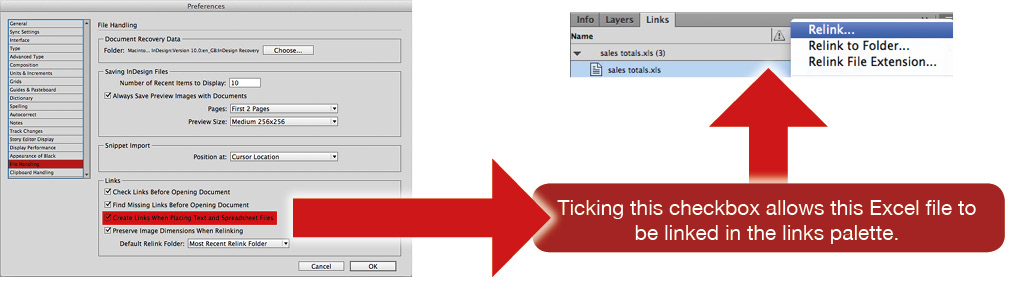
It is worth noting that using the File Handling Preference of “Create Links When Placing Text and Spreadsheet Files”, the tables can be updated from one file to another, provided the tables in InDesign are properly formatted using table, cell and paragraph styles.
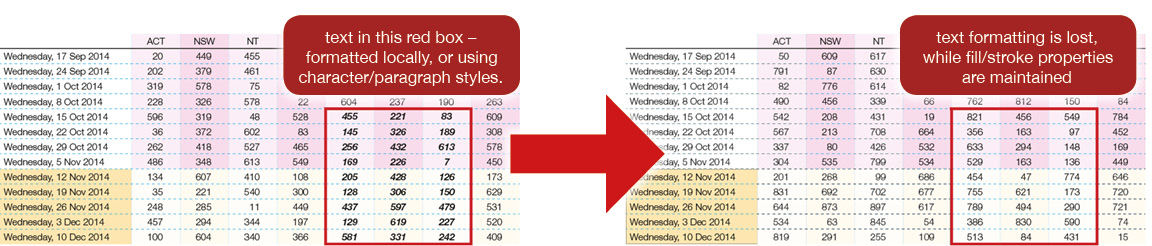
Take the bold italic type for example. In the first instance, the type is formatted using a character style. Once updated, the style is lost. The same is true if the type were formatted with a paragraph style, or locally styled. The left-hand side show the table before updating the link, and the right hand side after the link is updated.
However, if the cells that contain the text are formatted with a cell style that contains the appropriate paragraph style, then the formatting remains.
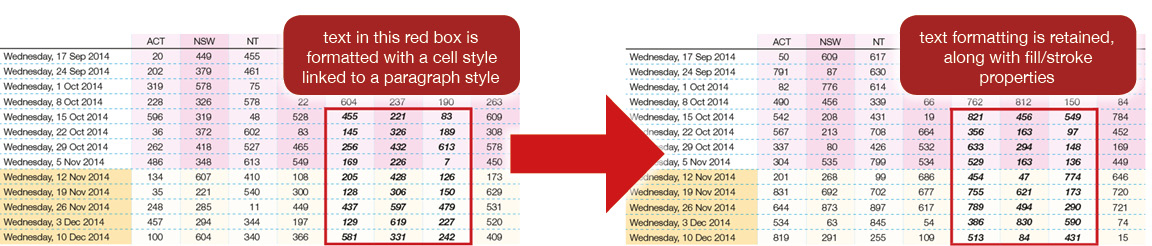
It appears that this affects only the text, given the yellow fills in the table are locally formatted (i.e. not part of any table or cell style).
However, this requires very strict styling rules be maintained, and that the file taken in originally had no manipulations made to it apart from its appearance (e.g. no destructive changes such as deletions made while in InDesign). It is also inconvenient if only a portion of an Excel file contained a relevant table that had to be imported into InDesign. It is for this reason that I think this solution would not be very effective in most real-world situations, but is still worth mentioning.
This article was last modified on July 25, 2019
This article was first published on January 23, 2015
Commenting is easier and faster when you're logged in!

Recommended for you

How to Reverse a Numbered List in InDesign
If you ever need to reverse a numbered list in InDesign, (reversing either the l...
Adjusting Text Spacing With Keyboard Shortcuts
Here’s a little productivity tip to try out: Give the Control panel a rest and u...
InQuestion: List Lines, Running Headers, and Table Cells
Erica Gamet highlights the best Q&A from the incredible InDesignSecrets Facebook...