



A colleague recently asked me how to import 200+ Word files into one threaded story within InDesign. By default, InDesign will allow content from each file to be placed into its own frame, but not into the same frame, and this came as quite as a surprise. Regardless of which import technique you use, or which buttons you hold when placing text, InDesign will only place one story into a frame. True, the text can be placed into a document and then threaded by hand afterwards, but this is inconvenient, especially when you have hundreds of text frames to thread together. So to accomplish the task, we need a little help from a script. Here are two options.
Solution One: The Place Docs Script by Peter Kahrel
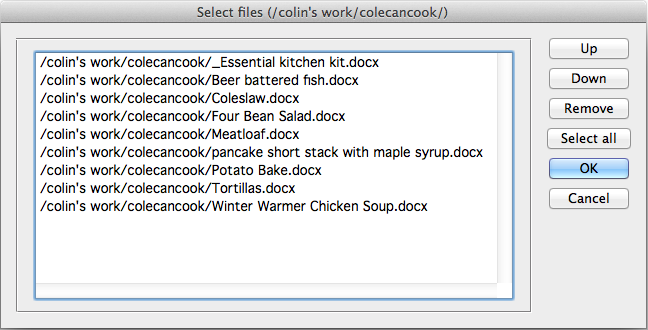
This script certainly does the trick, and Peter’s site describes how to use the script better than I could here. In a nutshell, the script provides a user interface that allows you to select a set of Word files, shuffle them into sequence, and then place them into a single InDesign story.
Solution Two: The Merge Textframes Script by Justin Putney
This script requires that you first place all the Word files into an InDesign file. Before trying this technique, make sure:
- The last line of each Word file is a paragraph return on its own; and
- All the fonts used in the Word files are loaded (or you should be prepared to face multiple font-warning prompts)
- The Show Import Options checkbox is turned off when placing files (or again, be prepared to face multiple prompts)
- You are aware of the order that the files will be placed. In this instance, the files were placed alphabetically.
Begin by creating a new InDesign file with a large page size (e.g. A1 size). Don’t worry—this won’t be the final file. It will just be a place to collect all the text so it can be taken into another file.
Place all the Word files using either File > Place (Command+D/Ctrl+D), or drag/drop them into InDesign so that the placegun is visible. From here, hold the left mouse button and drag a large text frame. While still holding the left mouse button, use the right and up arrow keys to invoke InDesign’s Gridify feature to make an array so that each story is placed into its own smaller text frame.
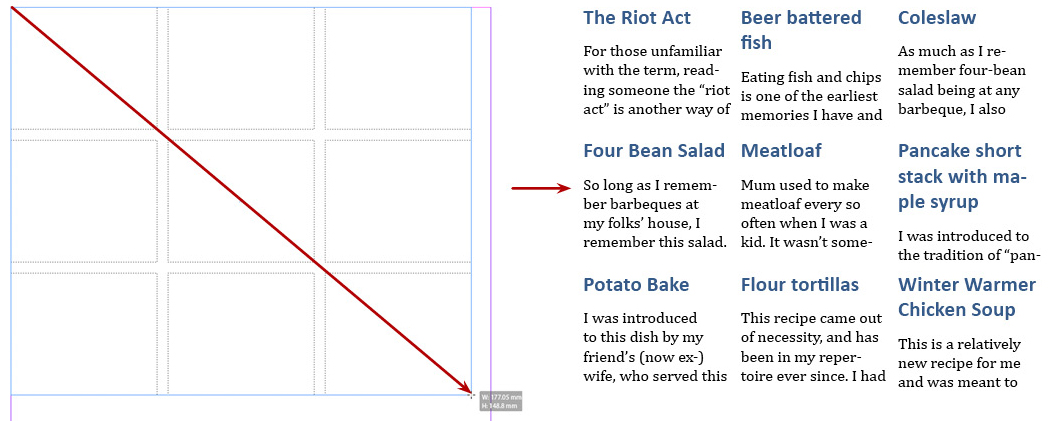
Then, select all of the text frames and run the Merge Textframes extension/script using the following presets:

All the text will now be in one text frame. With the Type tool, press Command+A/Ctrl+A to select all the text and copy it into an appropriate file for further formatting.
While this example only merges nine Word files, the technique works just as well with many more files.
This article was last modified on June 2, 2022
This article was first published on October 16, 2014
Commenting is easier and faster when you're logged in!

Recommended for you

InReview: MagicTints
This InDesign add-on makes it easy to add a quick color tint to a photo or magic...

InDesign Magazine Issue 126: Charts and Graphs
We’re happy to announce that InDesign Magazine Issue #126 (October 2019) is...
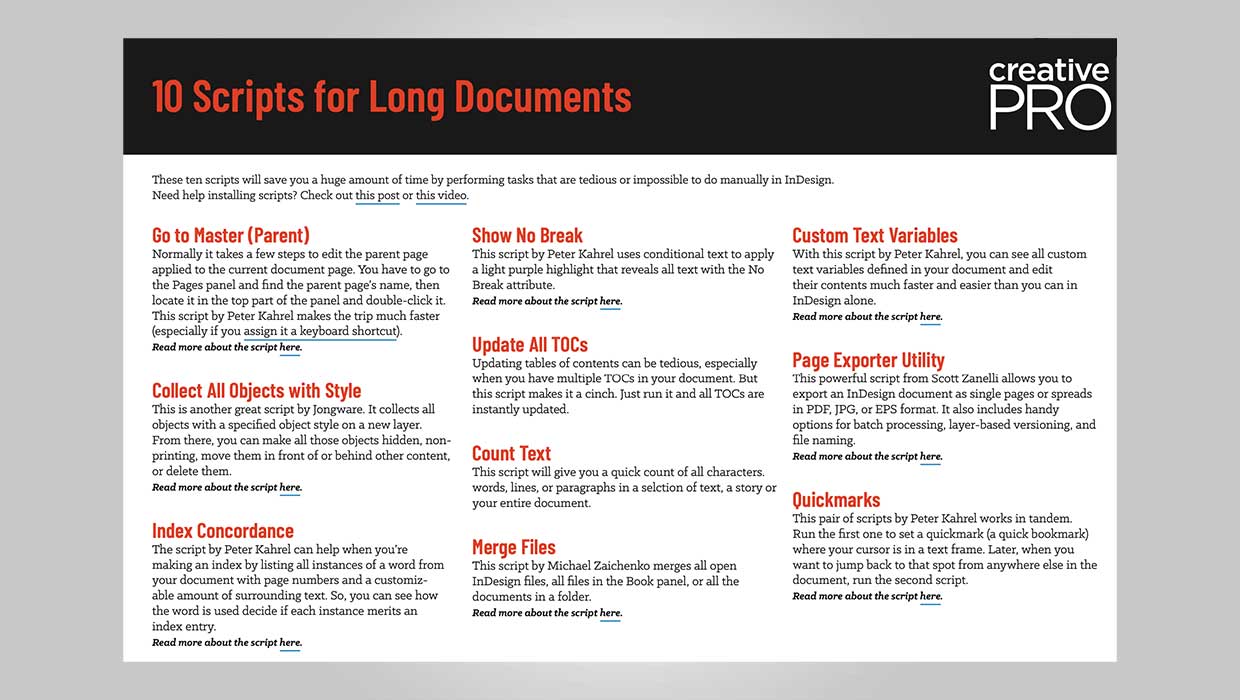
InDesign Downloadable: Long Document Scripts
Ten scripts that can save you a ton of time on common long-document tasks in InD...