


Photoshop How-To: Easier Transformations



These video tutorials are from
“Photoshop CS2 Essential Training.”
Say you want to straighten a photo of the Empire State Building that looks more like the Leaning Tower of Pisa. You could open the image in Photoshop and go to Image > Rotate Canvas > Arbitrary and then guess at the correct angle. But why go through that when Photoshop can calculate the precise angle of rotation with its Measure tool?
Or maybe you photographed an artist’s print at an angle, and now you need a straight-on shot of the work. Don’t go back to the gallery — Photoshop’s Crop Tool has a Perspective feature that will complete the transformation for you (Figure 1).
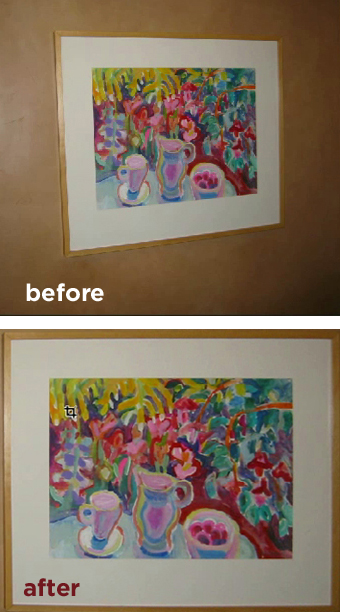
Figure 1. You can crop and correct perspective at the same time.
These videos are QuickTime movies. You can download the files by option- or right-clicking on the links and saving the “.mov” file to your hard disk. Or you can simply click the following links to play them:
1. Straightening Crooked Images (7.8 MB)
2. Cropping and Straightening Photos Automatically (4 MB)
3. Correcting Perspective with the Crop Tool (7.6 MB)
If you do not have QuickTime installed, you can get it here:

Excerpted from “Photoshop CS2 Essential Training” © lynda.com. ALL RIGHTS RESERVED.
This article was last modified on January 4, 2023
This article was first published on February 26, 2007
Commenting is easier and faster when you're logged in!

Recommended for you

Scanning 101: No More Moiré
In your career as a graphics pro, sooner or later you’ll encounter a moiré...

Reducing the total ink limit in CMYK images using Photoshop
Having too much total ink in your CMYK document is a pretty common problem. Sure...
Scanning Around With Gene: Stuff I Miss About Photography
For my thirteenth birthday, my father gave me a “junior darkroom” kit and taught...