


Photoshop How-To: Blur a Picture to Bring It Into Focus


This excerpt courtesy Mark S. Johnson Photography and Radiant Vista
Sharpness in a photo can be too much of a good thing when a sharp background distracts the viewer from your intended subject in the foreground. By blurring the background using one of two techniques (one basic, the other advanced), you’ll change the apparent depth of field and make your image more effective.
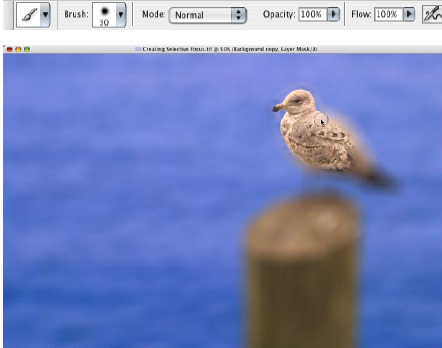
A busy background originally competed with the gull.
To get you started, the author has supplied a sample photo just right for these techniques. Click on the link below to save the image to your computer.
We’ve posted this excerpt as a PDF file. To open the PDF file in your Web browser, click “Selective Focus.” You can also download the PDF to your machine for later viewing.
To open the PDF, you’ll need Adobe Acrobat or Adobe Reader. To download Acrobat Reader click below:
 .
.
To learn how to configure your browser for viewing PDF files, see the Adobe Reader tech support page.
Note that this excerpt is part of a larger ebook on photographic techniques. For more about the Photographer’s Photoshop CS2 Companion, see Mark’s bookstore.
This article was last modified on January 3, 2023
This article was first published on May 15, 2006
Commenting is easier and faster when you're logged in!

Recommended for you

Using Photoshop’s Generative Fill to Remove Objects
Learn how to simply remove items from an image in Photoshop, without extra conte...

How to Adjust Colors Using Photoshop’s Contextual Task Bar
Learn how to use the Photoshop Adjust Colors feature to make quick, non-destruct...
How to Turn a Photo into Graffiti in Photoshop
Create a spray-painted masterpiece in Photoshop with Steve Caplin.