



I just got home from the Seattle InDesign Master Class conference. What a great week!
My last session on Wednesday was a class entitled “Illustrator for InDesign Users.” It was fun. I got to show off my favorite Illustrator effects and then show how they could be copied into InDesign.
One weird thing happened, though, that I thought I’d report to you all.
During the class I said that you shouldn’t apply both a fill and a stroke to an object in Illustrator, or it will paste into InDesign as two objects; one for the fill, the other for the stroke.
Scott Citron, who was auditing the class, checked it out and told me that it wasn’t true. He could copy and paste a fill and stroke object without creating two objects.
So what was the problem?
Turns out that an Illustrator object that contains a simple fill and stroke will appear in InDesign as a single object. But if you apply any effect or if you move the position of the fill or stroke in the Appearance palette, you will get two objects.
Obviously I’ve been working with objects that were modified in the Appearance palette and never realized that was the cause of the two objects in InDesign.
This article was last modified on December 18, 2021
This article was first published on November 11, 2006
Commenting is easier and faster when you're logged in!

Recommended for you

Eliminating the White Box Effect
One of the most common complaints of designers or print service providers when p...
Secrets of the Control Panel Revealed
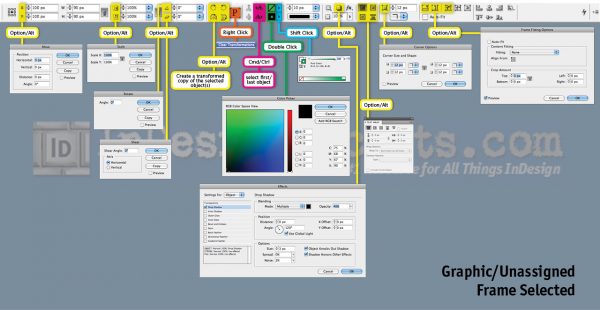
The Control panel is teeming with hidden shortcuts to other panels, preferences,...

I Should Have Known That
Sometimes you learn something that is new to you, but obvious to others. I compi...