



Shawn wrote:
Is there a way to get paste into to place an image in exactly the same relative position as the frame it came from? (same X/Y coords), not centered in the new frame?
This question didn’t come from our In Box, but rather as a comment at the end of this post regarding the Paste Into feature. It’s an excellent question, and I had to bang my head on the desk a few times before I came up with a solution. It seems like it should be easy. Why is there no option to “remember offsets when using paste into”? But there doesn’t appear to be such a beast. So, we must rely on a workaround. (If someone can show me an easier way, please do… maybe I’m just being blind!)
Here’s what you can do if you want to cut or copy an image from one frame and paste it into another frame with the same offsets: First, don’t cut the image with the Direct Selection tool as you normally would; instead, cut or copy the whole frame. Now, paste it on top of the frame in which you want to put the image, select both frames, and use the Align panel (or better, the Align buttons in the Control panel) to align the top and left edges of the two frames. Finally, choose Object > Pathfinder > Add to merge the two frames together. It sounds really slow and clunky, but it actually doesn’t take long at all once you get the hang of it.
(Actually, Pathfinder > Add — which you can also find faster in the Pathfinder panel — only makes sense if the old frame is smaller or the same size than the new frame. If it’s taller or wider, then you may want to use Intersect instead. Or just resize the old frame before using pathfinder.)
This article was last modified on December 19, 2021
This article was first published on September 17, 2008
Commenting is easier and faster when you're logged in!

Recommended for you
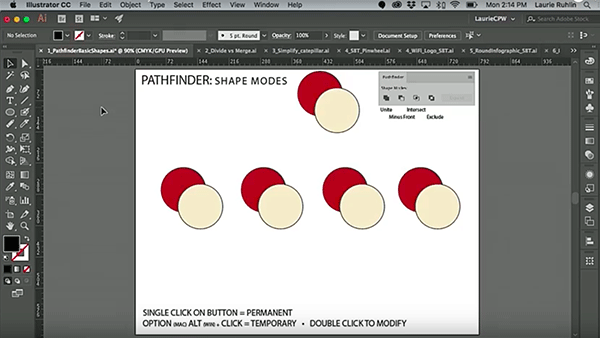
CreativePro Video: Illustrator’s Pathfinder Panel
In this week’s CreativePro video, Laurie Ruhlin takes the mystery out of Illustr...

InDesign How-to: Make a Mondrian-inspired Grid
Learn how to make your own modern art masterpiece with the Gap tool, the Pathfin...

Turn Off Spell Check for Certain Words in InDesign (like catalog part numbers)
How you can make InDesign skip certain pieces of text when checking spelling