


PageMaker's Lucky Number 7


PageMaker was the first cross-platform desktop publishing program and its huge user base is a testament to its continued popularity with both graphic designers and businesspeople, despite its aging feature set and interface. Many of its early users seeking more professional features have long since migrated to QuarkXPress or, potentially, Adobe InDesign. When Adobe announced it was updating PageMaker, some page-layout watchers wondered why. The good news is that users who are comfortable with PageMaker will find some welcome enhancements in version 7. Others looking for a great leap forward will be disappointed.
The improvements in version 7 concentrate on tighter integration with other Adobe products, a wider range of import and export filters, and the ability to merge data from external sources, such as text and graphics stored in spreadsheets or databases, to create form letters, mailing labels, and direct-mail pieces. These features, especially the powerful Acrobat PDF output features, make this an essential, if unspectacular, upgrade for all PageMaker users.
Family Harmony
Despite these advances, at heart you’ll find PageMaker’s familiar face is unchanged. It uses the same graceless, non-configurable menu/toolbar interface and wads of palettes that refuse to roll up to save screen space as they do in Photoshop. However, you can now drag and drop (or Place) both Photoshop and Illustrator files, complete with layer preservation.
The image import improvements are welcome. Up until this version, getting files in and out of the program has been a dubious and annoying proposition. For example, despite being an Adobe program, PageMaker 6.5 couldn’t import Photoshop or Illustrator files, which required that I keep copies of both the native files and importable TIFF or EPS versions for all images I wanted to use in a document. The downside is that if I wanted to make any changes to the image, I had to go back into the original program, alter the file, then resave it as an acceptable format for re-importing into PageMaker.
PageMaker 7’s image import is designed to fix that problem by allowing you choose between embedding an image or linking to the actual Photoshop pr Illustrator file. Unfortunately, we found a juicy bug in version 7 — instead of linking to layered TIFFs created in Photoshop 6, PageMaker embedded the files. I started creating a four-color book composed of 225 layered TIFF files but noticed that after placing two of the figures, saving the document was taking minutes instead of seconds. No wonder: The file size at that early stage was 70 MB! I ended up having to return to Photoshop to flatten all the image files to get PageMaker to link to the external artwork.
For PDF Mavens
In the last few years, Adobe’s PDF file format has become the medium of choice for sending files to commercial typesetting houses; creating forms for distribution inside companies or over the Internet; and more recently, for deploying e-books. PDF support is a checklist item for members of Adobe’s product family, and PageMaker is no exception. But it surpassed my expectations. PageMaker’s PDF support is magnificent. I especially like the intelligent PDF import feature, which let me choose which pages in the document I want to import, set the color depth and resolution, and limit the import to the content area (see figure 1).
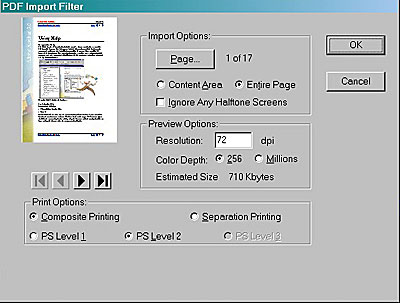
Figure1: Importing PDF files into a page layout couldn’t be easier with PageMaker 7’s new Place PDF dialog box.
Adobe also did a fantastic job with PageMaker’s PDF export options, as you can see from the accompanying screen shots. The five tabs in this dialog box present just about every tweak you can think of. From the General tab, you can set printing parameters and change Distiller’s job options — very convenient (see figure 2). The Doc[ument] Info tab lets you add author, title, and keywords, as well as a cover page note — nice when you are in a workgroup setting (see figure 3).

Figure2: The General setting in PageMaker’s PDF export options dialog box let you control many aspects of how a page layout is converted to PDF.

Figure3: The Doc info tab lets you apply authorship, keywords, and other useful descriptions to a file exported from PageMaker to PDF.
The other tabs reveal similarly useful tools. For instance, if you are designing a document for multi-purposing, you can use the Embed Tags options to preserve paragraph attributes, making it easier to read documents with hand-held devices. If you have added hyperlinks to your document, the Hyperlinks tab provides settings for their appearance and will export table of content or index links, as well as internal and external links. And if you’ve set bookmarks and wish to generate a TOC or index from them, you can do so From the Articles/Bookmark tab, and from here, you may also define and export articles based on PageMaker stories. The final tab, Security, contains the same settings available in Acrobat, namely passwords for opening and editing and permissions for printing and editing. Finally, all these settings may be saved as a PDF style for reuse later.
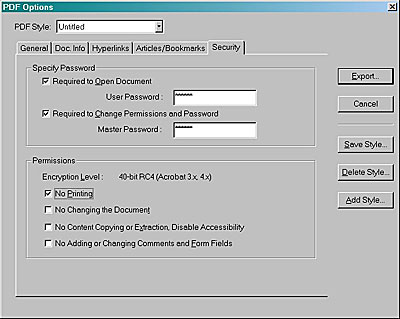
Figure3: PageMaker 7’s full-featured PDF support also allows you to add passwords, encryption, and other layers of security to a file.
PDF import and export may not be a must-have feature for every PageMaker user, but while I was testing version 7, I created three four-color books for both press and PDF publication with PageMaker. I cannot overstate the convenience and quality of its PDF output.
Beyond PDF? Well…
Apart from its PDF support, version 7 is little more than an interim upgrade — most of the irritants from previous versions weren’t addressed, and they spoil an otherwise smooth production. For example, there’s only a single Undo and even that only works for certain commands.
Another shortcoming is that there’s STILL no integrated table editor. Why can’t this program automatically update changed artwork like FrameMaker does? There’s no excuse for the Link error message to appear at print time without also providing an option for updating outdated links. FrameMaker also has a smart cursor that knows whether it’s over text or graphics so there’s no need to constantly switch between two selection tools — PageMaker should pick this trick up as well. And you still can’t edit across pages without resorting to the clunky Story Editor — bah!
Despite these drawbacks though, we love PageMaker’s flexible layout tools and find the program invaluable for developing publications heavy with Adobe graphics. Case in point: Remember the four-color book I mentioned earlier, the one with 255 images? To produce the book in Quark, I have to create a box for each of the figures — tedious work — and I can’t import Photoshop files directly so I still have to convert images. FrameMaker choked over the size of the images. InDesign’s meagre layout tools made
page construction and layout a real chore (although we’ll see what InDesign 2 has to offer). PageMaker 7, on the other hand, set up the books and printed to PDF without a hiccup.
This article was last modified on January 3, 2023
This article was first published on December 4, 2001
Commenting is easier and faster when you're logged in!

Recommended for you

Book Excerpt: Typography Essentials
Ina Saltz shows how to make use of case, leading, images, and more to create bea...

The Bookbuilder’s Almanac
For almost two decades, I made a living making books. Over the years, just about...
dot-font: Tippling with the Titans of Type
dot-font was a collection of short articles written by editor and typographer Jo...