




If you’re familiar with Adobe Illustrator, InDesign’s Tools palette should look very familiar. However, you may wonder about that tiny “T” just under the Fill and Stroke icons. That button changes formatting from affecting the container (XPress users think “box”) to changing the text.

Figure 1
First select the text frame with either of the Selection tools. Then click the Text Formatting icon. A large T in the Fill or Stroke area indicates you can change the text attributes. Any changes you make to the character or paragraph attributes will be applied to all the text in the text frame. You can also change the color of the text by choosing a new color in the Color, Gradient, or Swatches palettes.
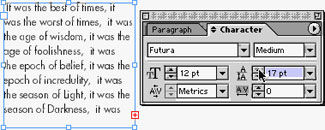
Figure 2
Note: The Text Formatting icon is disabled if you select a text frame that is linked to another frame.
Read more On the Move to InDesign tips here.
Read more by Sandee Cohen.
This article was last modified on March 10, 2025
This article was first published on February 27, 2002
Commenting is easier and faster when you're logged in!

Recommended for you
Make Headings Span Across Multiple Columns in InDesign
Master InDesign’s Span Columns feature with Pariah Burke.
Create Flawless Fractions with OpenType
Choose your font carefully if you need flawless fractions!

Using 3D in Affinity
Create rotatable 3D objects using Affinity and Canva AI with Steve Caplin.