



Need to have something visible on screen in an interactive PDF but not printable? Here’s a quick and easy way to do it.
Select the object and convert it to a button using the Buttons and Forms panel.

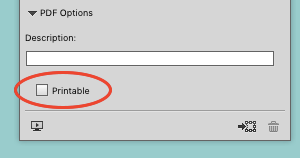
Then with the button still selected, go to the PDF Options in the panel, and deselect Printable. You might have to expand the panel first by clicking the triangle next to PDF options.
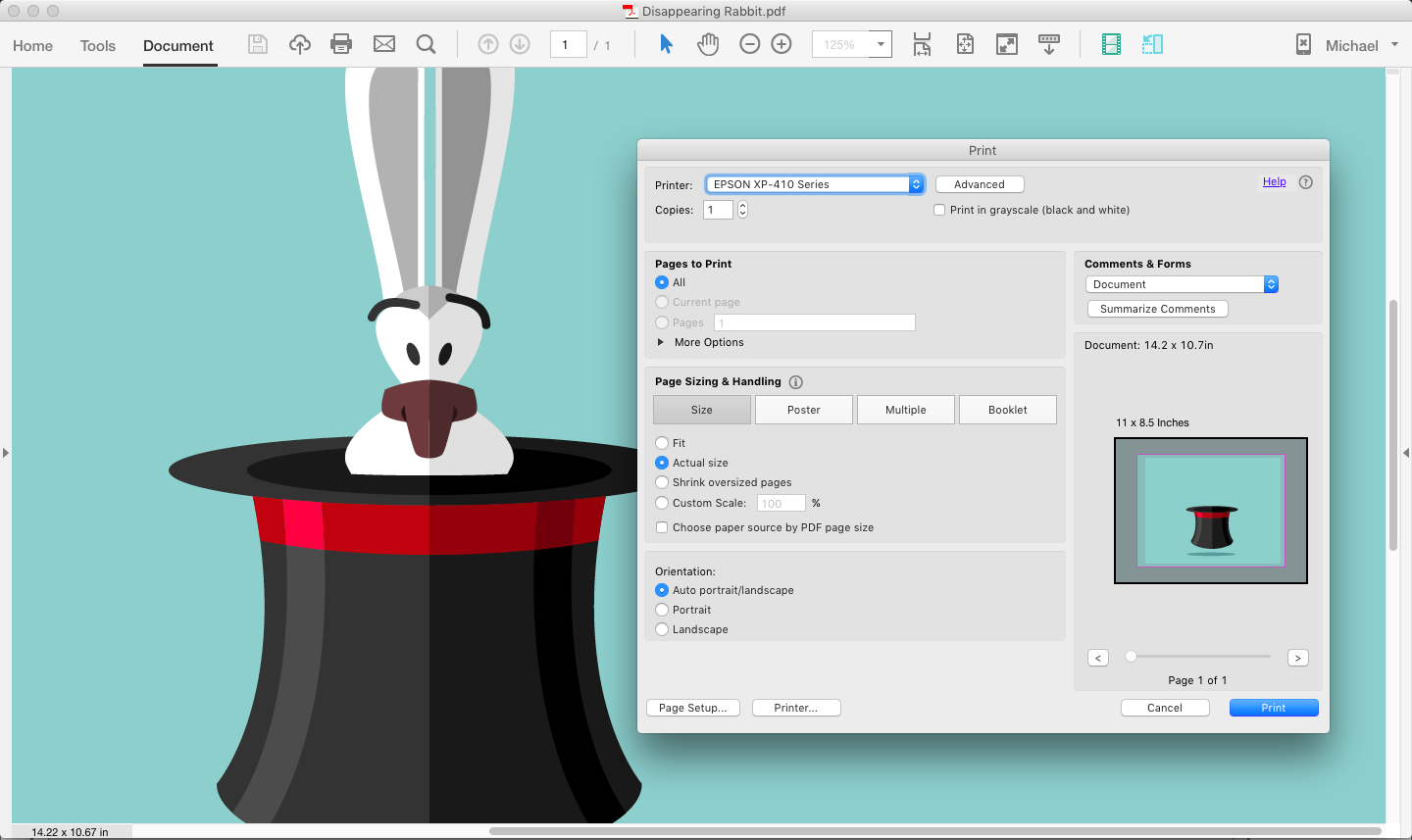
When you create the interactive PDF (this trick won’t work with a print PDF), the object will be visible on screen but won’t print. Notice the print preview in the screenshot below where our long-eared friend is gone.
See also: PDF Button Tips, Tricks and Problem Solving
Tip of the hat (sorry couldn’t help myself) to Bob Levine for this cool technique, which he shared over at the InDesign User Forums.
This article was last modified on August 8, 2019
This article was first published on October 8, 2015
Commenting is easier and faster when you're logged in!

Recommended for you

InDesign How-to Video: How to Redefine Text Styles
In this week’s InDesignSecrets video, Anne-Marie Concepción shows us how to styl...

InDesign Magazine Issue 119: Women in Design
Issue 119 of InDesign Magazine is our Women in InDesign special issue in honor o...

Printing and Exporting Alternate Layouts
The Alternate Layouts feature in InDesign CS6 is cool, but it does make some thi...