




As I’ve written about before, creating folds for printing is sometimes a challenging process. If you’re creating a trifold brochure, for example, in previous versions of InDesign, you’d need to manually calculate the widths of the inner and outer panels, and create the layouts for each side of the brochure by creating guides and fold marks precisely to the correct dimensions of the inner and outer panels. As any printer will tell you, designers often create folding layouts incorrectly, and they have to get fixed before they go on press.
Manually Creating Folds in InDesign CS5
InDesign CS5 has some new folding tricks up its sleeve to make the process a bit easier. I’ll make use of the Multiple Page Size feature I wrote about earlier (here and here), plus I’ll make use of a couple of other features that haven’t gotten much attention?Color Labels for the Pages panel, and InDesign CS5’s new ability to create fold marks on output. However, if your folding needs are more demanding, you may still want a more professional and efficient solution.
1. You’ll still need to calculate the exact dimensions of each panel for the outside and inside of the printed piece. I chose these dimensions for my trifold brochure on a letter-size page:
Inner Panel – 3 – 10/16″ or 3.625″
Outer Panel – 3 – 11/16″ or 3.6875″
The width of the panels depends on the thickness of the paper; check with your commercial printer for their recommendation.
2. Create a new document. I created six pages (one for each panel), and I set the page size to be the dimensions of the outer panel. I also turned Facing Pages off so I’d have more control over moving the pages.

New Document
3. This creates six pages, each on their own spread. In the Pages panel menu, deselect Allow Document Pages to Shuffle. Then drag the pages to create three pages for each side of the brochure?one for each panel.

Drag Pages to Spreads
4. You’ll need two master pages. The one for the Outer (wider) panel is already created, but is named “Master A”. Select that master, and, using the Master Options command in the Pages panel menu, rename the master “A-Outer Panel”. So that it will be easier to see which panels (pages) are outer or inner, also choose Color Label from the Pages panel menu and give the master (and its child pages) a color.
5. Create the second master by choosing New Master from the Pages panel menu. Give it the name “B-Inner Panel”, and also assign it a different color.
6. View “B-Inner Panel” master. Select the Page tool and click the master page. Using the Control panel settings, make this Inner Panel 3.625″ wide.
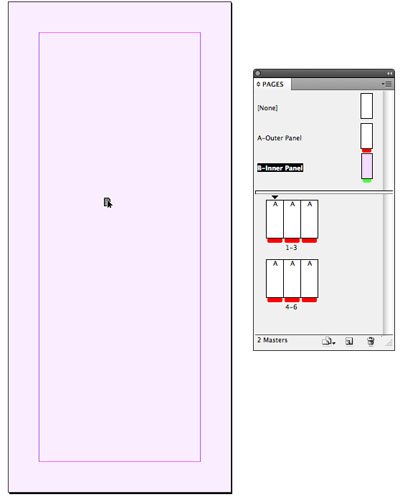
Make Inner Panel Master
7. Drag the “B-Inner Panel” master over the left-most page on the brochure outside spread, and the right-most page on the brochure inside spread. Using the color labels makes this more visible. Because these two pages now have different sizes, observe each spread, and make sure the pages just touch, and don’t overlap.
If you haven’t already done so, add a bleed area to your document by choosing File > Document Setup. Also, use this dialog to create a slug at the bottom of the spread. You can use the slug area to label the panels to make them easier to remember when you reopen the template at some future date. Your spreads should now look similar to those below.

Brochure Inside
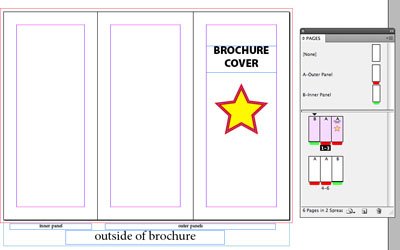
Brochure Outside
8. Finally, save the document as as an InDesign CS5 Template in the Save As dialog box so you can reuse the template as it’s needed.
When you print or export a PDF of the brochure, if you turn on Spreads and check the Crop Marks option in the Marks & Bleeds panel, solid fold marks will appear automatically as part of the output. (No, there’s no option to make them dashed!)
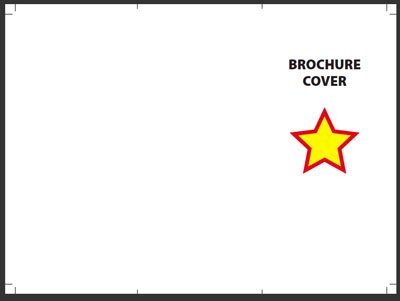
PDF with Fold Marks
But your printer will be happy because you will have correctly laid out your brochure.
An Update for the FOLDRite Template Master Is Coming
As I wrote earlier, the FOLDRITE Template Master plug-in for InDesign CS3 and CS4 can make the process much easier. It contains templates for all the standard (and many non-standard) folds, provide Flash previews of all its options, and totally creates a template for you.
I checked in with Trish Witkowski of foldfactory.com about support for InDesign CS5. She wrote that a new version is coming. She also said, “We’re also offering that anyone who buys the CS4 version from now (let’s say May) until the release of the new CS5 version will receive a free upgrade to the CS5 version when it releases.”
This article was last modified on January 18, 2023
This article was first published on May 25, 2010
Commenting is easier and faster when you're logged in!

Recommended for you


What’s New in Photoshop 27.10
The August 2026 release brings a range of new tools and techniques—plus a comple...