



Back in the day, before a laptop became my main work machine, I used to put sticky notes around my monitor as reminders to do certain things in the files I worked on. Those days are long gone, but there are plenty of ways to add notes and labels to content in your InDesign files.
One way is to use the Layers panel.
To add a custom name to a layer, group, or object, do a slow double-click on it (click, pause, and click again), then type the name you want.
So instead of generic names.
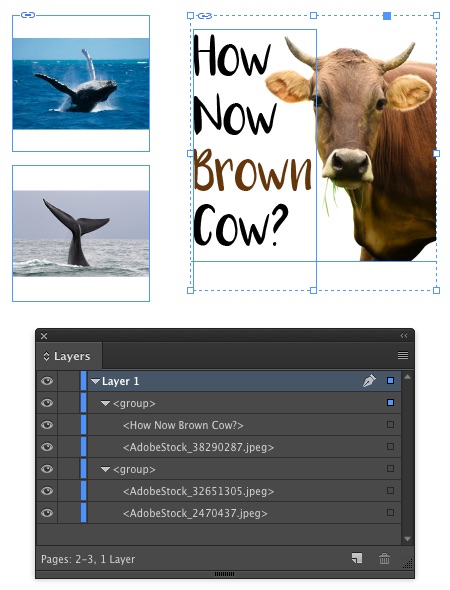
You can have something like this.

Just remember that the Layers panel only shows items on the spread you’re currently viewing. And to remove a custom name in the layers panel, select and delete it, then click away from the Layers panel.
This article was last modified on July 25, 2019
This article was first published on April 5, 2017
Commenting is easier and faster when you're logged in!

Recommended for you

Tip of the Week: Alphabetizing Menus
This tip was sent to Tip of the Week email subscribers on October 16, 2014. Sign...
How to Reset Export Settings in InDesign
Sign up for the InDesign tip of the week to get a new tip, roundups of new artic...

How to Reset the Recent Documents List in InDesign
With this InDesign tip, you can refresh the display of recent documents in the F...