




It’s time to reveal the solution—and the winners—for this month’s InDesignSecrets contest!
Here’s the scenario:
You’ve prepared a full-color ad that will be printed in a magazine. In your InDesign file, there are just two items, a background photo saved as a JPG, and a vector logo saved as a PDF.

But when you receive a proof of the ad, the vector logo is missing. This proof is accurate, and if the ad is printed as is, the logo will not appear.

Why does the logo disappear in the PDF?
The answer is that the logo was filled with white and set to overprint.
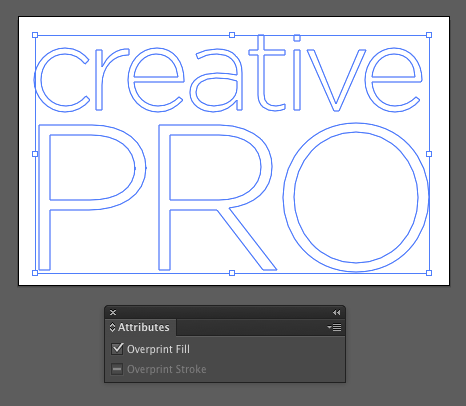
When an object is set to overprint, it will not knock out any underlying items. And since the logo was filled with white, it won’t be using any of the inks in the print job. That’s why it disappeared in the proof, and why it won’t appear in the printed output unless it is fixed by changing the overprint setting.
In this case, the logo was a PDF embedded in the InDesign file. So to remove the overprint, you would first unembed the logo in the Links panel.

Then open it in Illustrator, and use the Attributes panel to remove the overprint.
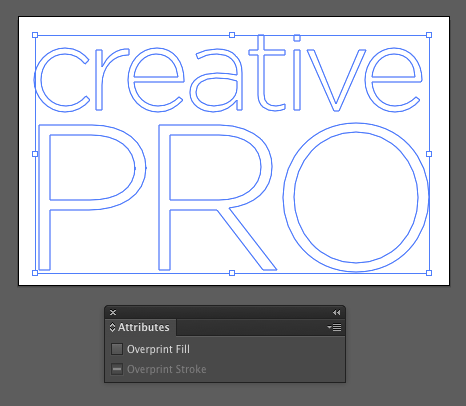
Note that InDesign has its own Attributes panel (Window > Output > Attributes) that you’d use to set or remove overprinting of native objects.
And the winner of this contest is…
Shane Smith
Shane wins a license for FlexDoc, a cool plug-in for setting up documents with folds and die-cuts.
Thanks to everyone who entered, and be on the lookout for another contest with a new great prize next month!
This article was last modified on July 25, 2019
This article was first published on July 21, 2016
Commenting is easier and faster when you're logged in!

Recommended for you

Colorizing Variable Grayscale Images During Data Merge
With the help of Adobe Bridge and the Effects panel, you can overcome a signific...

How to Use GREP to Find Repeated Items or Characters in InDesign
Learn how to use GREP in Find/Change to search for a pattern of text with multip...
A Great Script Lets You Add Measurements in InDesign or Illustrator
A script for InDesign or Illustrator takes the pain out of measuring and marking...