



Recently I had to fix a problem with some multi-page PDFs placed in a bunch of InDesign files. Someone had the placed the right PDFs but the wrong pages, so I just needed to change which PDF pages were placed. Of course, you can choose which pages are placed initially, if you turn on Show Import Options in the Place dialog box. But once the PDF is placed, there’s no way to change the page through the user interface. There is at least one script floating around that does this sort of thing: Show PDF Options. But the files I was handed were in INX, so I was curious to see if I could just fix the problem there.
I looked in the INX to see where InDesign was storing the number of the visible PDF page. Not surprisingly, it’s in an element called PDFa. PDFa has three attributes: PageNumber (Pgnb), PDFPlaceCrop (DFcr), and TransparentBkgrd (TBkg).
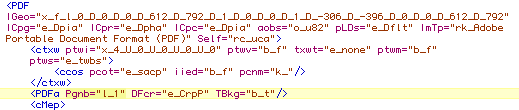
At the end of the Pgnb attribute is a character which corresponds to the absolute page number in the PDF. If there are fewer than ten pages in the PDF, that character is the page number. If there are more than ten pages, things get more complicated. Letters replace numbers, so the 10th page is “a” the 11th page is “b” and so on. In my case, I wanted to place the 3rd page of the PDF in InDesign, I changed the number to 3.
If I could’ve edited the PDFs, I would’ve also had a couple other options (quoting from the InDesign Help):
- If you delete pages in the original PDF, the placed PDF page changes to the page that now falls on the originally placed page number.
- If you reorder the pages in the original PDF file and update the link, the placed PDF page (changes).
Serving Up Some Glop
I also had to change the layer visibility of some placed graphics. This is a doable task in the user interface, via Object > Object Layer Options. But since I was in INXville, I figured I’d see if I could take care of it while I was there. With a little poking around, I found the magic word. It’s not “please,” it’s “glop.”
Placed graphics are represented in <imag> elements with several child elements, one of which is <glop> (graphic layer option). To control the layer visibility in placed files, you manipulate the children of the glop element. Glop has child elements called <grlr> (graphic layer) which correspond to each layer in the placed graphic. So to change the current visibility of layers, you change the last letter of the crvi attribute, to either t(rue) or f(alse), as desired.

If you’re interested in figuring out how to hack INX files, and you don’t mind goofing around in glop, check out the InDesign CS3 SDK.
CS4 IDML
For the CS4 crowd (hopefully there’s a crowd or at least a crowdlet), these jobs are nearly identical.
To affect which page is placed from a multi-page PDF, change the value of the PageNumber attribute of the PDFAttribute element.
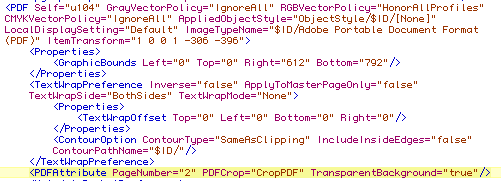
To change the visibility of layers in placed graphics, change the value of the CurrentVisibility attribute.

This article was last modified on December 19, 2021
This article was first published on February 23, 2009
Commenting is easier and faster when you're logged in!

Recommended for you

Stop Hyphenating Across Columns and Page Breaks
Luke wrote: I wondered if there was any way of stopping InDesign from hyphenatin...
Use the CS3 Video Workshop to Learn InDesign CS3
On the day that Adobe started shipping InDesign CS3 (and the other CS3 applicati...
Mixing CS2 and CS3: Snippets Rule!
In the latest podcast (episode 54), David and I talked about "glitches and gotch...