




Snippets are a great way to save pieces of your pages to re-use later. (If you don’t recall what snippets are or how to use them, check out this post.) Well, a while back I wrote a post about how you can choose whether a snippet file will end up in the same page location as it was originally (when it was created). Basically, the position of a placed snippet depends on the Snippet Import setting in the File Handling pane of the Preferences dialog box: You can choose between Position at Cursor Location (wherever you drop it or click to Place it), or Position at Original Location (which remembers where it was on the page when you originally made it).
But there is one more tip that I recently learned that ensures that a snippet always remembers its location: Lock the object (or objects) using Object > Lock Position before you export the snippet file.
It’s simple, it’s elegant, and I don’t know why I never thought of it before.
Actually, there’s one instance where this won’t work: If you Place the snippet into a text frame as an anchored object (yes, you can do that in CS4), it loses its position. But in most cases, the lock trick works great.
This article was last modified on December 19, 2021
This article was first published on January 17, 2009
Commenting is easier and faster when you're logged in!

Recommended for you

Index Fixes: Sorting
InDesign doesn't distinguish letter-by-letter and word-by-word sorting, it suppo...

Don’t Ask Your AI to Identify a Font
When it comes to identifying typefaces in images, artificial intelligence isn't...
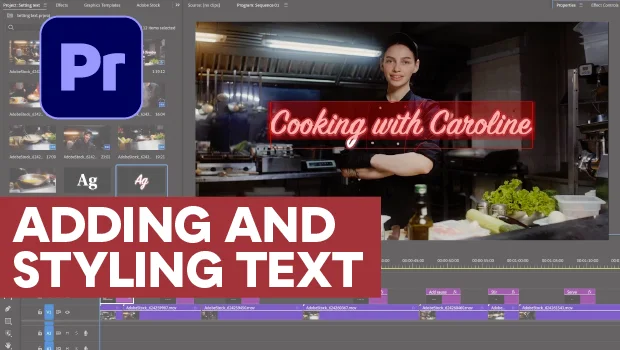
Adding and Styling Text in Premiere
Myra Ferguson covers text formatting and safe margins in Premiere.