



I’ve been asked a number of times over the past couple of years about how to make InDesign create relative hyperlinks rather than absolute links. For example, lets say you have two PDF files (or SWF files) in a folder and you want one to open the other. You should be able to just name the file, but InDesign usually balks at that — InDesign wants the absolute file path, the full hierarchy from the hard drive (or URL domain) down. What a pain in the tuchus.
However, I recently discovered something curious: Some kinds of hyperlinks can be made relative, while other cannot!
In CS4 and CS5, if you use the Hyperlinks panel to make a “File” type hyperlink, it appears to always be absolute. That’s too bad, because a “File” hyperlink seems like just what you’d want.
However, if you choose to make a URL hyperlink instead (choose URL in the Link To pop-up menu), it does create a relative link! For example, this URL hyperlink would link to another PDF document in the same folder as the current PDF:
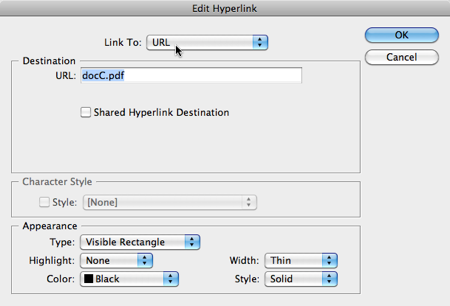
Another way to make a relative hyperlink in an interactive PDF or SWF file is with a button. But when you use the Buttons panel to create a “Open File” action, the result is an absolute link. (It also only works in PDF; Go To File won’t work in SWF.)
The solution? Make a Go to URL button action instead! Here, the button sends a message to open the file based on a relative link, not an absolute link.
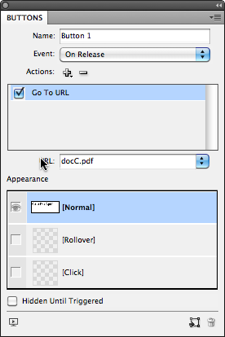
In my tests, Go to URL buttons are the most reliable way to make relative hyperlinks for both interactive SWF and PDF files.
You can even make them find files in other folders. For example, if you make a Go to URL button link to ../docC.html, it will look “up one folder” (dot-dot-slash means the folder above this one).
However, there is one important caveat for PDF creators: Note that when the viewer clicks on one of these hyperlinks, Acrobat asks the default Web browser to go open the link! Acrobat does not open it itself. That’s pretty frustrating. To keep it all in Acrobat, you’d need that Go to File action, which seems to take you back to absolute links. CS6, anyone?
This article was last modified on December 20, 2021
This article was first published on August 10, 2010
Commenting is easier and faster when you're logged in!

Recommended for you

Watch Out When Duplicating Interactive Buttons
Be careful when duplicating your interactive buttons because you might lose some...
How to Fix Shared Hyperlinks in InDesign
Find out how to fix—or better yet, avoid—any issues with InDesign's shared desti...

InDesign How-to Video: How to Bring the Control Panel Back and Keep It
In this week’s InDesignSecrets video, Anne-Marie Concepción explains what happen...