


Making Flash Roar

Editing Tools in Flash 5
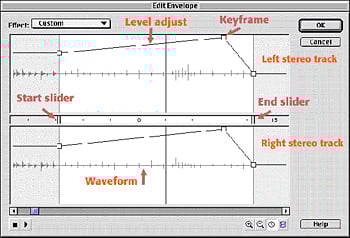
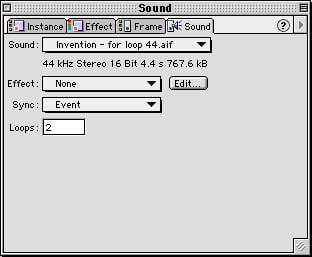
Now it’s time to refine the music track you just built. Maybe you want to start the music at a later point in the song or maybe you want it to fade out at the end. Flash 5 offers a selection of pre-built sound effects in the Sound window shown above, or you can create your own custom effects. To do that, select the Edit button in the Sound window; the Edit Envelope, shown in the figure below, appears. This is where you can set the start (or in-point) and end (or out-point) of the song by dragging the sliders indicated in the figure below. You can also adjust the volume, or level, of the track by dragging the Envelope controls up or down. Experienced sound editors will find these tools crude, and complicated sound editing is best done in a dedicated sound-editing application, such as Sonic Foundry’s Webmaster Bundle or DigiDesign’s ProTools 5.1.
To Loop or Not to Loop?
Anyone with any experience in Flash knows that the biggest challenge is keeping file sizes small. Adding long audio tracks is a guaranteed way to increase file sizes and download times. One way to keep your file small is to repeat a smaller piece of a song over and over instead of using a long track, a process known as looping. In Flash, loops save the most space when they are created with event-based sounds. The beginning of the track we used above, “Invention,” is an easy piece of music to loop. To do this, from the menu bar select Window > Panels and then select the Sound panel. Enter a number — five, for example — into the Loops dialogue box. Also, change the Sync from Streaming to Event. Then select the Edit button and use the sliders in the Edit Envelope to select in and out points for your loop. The play button at the bottom of the Edit Envelope will play the loop and reflect the in and out points you select. One caveat when it comes to loops: They can become very annoying if overused. Proceed with caution.
Adding Sound Effects to a Button
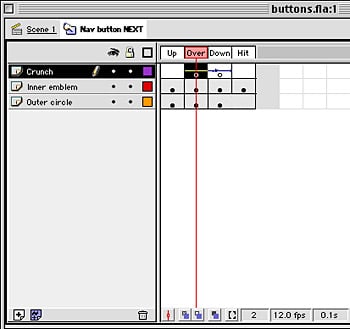
Probably the most common use for event-based sound is to add a “click” or other sound effect to a button. Simply open the button in the Symbol Editor (see figure below) and add a new layer for the sound effects. Insert a keyframe where you want the sound to play and, with that keyframe selected, go to the Sound Panel, select a sound effect from the Library, and edit it as described above. The buttons used in this article have two sound effects: A roll-over sound effect helps identify the object as a button, and a mouse-down sound effect lets the user know that they’ve activated the button. Having different sound for different actions helps orient the users to understand the buttons’ use.
Publishing Flash Movies
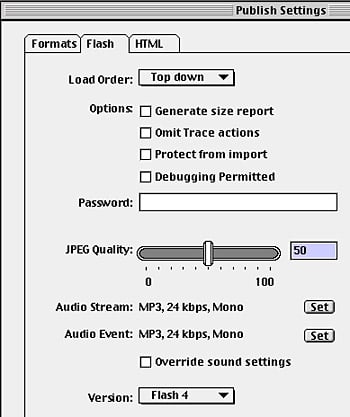
Once you’re done adding sound to your Flash animation, it’s time to export, or publish, your animation. From the File menu in Flash 5, the Publish Settings dialogue box lets you choose how the overall audio in your project is compressed. The standard for Web delivery is the ultra-compact MP3 format in mono. Through trial and error, we’ve found that a bit rate of 24Mbps offers a good compromise between quality and file size.
Special Treatment
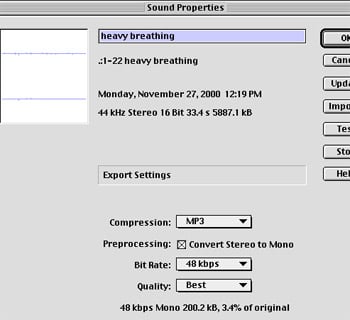
You can also select different export sound settings for each piece of audio in your project. This is unnecessary for most animations but, for example, if you have a voice-over track you might want to keep the quality of that track higher than the quality of the background music and effects. In that case, double-click that piece of audio in the Library window to bring up the Sound Properties dialogue box. Here you can choose compression settings for a single piece of audio. Be sure that Override Sound Settings is deselected in the Publish Settings dialogue box to preserve your preferences for individual tracks. You can also use the Test button to play the sound at different compression settings to determine which works best.
Rock On Down the Road
The significance of sound editing has long been acknowledged in the movie industry, and with the widespread adoption of Flash, it’s part of the palette used to create dynamic Web sites as well. Adding sounds to Flash animations is relatively easy, and a little effort goes a long way. But use some caution as you add sounds to your site: A bombardment of music and sound effects can cause some users to beat a hasty retreat. Always give them the option of turning off the sound track, should they prefer silence.
Read more by Sonja Schenk.
This article was last modified on January 18, 2023
This article was first published on January 17, 2001
Commenting is easier and faster when you're logged in!

Recommended for you
Creating a Panorama: Photoshop, Camera Raw, or Lightroom?
When a scene is wider than your widest lens, merging images into a panorama is a...
Turning Grayscale to Color in Photoshop
When it comes to creating multitone images, it’s common to think of using the Du...

How to Make an LCD Digital Calculator Effect
You never know where you’ll find inspiration to create something. Yesterday’s Go...