


Mac, Camera, Action! Getting Started with Final Cut Pro

Seeing Is Believing
The next items on the shopping list are monitors. You’ll need both a computer monitor and a video monitor. New Macs use displays that connect using the Apple Display Connector (ADC) rather than standard VGA. Resolution isn’t that important for video editing but having a large screen is, given that the interface for video editing software takes up a lot of screen real estate. Go for a 17-inch monitor at the minimum, and if you’re looking to build a “cheap Avid,” you should consider adding a second computer monitor as well. To do so, you’ll need a graphics accelerator card with a secondary monitor interface, like the ATI RADEON PCI card. If you want a second ADC monitor, you’ll also need an adaptor cable, like Dr. Bott’s DVIator. The Matrox RTMac video capture board (we’ll go into it a little later) comes with a connector for a second VGA monitor.
For Firewire-based DV editing systems, an external video monitor is always a necessity. When you record onto a DV videotape, the analog information from the real world is compressed by your camcorder into a digital video format using the hardware-based DV codec inside the camcorder. These files are literally copied from the DV tape to your computer hard drive. When you play them inside Final Cut Pro, your computer uses a software-based DV codec to decompress the footage as it plays. Unfortunately, the software-based DV codec is often unable to play the DV media files at a full size and full frame rate. You’ll notice that audio on longer clips appears to drift out of sync, which happens because the video images aren’t being decompressed fast enough to keep up with the sound tracks. The solution lies in your camcorder or video deck. By connecting your computer to your DV video deck (or camcorder) with a Firewire cable, you send the digital media to the video deck, where the hardware-based DV codec can decompress the media in real time to achieve perfect playback. To see the results, you need a video monitor connected to the video deck.
The figure above illustrates the standard configuration for a Firewire-based DV editing system. For a low-budget external video monitor, hook up a cheap TV set to your video deck. For a more serious system, get a professional monitor like the one from JVC shown in the diagram above. It can display video from four different sources, has the option for wide-screen display, and can be switched between NTSC and PAL signal standards.
Sound Surroundings
It’s commonly said that sound contributes 50 percent to the success of a film. You’ll also need to be able to monitor audio externally to work effectively. To view video on an external monitor, you must tell Final Cut Pro to “View External.” Unfortunately, that means Final Cut Pro will send both the video and the audio signals out to an external monitor. If you don’t have external speakers or headphones set up, you won’t hear anything. In other words, computer speakers are basically useless in a Final Cut Pro editing system. Instead, you’ll need a good set of headphones attached to your video deck ($), a home stereo and speakers with the audio from the video deck going in through the “aux” or “video” input ($$), or a professional audio mixing board and a pair of self-powered speakers ($$$). Believe it or not, headphones are the best choice if you’re serious about sound. A good pair will block out ambient noise and should set you back about $80. For about $200, though, you can go state of the-art with a pair of cool Sennheiser RS85 wireless headphones.
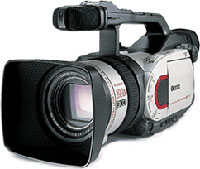
DV-based editing systems rely on FireWire-equipped video devices, like this Canon GL1 camcorder, for video capture and playback.
Pure and Simple
The simplest type of editing system to build with Final Cut Pro is a DV-based editing system. You only need two additional pieces of hardware: a FireWire cable and a FireWire-equipped video deck or camcorder. Yes, it’s that simple. The FireWire cable delivers the video signal, the audio signals, and timecode information, and it allows remote control of the video deck.
If you don’t already own a deck or camcorder, this is a purchase you should spend some time researching. Apple publishes a list of cameras and video decks that have been approved for Final Cut Pro version 2.0 and version 1.2.5. If your camcorder or deck isn’t on the list, that doesn’t mean it won’t work, just that Apple hasn’t tested it.
A word to the wise: Going the (seemingly) cheap route by using your camcorder as part of your editing system might be more expensive in the long run. Camcorders aren’t designed to handle the constant back-and-forth movement that happens in the editing room, and the internal mechanisms will wear out more quickly than those in a videotape deck.
There are four FireWire-compatible video formats: Digital 8, DV (often called “miniDV”), DVCAM, and DVCPro. Digital 8 is a decent-quality consumer format that’s fine for home use, but if you’re serious about editing, you should go to the next step up, to DV. DV offers high-quality digital video and includes popular camcorders like the Canon XL1 and GL1 (shown above). DVCAM, developed by Sony, and DVCPro, developed by Panasonic, are the professional variations on the DV format. They offer support for SMPTE timecode and although the technical specs aren’t that different from DV, the equipment available is of higher quality. DVCAM is probably the most popular format among professional users and both DVCAM and DVCPro decks can play DV format cassettes. Be aware that top-of-the-line DVCAM and DVCPro video decks do not necessarily come with a FireWire connector, but it’s usually available as an option.
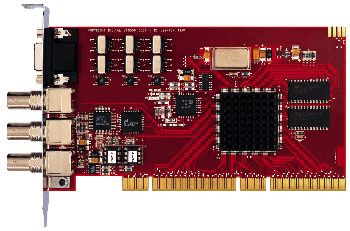
The Digital Voodoo 64AV adds 10-bit, SDI-based digital video to Final Cut Pro
This article was last modified on June 30, 2023
This article was first published on September 19, 2001
Commenting is easier and faster when you're logged in!

Recommended for you

Adding CC Library Assets to Adobe Comp
Adobe Comp CC is a mobile-only app that gives you the ability to easily work up...
New Contest! The Case of the Weird Wrap
Solve this InDesign mystery for a chance at winning a great prize.

This Week in InDesign Articles, Number 55
Helping each other -- whether that's InDesign or real life -- is what it's all a...