



Ever wish you could use keyboard shortcuts to change the reference point used to transform selected objects? You know the thing I mean, it’s called the proxy, that set of nine tiny squares at the left side of the Control panel.
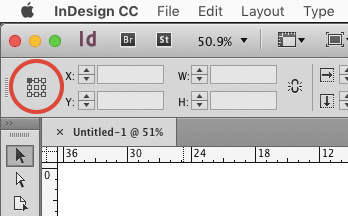
Normally, you click one of the little squares to set the reference point in the proxy to the top left, center, bottom right, etc. But who has time to move the cursor all the way up there? So you might want to use keyboard shortcuts. Technically, you can pick a reference point just using default keyboard shortcuts. But it’s complicated because you have to press multiple keyboard shortcuts in a row.
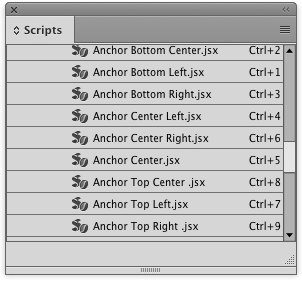
Happily, there’s a much better way: use a script! Several years back in response to one of our posts, a commenter shared the code for several simple scripts that change the selected reference point. There are nine scripts in all, one for each reference point. You can download them here. And see how to install them here.
After you install the scripts so they appear in your Scripts panel, you can add your own keyboard shortcuts to run each one. To do this, choose Edit > Keyboard Shortcuts.
Create a new set, and choose Product Area: Scripts. Locate the reference point scripts and assign new custom shortcuts for each one in the Default context. (Put your cursor in the New Shortcut field, press the desired key combination, then click Assign.)

Voila! Now you can pick any proxy reference point with your very own keyboard shortcuts.
But then what will you do with all that extra time?
This article was last modified on February 15, 2024
This article was first published on January 10, 2017
Commenting is easier and faster when you're logged in!

Recommended for you

Tip of the Week: Seeing Page Sizes with the Page Tool
How to see the size of any document page in InDesign, using the Page tool.
A Free Script to Move Items to the Pasteboard (and Back)
Ever wish you could quickly slide some selected items (or everything) on a page...

Designing with Maps
Deploy the science (and art) of mapmaking in your designs with the help of ArcGI...