



Talk to any printer and they’ll tell you: Designers are forever sending them PDF and InDesign files with spot colors when they really want process colors. Please: do yourself and your printer and everyone around you a favor and learn two things:
- How to work with spot colors properly;
- And even more important: Open the Ink Manager each and every time you export a PDF or send a file to a print provider!
You can tell how important the Ink Manager is by the fact that you can open it from five different places: the Swatches panel menu, the Separations Preview panel menu, the Export PDF dialog box, the Export EPS dialog box, and the Print dialog box. It doesn’t matter where you choose it from; they all go to the same place.
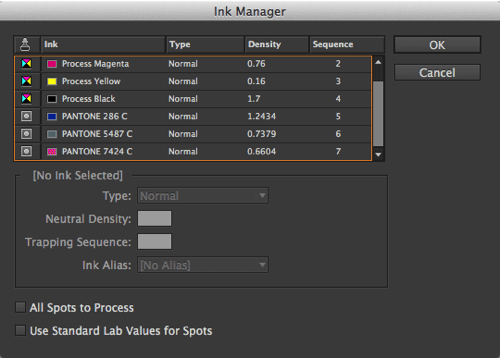
Ink Manager lets you do all kinds of things, including aliasing one spot color to another and managing trapping sequence. It’s very rare you’d need to worry about the trapping stuff, but it’s very common that you need to think about something else here: converting spots to process colors.
The first thing you should do when you open the Ink Manager is to scroll through the list of inks at the top. This shows you all the different inks in your document — not the swatches, or colors, but specifically inks. That is, if you print color separations, how many plates will probably come out. The four process colors are always there, at the top, followed by spot colors.
If you didn’t expect any spot colors at all, this list may come as a shock! But as I said earlier, printers often open people’s documents and find not just a couple but a dozen or more! That’s bad.
Converting Spot to Process
So what do you do if you have spot colors in this list and you don’t want them? You can convert a single spot color to a process color by clicking in the column to the left of its name — the small spot color icon changes to process color. Note that this does not change the color swatch; it just signals to InDesign that this color should be converted to process when you print or export to a CMYK format.
Alternatively, you can convert all your spot colors to process by selecting the (surprise!) All Spots to Process checkbox.
There is another checkbox in there: Use Standard Lab Values for Spots. This appears to be “the appendix of InDesign’s color system.” That is, is used to have some use, but doesn’t appear to do much now. (Once upon a time, the Pantone colors were defined with CMYK values behind the scenes, so turning this checkbox usually resulted in a better output. However, in recent versions of InDesign, these spot colors have been defined as Lab already. That said, if you open old documents in which you saved and used spot colors, it’s possible that this checkbox would have an effect.)
Check It!
By the time you’re ready to print or export a PDF, I know you’re tired and you think you know your document well enough. But as I said: it’s always a good idea to check Ink Manager. It just takes a moment to look it over, and it can save you (and your printer) a lot of time and headache.
This article was last modified on July 25, 2019
This article was first published on July 14, 2014
Commenting is easier and faster when you're logged in!

Recommended for you

Helpful Tips I Learned at PePcon 2016
I won’t go on and on about how wonderful an event The Print + ePublishing...

Printing and Exporting Alternate Layouts
The Alternate Layouts feature in InDesign CS6 is cool, but it does make some thi...

How to Make Nonprinting PDF Objects
Need to have something visible on screen in an interactive PDF but not printable...