


InFocus: June 2016
InFocus is a round-up of fun and useful products and services for InDesign users


This article appears in Issue 86 of InDesign Magazine.
“Summer’s lease hath all too short a date.” —William Shakespeare Ah, summer! It’s almost here! Time for enjoying the explosion of colorful flowers, sunshine, road trips, and picnics! Or, if you’re like me, a season of sitting inside with the A/C on to keep your allergies under control. The more casual pace of the world around you in summer gives you the freedom to learn something new, change up your workflow, or express your creativity in a new way. The beautiful blooms below are sure to help your creative garden flourish.
Adobe InDesign CC Classroom in a Book
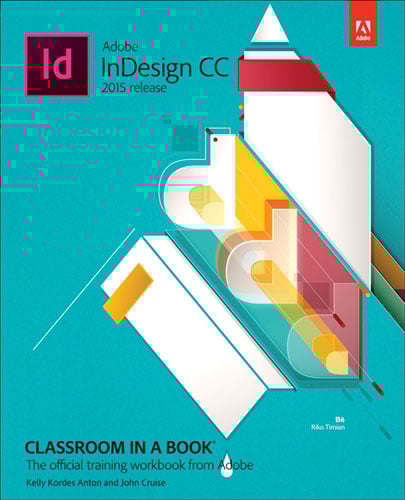 Adobe’s Classroom in a Book series has long been the go-to text for trainers and students alike. The recently released InDesign edition ($50) penned by Kelly Kordes Anton and John Cruise covers version CC 2015 within its 400+ pages. What has consistently set the Classroom in a Book series apart is the project-based approach to learning each task. Each section’s lesson is prefaced by an overview, explaining what the reader will learn and the amount of time the lesson should take to complete. At the end of each section is a list of review questions and answers to help the reader retain what they’ve learned. The 15 lessons in the book cover the basics like text, styles, and layout through the more advanced topics of tables, exporting, and digital publishing, all presented via the trademark step-by-step approach. The workbook highlights the newest InDesign features like easier table creation, paragraph shading, and sharing assets and elements between Creative Cloud applications. This latest release features a new web edition of the book boasting interactive quizzes as well as videos. The assets used in the lessons are
also available for download via the online portal. Along with the print version, readers get a copy of the ebook, which can easily be updated as the software gets updated. If you’re a teacher or trainer, you may also want to download the instructor notes.
Create Character Styles
 “With great power comes great responsibility.” Not only good advice for budding superheroes, but also for InDesign users. This is especially true when working with styles. Using text styles gives you power over the consistent look and styling in your files, but it’s often the place where people trip up the most. The style maven’s biggest adversary? Overrides. If you find yourself with overridden text throughout your paragraph-styled text, fear not! The appropriately named Create Character Styles script catches those local overrides and assigns a character style to them. Bookraft Solutions’ script ($34.95) gives you tight control over creating those styles, as opposed to other solutions that take an all-or-nothing approach. Searching by document, story, or selected paragraphs, the script’s interface lets you decide which attributes to control with styles. So selecting font style, size, and leading would create a style for text that differs only in those attributes. This precise control over attributes cuts down on the creation of too many character styles. The Create Character Styles script also lets you create blank styles, which are based on the attributes selected, without actually defining anything in the style itself. This feature would be helpful for imported text, for example, containing underlined items that need to be italicized in the final output.
Instant Logo Search
 Sometimes getting a logo from a client for their project can be like pulling teeth. But, unlike a dentist, I’m trying to make my clients look and feel good, so why do they make me sit and wait? In fact, sometimes I just track down the proper vector artwork on my own to get the job done. To that end, I recently discovered a helpful resource called Instant Logo Search. From big names like Starbucks and Amazon to social media leaders to sports teams and software, a simple search by brand name brings up results dynamically as you type. The search result gives you the option to download the SVG or the PNG version, or add the file to your “bucket,” which lets you batch download as SVGs or PNGs. What makes this collection different than, say, Brands of the World, is that the files are maintained through GitHub. This means that people can contribute and make adjustments as needed. Also, suggestions for improvements can be added to the development history. One such feature request was the ability to download both file formats simultaneously. As of this writing, there were just over 500 logos in the repository, and I’m hoping to see the offerings grow in the future.
RichPaste
 Copying text from Word documents to paste into InDesign often meets with less than satisfactory results. That’s mainly due to the fact that InDesign gives you two options when pasting: paste with formatting and paste without. The former often brings in a host of formatting that we would rather not have dirtying up our pristine InDesign files. However, the option to bring in no formatting isn’t ideal because we often need to retain simple formatting like bold and italic. Lucky for us, Indiscripts has gifted us—for free, no less—with a happy medium to the paste options: their RichPaste script. After placing the script in InDesign’s Scripts Panel folder, RichPaste then lives under the Edit menu for easy access. Choosing “Paste with Formatting | RichPaste” brings up the script’s interface, where you can choose which formatting to retain when pasting: italic, bold, underline, and the symbol font. You also have the option to preserve other fonts on import (though you have to manually and correctly type the font’s name). If you don’t wish to see this dialog box every time you paste, check the option to turn it off. While RichPaste has issues when copying from certain programs—for example, I’m often met with odd results when coming from TextEdit—not having to place an entire document to retain control over formatting has been a big boon to my workflow. If your workflow consists mainly of text from Word or Pages, you’re likely to find the RichPaste script deftly handles text from these two apps in particular.
Stand Out
 Stand Out by Denise Anderson brings the author’s method of the same name from her classroom to you in this 250+ page career-focused volume. With 25 years in the design world, Anderson guides future designers in how to create amazing portfolios to highlight their unique talents and to land the job they want. The book version of the “Stand Out” method delivers hands-on exercises, worksheets, and even links to Pinterest boards that highlight the talent that’s out there. Whether you’re looking to land that dream design job or work freelance for that perfect client, the methods for getting noticed among the crowd are the same. The book is broken down into three distinct sections: Design a Personal Brand, Build a Killer Portfolio, and Find a Great Design Job. The first section covers identifying what your brand is—what distinguishes you from your peers—and how to launch a campaign around that. Section two discusses how to choose works that let your talent shine through and even covers technical aspects of producing your portfolio. Anderson covers production, such as file formats, creating an interactive PDF, and choice of materials, and highlights the importance of doing it well, as an important part of your design career. The final section reveals the techniques for meeting the right people, getting your story heard, and crafting a plan to land you that perfect job. All sections include examples from students from Ms. Anderson’s 15+ years in teaching the next generation of designers.
RegEx Crossword
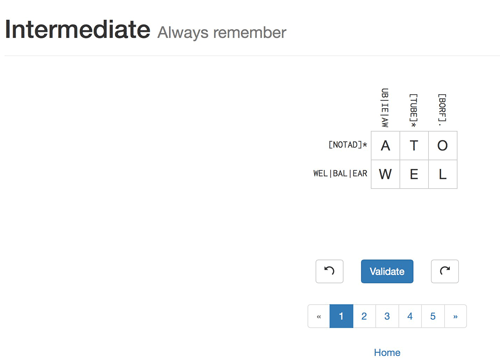 If you like working with GREP—and who doesn’t, am I right?—then you’re going to love this next item. Okay, maybe you’re not into GREP and maybe you don’t know what it is. It’s certainly not for everyone, but you should at least familiarize yourself with the concepts of what it can do, at least within the context of InDesign. At its simplest, GREP is used to find patterns of text, and then do something with that found text. InDesign lets you do that within find/change operations and also within paragraph styles. Let’s say you need to find any quoted text and italicize the text instead (while removing the quotes altogether). That’s a job for GREP. Well, if you’re intrigued and you’re still reading, then check out the online RegEx Crossword game (RegEx stands for “regular expressions” that are at the heart of GREP). Part crossword, part sudoku, the game features a grid with clues running across and down. Those clues form a pattern, and you need to figure out what letters fit that pattern and fit into the grid as well. For instance, the “down” clue might give you a subset that suggests that the letter should be A, B, or C, and the “across” clue says the first two letters are either AB or XY. Obviously the first square needs to be filled in with “A.” If you’re new to GREP, this might make your head spin a bit, but if you’re looking to up your GREP game in InDesign, the multiple levels and humorous hints RegEx Crossword offers give that left side of your brain a decent workout.
Adobe Spark Page
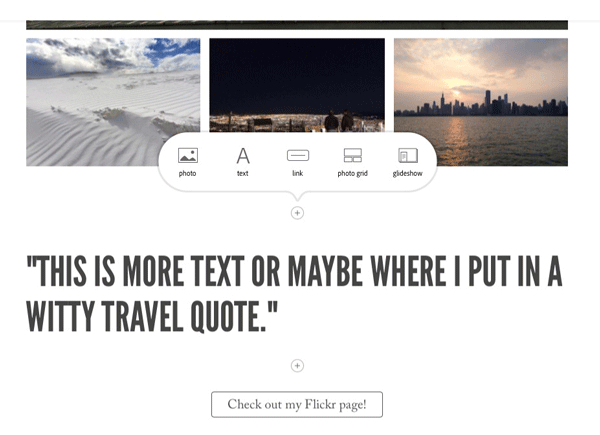 Adobe Spark Page (formerly Adobe Slate) is one of the latest apps in Adobe’s ever-growing stable of creativity apps. Along with Spark Post and Spark Video, it completes the Adobe Spark mini-suite of apps designed to easily create and share stories and graphics. Use Spark Page to quickly compose a story with pictures and text, and then publish it to the web. Originally developed for the iPad, Spark Page (free) is now also a web-based creation tool that you access using your Adobe ID. From the Spark projects control center, select the big yellow plus icon, and then select the new page icon. You’ll see a blank title page where you can enter a title and a subtitle for your presentation. From there, you can start adding text or photos by clicking the plus (+) icon. Photos can be added from a variety of sources, including your Creative Cloud libraries. You can also bring images into Adobe Spark Page from Lightroom, Dropbox, your computer, or via a web search for Creative Commons-licensed images. Before getting too far into your story creation, be sure to head up to the top menu bar and choose “Themes” to pick one of the many predesigned themes. If you’re used to controlling every aspect of text (including line breaks), you might feel a little constrained using the prepackaged themes. But the benefit is that the themes have been created to look good across a variety of devices with nary a thought or bit of coding on our part. When entering text, choose from H1, H2, pull-quote, numbered, or bulleted list styles. You can further format the text by choosing alignment and font style. When adding items, choose from images, text, links, photo grid, or “glideshow.” That last item creates sort of a cascading and zooming kinetic collage that defies simple description (you just have to see it for yourself). When you’ve perfected your masterpiece, just name it, make it public (or not), and publish it to Adobe’s host. Spark Page stories are being used by bloggers, entertainers, and companies of all sizes to visually create and share stories, without any need for coding.
Export to Split PDFs
 The Export to Split PDFs script from Colin Flashman does one simple job quite well. This free add-on lets you export your InDesign file as a PDF, split into blocks. If you’ve ever needed to create a single PDF for every page in your InDesign document, this might be the answer to your prayers. The script lives in the main Scripts panel. Double-click its name to bring up the simple and straightforward interface. From the resulting dialog box, choose a location for the finished PDFs. The Export to Split PDFs script doesn’t leave out the important feature of choosing a PDF preset, as many PDF creation add-ons do. Choose one of your presets, and then indicate how many pages per PDF to export. Unless the sections in your file are all exactly the same number of pages, this feature can seem somewhat hobbled. I would love the ability to tell the script where to start the export process. For instance, being able to ignore the first three pages of introductory material would come in handy. The speed of the output, complete with progress bar, and the option to choose my PDF preset have made this my go-to script for creating a series of PDFs for each individual page in my InDesign file.
Adobe Spark Post
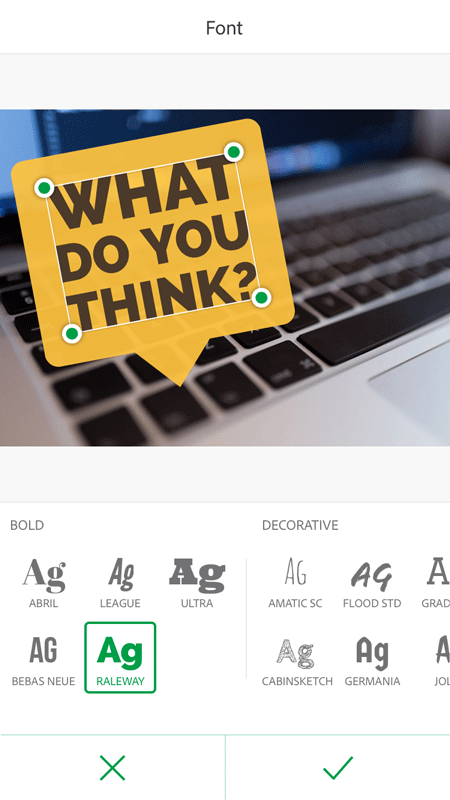 I spend a lot of time on social media, and not just gawking at celebrities’ Snapchats, either. I manage multiple accounts for myself and clients, as well as create video thumbnails and blog post headers. And, I’ll admit, after spending all day working on clients’ designs in InDesign, my creative well is often running a little dry. But—as someone wise once said—”A picture is worth a thousand words,” so I press on to create distinct eye-catching graphics for all the social flavors. Luckily, I’ve found a beautiful new toy that takes care of much of the creativity for me: Adobe Spark Post (formerly Adobe Post). Post is a fun and free iOS app that lets you mix predesigned templates with your own input and save for every use imaginable with a couple of quick taps. You can start with a template from the craft, travel, or business categories, for example, and add your own text. Change up the font, text color, and spacing with just a few taps. The newest version of Spark Post lets you cycle through looks by spinning a virtual “creative dial” and introduces motion by adding type animation. The background photo can come directly from your camera, camera roll, or the wonderful collection of included free photos, and filters can be added and tweaked. In my humble opinion, the killer feature is the ability to choose a layout specifically designed for the individual social platforms, such as a Facebook cover photo, blog post, Instagram snap, and Twitter post, or based on proportions only. When you choose a different layout, Spark Post automatically rearranges elements to fit, and you can save separate versions of each layout. I do have one request: access to the full collection of Typekit web fonts would be a welcome feature, available to either Creative Cloud subscribers only or as part of a paid version of the app.
Until Next Time
Well, that’s it for now, my little chickadees. I wish you a warm and delightful season of blossoming creativity and cultivation of new ideas!
Commenting is easier and faster when you're logged in!

Recommended for you

Every Single InDesignSecrets Podcast on One Page
Who knew that our podcast host was quietly creating and updating an InDesignSecr...
Make a Grungy Logo in Photoshop
If you’re a seasoned Photoshop user, this little tutorial might not be for...

Variable Data Tool for InDesign CS5 Ships
Press Release Meadows Publishing Solutions today announced that DesignMerge Pro...