



Unlike Photoshop and Illustrator, InDesign doesn’t have pattern swatches that you can use to fill an area with a repeating pattern. But it’s easy enough to make your own pattern swatches from scratch, and apply them via step and repeat.
Start with a rectangle. It doesn’t have to be a perfect square, but make its dimensions nice clean numbers. No 4p1.657 nonsense.
Find or create an item you want to repeat. I’ll call this the “pattern object”, for lack of an official term.

Your pattern object can be a path, photo, Illustrator graphic, a text frame with live text, etc. Just be aware that a pattern can seriously increase the complexity of your page. You can avoid pokey redraw by turning on High Quality Display only when you really need it.
Place copies of the pattern object in the dead center of the rectangle and at all 4 corners.

Be certain that the center of the pattern object is perfectly aligned with the corners, or the pattern won’t work.
With CS4, Smart Guides make this a cinch.

You can use a different object in the center, but you have to use the same object in the corners.
Group the pattern objects.

Cut and choose Edit > Paste Into.

You now have something like a pattern swatch. You can also give it a fill if you like, but you can’t place a graphic in it. There’s only so much one frame can hold. Hey, let’s not get greedy!
If you decide to change the look of the pattern objects, you can select them individually with the Direct Selection tool, or select them all by selecting the frame, then clicking on the Select Content button in the Control panel.

Then apply strokes and fills as you usually would. But be careful with drop shadows and glows that might get clipped.

To use the pattern swatch, select it and choose Edit > Step and Repeat. Check Preview. Set the vertical offset to zero and the horizontal offset to the width of the pattern swatch.

Click OK. Select all the rectangles. Then choose Step and Repeat again and set the vertical offset to the height of the pattern swatches and the horizontal offset to zero.

Good times. View your pattern at even zoom percentages, so you don’t get tricked into thinking they’re misaligned by screen artifacts.
Now certainly, you could dispense with the swatch idea and just use step and repeat to make a pattern of objects. But I think having a swatch is less unwieldy than a bunch of free range objects floating around. It’s easy to fill any space with them. They’re also nice to keep in a library or snippet.



If you make your pattern out of live text frames, then you can use Find/Change to edit the pattern.
You can also play around with shearing to make 3D-looking objects.

If you need inspiration for your patterns, just search the Web for “tessellations,” which are patterns or tiles that cover an area without overlaps or gaps.
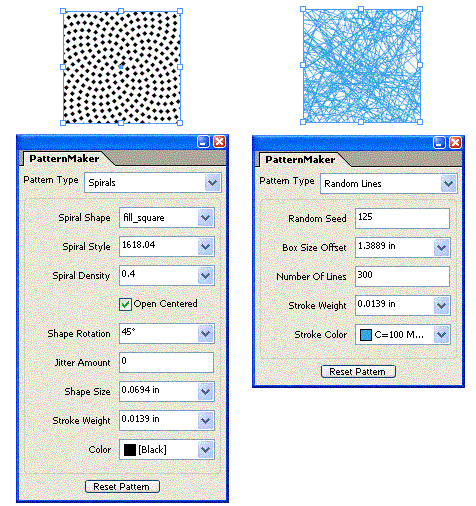
Also check out Teacup Software’s PatternMaker, which allows InDesign CS–CS4 users to easily create PostScript Patterns.
Corner Options
A related technique is using corner options in combination with step and repeat.
Start with a square frame. Choose Object > Corner Options, Inverse Rounded. Set the size as desired, but making it one third the height of the square works well.

Choose Edit > Step and Repeat, and set the horizontal offset to the width of the square and the vertical offset to zero. Set the repeat count to taste. Click OK.

Select all the squares. Choose Step and Repeat again and set the vertical offset to the height of the squares and the horizontal offset to zero. Click OK.

If you want to apply an effect like Bevel and Emboss, you first need to join the squares. Select them and choose Object > Pathfinder > Add.

Then go nuts.

You can’t join pattern swatches because then you’d only have one frame and the pattern wouldn’t repeat. Then again, if you want your pattern to look like tiles, select the pattern frames and bevel and emboss ’em.

After you get the hang of it, experiment! You’ll see that you don’t have to place pattern objects only at the corners of your swatches, as long as you take care that the pieces align precisely. Use the Control panel and your arrow keys instead of the mouse. It may take a little trial and error, but with the power of patterns, you can turn a single spacecraft

into an invasion fleet.

To InFinity, and beyond!
This article was last modified on December 19, 2021
This article was first published on June 11, 2009
Commenting is easier and faster when you're logged in!

Recommended for you

The affects and effects of effective Effects
In the world of page layout features there are the bread-and-butter features suc...

The Apple Watch Effect
Unless you were trapped under a rock (or a pile of Android tablets) recently, yo...
Tip of the Week: Using Power Zoom
There are three new Links panel icons in InDesign CC that you'll see when workin...