



Don’t worry, there’s nothing wrong with your calendar. It is indeed June 2016, and Adobe is releasing a new version of InDesign CC 2015. You may also be experiencing a bit of deja vu, since this is the fifth release of InDesign CC 2015 since the first version came out about a year ago. The theme of these many updates seems to be small, structural changes in the program. This time around, the tweaks include how large the type is in the interface, GPU performance (on a Macintosh), and the ability to sort swatches. Now let’s take a look at what’s new with InDesign CC 2015.4.
Easier Interface Viewing
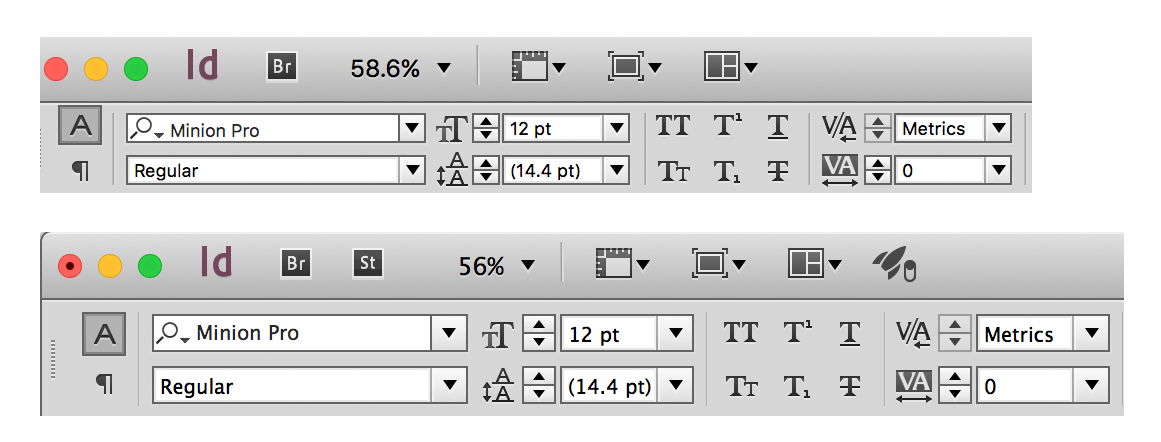
The first new feature is driven by two forces—many more people are viewing InDesign on HiDPI or Retina displays, and all of us are aging. The InDesign user interface has always had small type and interface items (“widgets”), and in recent versions, this has become a bigger source of complaint. In the illustration below, the top is a portion of the Control panel from InDesign CC 2014. It’s 992 pixels wide.
InDesign CC 2015.4 brings a major redesign of over 100 panels and hundreds of dialog boxes with larger type and widgets. The space between items is enlarged both vertically and horizontally. Below is the same panel in InDesign CC 2015.4 (the Rocket icon indicates the presence of a GPU processor on my Mac, described below)—now 1080 pixels wide:
Improved Stability on a Shared Network
InDesign users who work on a shared network connection have encountered InDesign shutdowns when their connection is temporarily disrupted. If these folks attempted to save a document, InDesign went into “protective shutdown” mode, and their work could be lost if they saw the dreaded, “The network connection has been lost…” message.
In InDesign CC 2015.4, InDesign’s behavior has changed for documents less than 100 MB: The users can still work on a file, or make changes if the network connection is temporarily lost. If they choose to save the document, they can save it to a new location. When the network connection is restored, InDesign will let the users save the file (with changes) to their original network location.
GPU Performance and Animated Zoom (Mac Only)
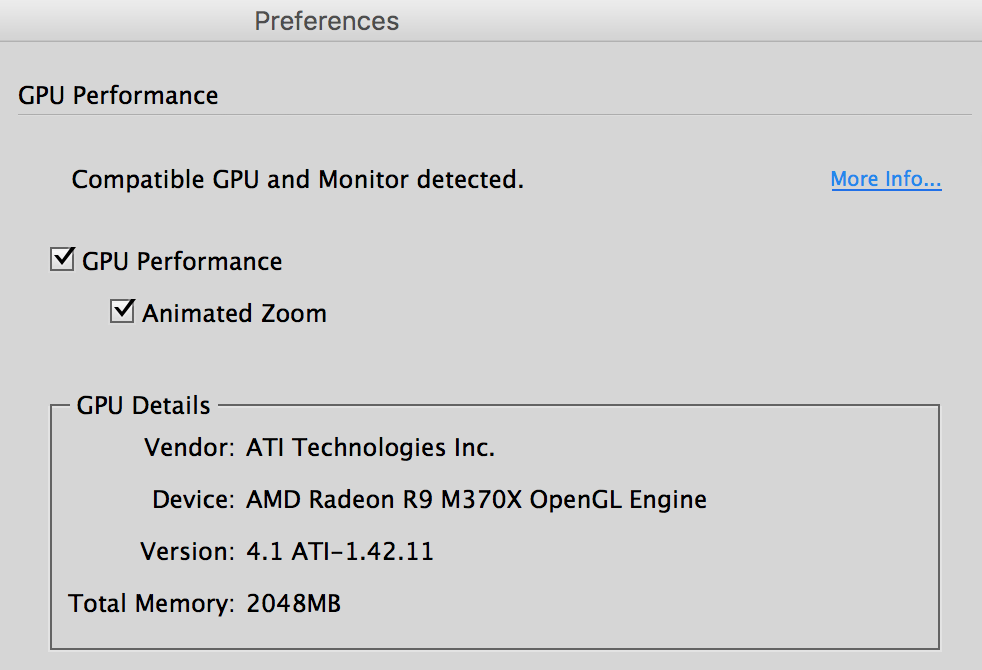
In InDesign 2015.4, on a Macintosh with an appropriate GPU and a built-in or connected Retina monitor, InDesign can use the built-in GPU for many operations. This can speed many operations—scrolling, zooming, panning, moving objects between pages, and so on. By default, if the conditions described below are met, GPU acceleration will be turned on by default (but can be disabled with a keystroke).
The requirements are: (a) The computer must have greater than or equal to 1 GB of dedicated VRAM (2 GB recommended) and your computer must support OpenGL version 4.0 and greater; and (b) the computer must have a native Retina display, or have a connected HiDPI (Retina) monitor. If the requirements are met, you’ll see the option available in a new GPU Performance preference panel, and the Rocket icon appears on your Application bar.
GPU Performance Preference
With such a GPU installed on a Mac, an Animated Zoom feature similar to those in Illustrator CC and Photoshop CC is turned on by default (but can be turned off). It can be invoked by clicking the Zoom tool and scrubbing right to zoom in. Click and scrub left to zoom out. Alternatively, if you click and hold the Zoom tool, you can zoom in continuously at your cursor point. Pressing the Shift key returns the Zoom tool to Marquee Zoom mode.
In an upcoming blog posting, I’ll go into more detail about these features.
Sorting Swatches
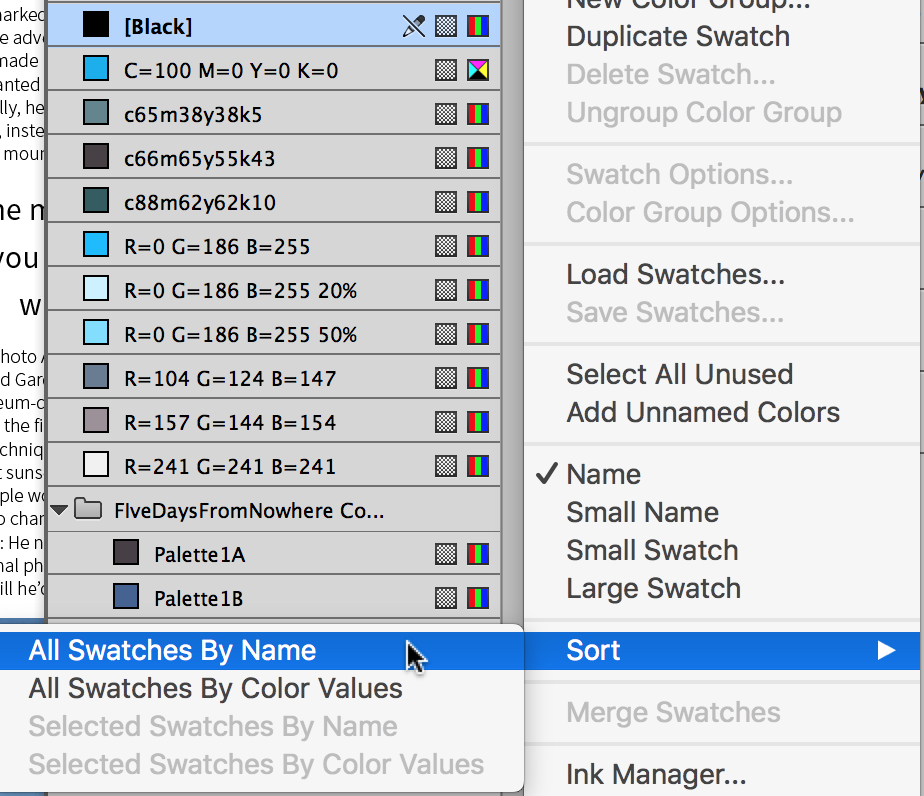
You can now sort the swatches in the Swatches panel in two ways from a new Sort submenu on the panel menu:
- Sort by Name: Swatches are sorted alphabetically
- Sort by Color Value: First swatches are sorted in the following order: CMYK > Lab Color > Mixed Ink > RGB. Then all swatches of a particular color mode are sorted on their color value. For example, RGB colors are sorted by their RGB values.
Swatch Sorting
Accessibility: Setting Document Language in the Export to Interactive PDF Dialog
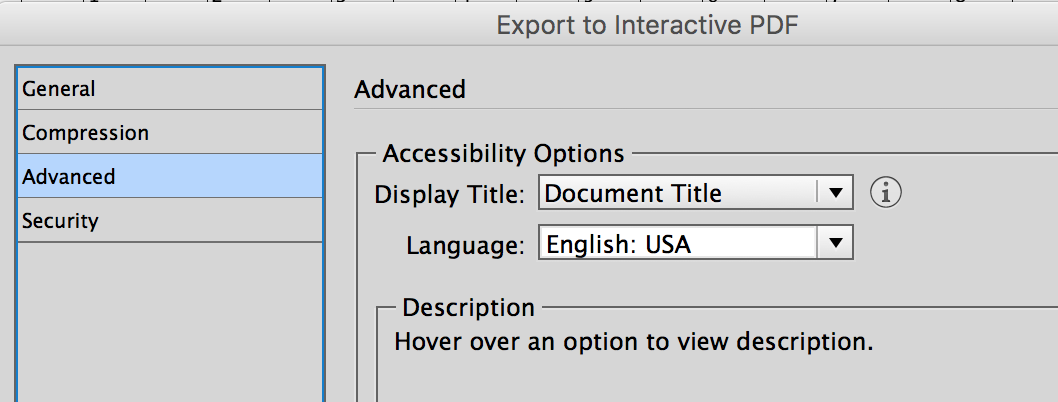
In the InDesign CC 2015.3 update in March 2016, an accessibility feature was added when exporting a Print PDF file. It provided an option to set the default document language. This is an accessibility requirement.
In 2015.4, the same control is added to the Export to Interactive PDF dialog box. Also, the controls in the dialog box are now divided into four panels:
Accessibility Interactive PDF
Adobe Stock Enhancements
The ability to download Adobe Stock photos into InDesign was added in InDesign CC 2015. However, if you downloaded an unlicensed Stock image, it wasn’t easy to figure out how to license the image. Two new methods are now available: A new “on-object” button appears on the image itself. Clicking it begins the licensing process. Alternatively, on the Links panel, a new “shopping basket” icon indicates an unlicensed Stock image. Right-clicking such an image, you are given a License Image option.

Easier Licensing Stock
Previously, if you viewed Adobe Stock images on the Adobe Stock web site (stock.adobe.com), your only options were to download to the Desktop or to a CC Library. Now, when viewing an image, a popover menu gives you three choices—License and Open In (to license the image immediately), Open Preview In, and Find Similar. When choosing the first two choices, clicking the “Id” icon will place it into an InDesign layout.
Smaller Changes
Finally, there are a few smaller changes you might notice:
- The Start workspace, introduced in English, French, German and Japanese, is now available for all languages
- Before sharing a CC Library with another user, the author can now mark the CC Library as a Read-Only Library. When inviting a collaborator, you can choose between “can edit” (the only choice before) and “can view” to limit the recipient’s options. The viewing collaborator would receive updated content, but could not change it.
- When you create a new document, the three Intents—previously Print, Web, and Digital Publishing—are now Print, Web, and Mobile (the page sizes for the latter are for phones and tablets, as before).
- On a Mac only, for security reasons, when plug-ins are stored in non-standard locations, they will be required to be stored inside the application package.
- Publish Online is no longer considered a “technology preview.” The Technology Preview preference is now replaced by the Publish Online preference. You have the option to turn that feature off in that preference.
- Mini Bridge has been removed.
This article was last modified on January 18, 2023
This article was first published on June 21, 2016
Commenting is easier and faster when you're logged in!

Recommended for you

Making Tables Accessible
Learn how to correctly tag complex PDF table headers for screen readers with Dax...

Tip of the Week: Taking Control of Guides
Learn how to arrange and color guides in your layouts faster and with more preci...

Adobe InDesign Brings OpenType to the Desktop
As discussed in the first part of this series, OpenType is a new font format tha...