




Several posts ago, I described the remote InCopy workflow that allows remote InCopy users to check out stories, make edits and check them back in without ever having to step foot in the office. It’s a powerful workflow but at a recent engagement with a client I was reminded of a few pitfalls with this workflow that can really wreak havoc and potentially cause lost time and work. So in this post I’d like to describe some of these pitfalls and how you can avoid them when working in a remote workflow.
Remote Workflow Process
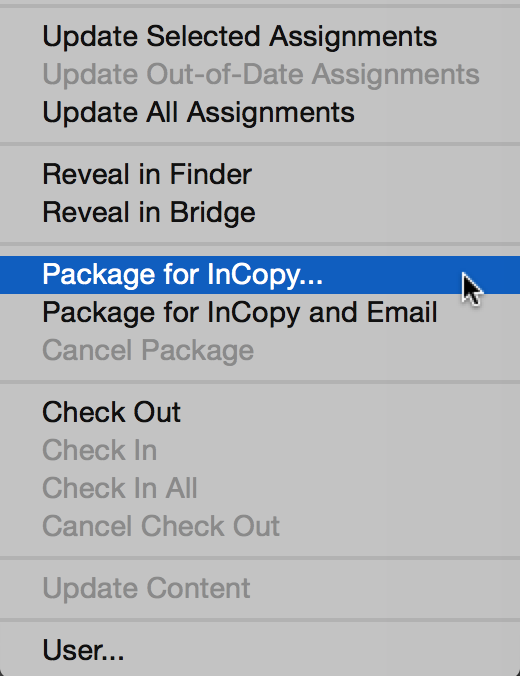
In a remote workflow, an InDesign user can use the Package for InCopy or Package for InCopy and Email commands to generate a package file (see figure below) that when sent to an InCopy user allows them to check out, edit, check back in, and return content to the designer. For remote editors and writers, this is an amazingly powerful feature.

The Pitfall
The package workflow works perfectly if you double click on the package (an .icap file), make your edits and immediately use the Return for InDesign or Return for InDesign and Email commands. The problem occurs if you don’t make all of your edits in one sitting and close the file to make more edits later. Upon opening the package again, you receive the error message in the figure below.
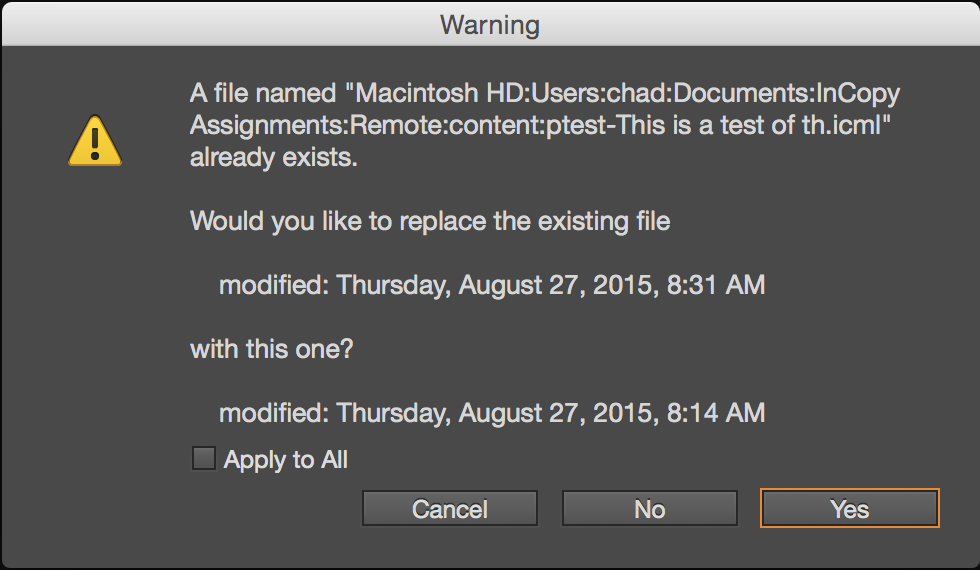
It doesn’t matter if you open the package from the attachment in an e-mail or if you open it from a saved location on your hard drive, this message rears its ugly head. The message is confusing and leaves InCopy users wondering why they are receiving the message and unsure which option to choose.
To understand the message you need to understand that when you open a package, you’re really not opening the package at all. You’re merely decompressing it to a default location on your hard drive. Where is that default location? It’s stored in a folder within your Documents folder called InCopy Assignments. Within that folder is a folder for each package that you expand by opening or double-clicking on a package file and that folder contains the assignment and any stories contained within that assignment along with some other pertinent files. All of this is transparent to the user initially. When you first open a package, it is decompressed and the assignment is opened in InCopy, ready to be worked on.
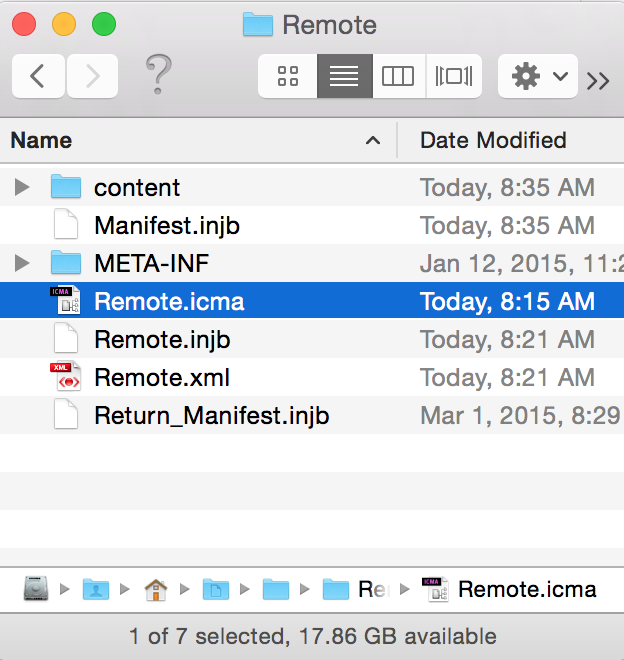
The problem occurs when a user doesn’t complete all edits in one sitting and closes the assignment. When the InCopy user comes back to the project to perform the remaining edits, they instinctively go back to the package file and re-open it. What they are really doing is decompressing the package file and re-expanding it’s components to the Documents/InCopy Assignments folder. If that folder already exists, they get the error message above telling them that one or more stories already exist. If they choose yes, they are overwriting the newer story with the story contained in the package file and thus will lose any edits previously made to that story (not good). The correct choice would be to choose no in which case the newer story (i.e. the one that they previously made edits to) will not be replaced and will be opened in InCopy with the previous edits intact.
Possible Solutions
To avoid the confusion of the displayed error message, you can directly open the assignment file from the Documents/InCopy Assignments folder. Because you are accessing the assignment and stories directly, there is no error message displayed. Conversely, if it’s inconvenient to remember when edits have been made to a story after launching the package file, simply instruct users to choose no if they receive an error message when re-opening the package file. Doing so will avoid lost edits in the workflow.
Despite these inconveniences in the workflow, the Package for InCopy feature is one that remote users just can’t live without. With a little education, your team can easily avoid the pitfalls of the remote InCopy workflow.
This article was last modified on July 10, 2020
This article was first published on August 27, 2015
Commenting is easier and faster when you're logged in!

Recommended for you

Acrobat How-To: Streamline Review Cycles
The release of the Acrobat 6.0 family of products represents a significant signp...

OnRequest Images Launches Next-Generation Network for Photo Models
OnRequest Images, the worlds’ leading provider of custom imagery, is launc...

How to Start an InDesign Document on a Left-hand Page
Start your InDesign document on a left-hand page using one of Khara’s easy tips.