



On first glance, it doesn’t seem like there could be many new features to add to Illustrator. First released in 1987, the application is one of Adobe’s oldest products with a rather mature feature set. Yet, the Illustrator team has managed to squeeze a few new and important features into a fully-packed suitcase as well as to integrate the product into the grand scheme of the new Adobe Creative Suite (CS).
On the Macintosh platform, this version of Illustrator cuts the final cords to OS 9 as it runs only in OS X 10.2.4 or higher. Adobe has issued the following statement for those who have upgraded to Panther, Apple’s latest flavor of OS X: “Adobe’s currently shipping products and products under development are being tested for compatibility with Mac OS X Panther, and to date no significant issues have been discovered.” Windows users have the choice of Windows 2000 or Windows XP.
Illustrator CS, as this version is called (or Illustrator 11, as you prefer) is available as an individual product as well as part of both the Adobe CS Standard and Premium packages. Whether you’ll want to buy Illustrator CS alone or in tandem with the other products depends greatly on what applications you use or intend to use. In this review, I’ll be concentrating on Illustrator’s solo features rather than how well it integrates with the other CS applications.
This version of Illustrator is also noticeably faster in all areas including copying, pasting, printing, saving, and scrolling around the pasteboard. Even on my ancient Dual 450 G4 machine, I can see the difference in responsiveness as I move around the page. Additionally, Illustrator CS takes advantage of technology advances on both the Windows and Macintosh platforms, including optimizations for Apple’s new Power Mac G5 systems.
However, for me, the most compelling reasons to upgrade any product are the new design or graphics features. Illustrator CS offers quite a few.
Inside the Third Dimension
The most impressive feature in Illustrator CS is the incorporation of new 3D controls (think Adobe Dimensions inside Illustrator). The Extrude & Bevel controls make it easy to add depth to text and simple shapes. The Revolve command lets you use the simple profile of an object in a revolved shape. And the Rotate command lets you apply a simple perspective to objects. You can also map two-dimensional artwork to any plane in the 3D space. This makes it easy to create basic shapes and then add all sorts of textures, labels, or patterns (see Figure 1).
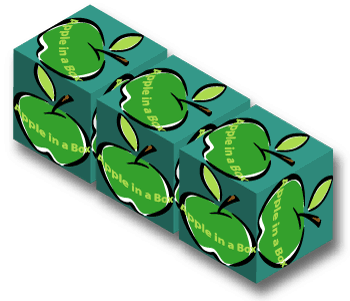
Figure 1: These boxes were created by extruding a plain rectangle into a 3D space and then mapping the label artwork onto each plane of the extrusion. A drop shadow was then added to the image. By using a symbol for the label artwork, it meant that the label could be updated by just modifying the symbol.
The 3D effects in Illustrator go way beyond anything formerly available in Dimensions, however. For instance, you can apply Illustrator’s opacity controls to the extruded shapes. This allows you to create windows, plexiglass boxes, and glass bottles that maintain their opacity settings. You can also map anything that can be defined as a symbol to the extruded artwork so you can map Photoshop artwork to the 3D surface. This is not to say that Illustrator CS offers a full 3D environment. You can’t place one object so it intersects another. And there’s no way to build an area with a perspective plane for individual objects. However, this 3D space is way beyond anything that other vector programs have.
Computer-Generated Scribbles
Back in the ’60s, one of my favorite writers and artists was Jules Feiffer who drew scathing political and social commentary cartoons for the Village Voice. Feiffer’s casual scribble style was the epitome of hand-drawn art. Now, Illustrator adds an effect that allows me to simulate that look with the new Scribble Effect (see Figure 2). Applied to text or paths, the Scribble filter can be adjusted into a wide variety of looks. You can have the loopy lines of the absent-minded doodler, the frantic scratches of a nervous scrawler, or the minimal sketches of a budding Jules Feiffer. (For all those who think the Scribble Effect was borrowed from After Effects, the truth is the After Effects team saw the it in an early alpha of Illustrator and borrowed the effect for their own program.)
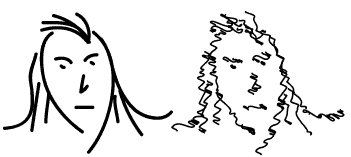
Figure 2: This homage to Jules Feiffer started with the calligraphic brushstroke created on the left. The Scribble effect was applied to the calligraphic strokes creating the illustration on the right.
The Ultimate in Text Tools
After years of struggling with Illustrator’s primitive text tools, users finally have state-of-the-art typography controls. Basically Adobe has taken all the text and typographic features from InDesign and added them to Illustrator. Now Illustrator shares InDesign’s Paragraph Composer (called the Every-line Composer in Illustrator), OpenType support, and Optical Margin Alignment (hanging punctuation). It also has complete automation of text using Paragraph and Character styles. Illustrator also has improved controls for how text characters are aligned to paths.
Sadly, all these new text features come with a price. Text in legacy (earlier version) files is not compatible with the new type controls in Illustrator (see Figure 3).
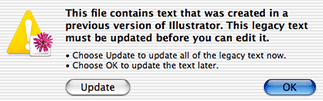
Figure 3: If you open a file with text created in an earlier version of Illustrator, a dialog box appears alerting you to decide what to do with the text.
You can update the text as you open the file. But updating almost guarantees the text will reflow or shift (see Figure 4). You can leave the text as “legacy text,” which means that it is frozen in place. You can edit legacy text if you need to, but at that point the text will most likely reflow. The change in how text is created may cause people who work with legacy documents that contain a lot of text (map makers, for example) to reconsider how quickly they switch over to Illustrator CS.
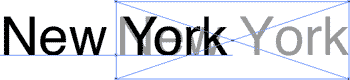
Figure 4: The effects of updating legacy text are demonstrated with this label for a map of New York. The gray text inside the box shows the original position of the text. The black text on the left is where the legacy text was moved to as part of the conversion process.
Tons of Clip Art
Many years ago, a friend mentioned that the real reason why CorelDraw was so popular on the Windows platform was that it supplied thousands and thousands of pieces of clipart as part of the program. While most professional artists sniffed at using such canned graphics, many ordinary users really appreciated it.
Perhaps it is a quest to appeal to those users that Adobe has added an impressive portfolio of more than 200 templates for a wide range of projects such as business cards and stationery, CD labels, postcards, and Web pages. These templates also contain hundreds of pieces of artwork that can be moved out of the templates and used in your own projects.
While many designers would never be caught using clipart straight out of the box, there are loads of little graphics that can be modified to your own specifications (see Figures 5 and 6).
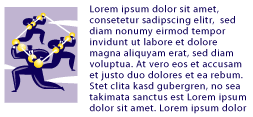
Figure 5: This business graphic looks fine, but you wouldn’t want to use it without modifications.
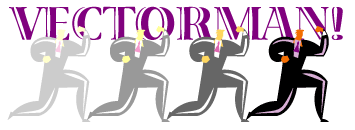
Figure 6: It didn’t take too much work to turn the previous artwork into my own image.
What’s Missing?
Despite the new features, and performance enhancements, there are still quite a few important things missing from this upgrade (fodder for a future upgrade, perhaps?).
First, it is exasperating that Illustrator CS still does not have any type of support for multi-page documents, especially multi-page PDF documents. The Save As command that creates a PDF document completely ignores any page tiling that has been applied. The only way to make a multi-page PDF is through Distiller. If the Illustrator team doesn’t want to add multiple pages to Illustrator documents, they should at least make the Acrobat conversion recognize the page tiling.
Although Illustrator CS has essentially added Dimensions into the core program, there’s still one application in Adobe’s vector graphics group that has not made it over to OS X or even past Windows NT — Streamline! Granted there isn’t that much need these days for tracing scanned artwork into vector shapes, but it is a shame that Illustrator users must launch Streamline in ancient operating systems or jump over to FreeHand to get good autotracing. (Yes, Illustrator may have an Autotrace tool, but it is hardly as robust as Streamline.)
Finally, it is embarassing to note that Illustrator’s Bezier controls are the worst in the vector world. FreeHand has much better controls for changing corner to curve points quickly and easily. And even the folks in Denver managed to give QuarkXPress better Bezier controls than Illustrator’s. For instance, in XPress you can apply numeric controls to the length and position of a Bezier handle, making it much easier to create perfectly symmetrical shapes.
My Recommendation?
Whether or not you upgrade falls under several scenarios.
The first way to evaluate Illustrator CS is as a new purchase for the person who does not own a previous version of the product. If you are looking to get started with a vector-drawing program for print work, I strongly suggest Illustrator CS. It has excellent integration with Adobe Photoshop and InDesign and offers the most features for print output, especially for export as PDF. This also makes the Adobe CS Standard package an excellent value at $999 list ($549 upgrade from any version of Photoshop). But if you want to use a vector-drawing program to work with Macromedia Flash, you would do better getting FreeHand MX as part of the Macromedia Studio MX 2004 package. FreeHand’s file format offers much better integration than Illustrator for copying and pasting files into Flash.
The next way to evaluate Illustrator CS is as an upgrade to a previous version of the product. If you have version 9 or earlier, this upgrade is a must — especially if you are looking to upgrade past Mac OS 9 or Windows NT. The new features in both version 10 (warps, envelopes, symbols, and others) and version CS, make an upgrade from any previous version of the program a mind-blowing experience. (Remember, Adobe doesn’t charge a different price if you’re upgrading from earlier versions — it’s still $169.) You’ll spend hours exploring the wealth of features in an upgrade that add both Illustrator 10 and CS features.
If you currently have version 10, you may not feel that compelled to upgrade to Illustrator CS (and I can’t blame you). The addition of 3D and the Scribble effect may not seem like a lot of program for the upgrade cost. And Illustrator 10 already runs in Mac OS X. However, anyone who works with a lot of text, especially OpenType, will immediately appreciate the CS upgrade. If you’re still wondering whether or not to move to Illustrator CS, consider if you intend to upgrade to Photoshop CS and InDesign CS. As long as you’re going to get those two products, you may want to upgrade to the Creative Suite Standard or Premium package to take advantage of Illustrator’s integration with its fellow CS applications.
Read more by Sandee Cohen.
This article was last modified on January 18, 2023
This article was first published on December 2, 2003
Commenting is easier and faster when you're logged in!

Recommended for you

Kodak to Sponsor Meeting of Digital Printing Users Group
Kodak expands its support of the digital printing market as a premier sponsor of...

Text In and On a Path
Kathleen wrote in with a problem: "I have a file that has two boxes that serious...

Using InDesign, Illustrator, and Photoshop Together: The Pen Tool
I remember the first time I tried to use the Pen tool in Illustrator back in 198...