



Dave wrote us the following:
I was wondering if its possible to have the whole company sharing the same InDesign dictionary? We want to streamline everything so that if someone adds a word to the dictionary everyone else who uses that file will have the same word/dictionary. Is this possible?
It’s pretty simple to share custom dictionaries with your colleagues. It’s not simple, though, to have everyone add words to that central dictionary. But it’s possible!
First, have one person create a new dictionary and put it on the server. (Solution for server-less workgroups follows.) It’s easy: In Preferences > Dictionary, click the icon for New User Dictionary.
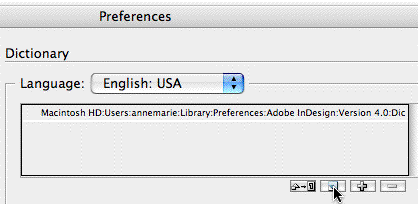
Name the dictionary (keep the .udc extension) and save it on the server.
As soon as you create a new external dictionary, it’s added to the list of dictionaries in your Dictionary Preferences. Other users in your workgroup will need to click the Plus icon in their Dictionary Preferences to add the external dictionary. The Preference setting is “sticky” and will be in effect from then on, for any document they create or open.
One thing, though. Only one person can edit the external dictionary on the server from within InDesign – the first person on the network to “load” the dictionary by either adding it or by simply starting up the program when that dictionary had already been added to their Prefs. Everyone else will be able to use the dictionary, but they’ll see a Lock icon appear next to the dictionary name, meaning they can’t edit it.
A solution I recommend to my clients who want to share a dictionary:
- Appoint one person “Keeper of the Custom Dictionary” and have them choose an assistant who can fill in while the Keeper is on vacation.
- The Keeper keeps a copy of the Custom Dictionary on their own computer or perhaps in a fireproof safe guarded by hounds. Why? To fix accidental mucking up of the server version by others on the network.
- The Keeper is the only one allowed to add words to the Custom Dictionary. They do this by first adding the words to their local copy of the dictionary, then they update the one on the server to match. The fastest way to add a pile of words to a dictionary is by putting them in a text file – separate words by paragraphs, spaces or tabs – and then importing that .txt file via Edit > Spelling > User Dictionary > Import.

- Users who want words added to the company’s Custom Dictionary send the words to the Keeper. They can type them out by hand and e-mail them, or export the list of words they added to the user (default) dictionary by choosing Edit > Spelling > User Dictionary, choosing Added Words from the dropdown menu, and clicking the Export button. This creates a .txt file suitable for e-mailing, and subsequent importing by the Keeper.
If you’re server-less
Appoint a Keeper as above, and have that person create and distribute the first iteration of your Custom Dictionary by e-mailing the .udc file to everyone. Users can keep that file anywhere on their hard drive (a location safe from accidental deletion would be best) and should load it via Preferences > User Dictionary as described above.
Now you just have to tell everyone not to add words to the dictionary without also sending those added words to the Keeper. They can send the words they added to either the default dictionary or the custom one in the usual way: Edit > Spelling > User Dictionary, choose the Dictionary from the dropdown menu, choose Added Words from the other dropdown menu, and click the Export button.
This article was last modified on January 5, 2023
This article was first published on July 20, 2006
Commenting is easier and faster when you're logged in!

Recommended for you

Changing the Default Stroke to Inside or Outside (instead of centered)
When you want to change the default stroke, you need to remember these few essen...
How to Remove All the Index Entries
KRB wrote: I have some documents with old indexes, which I need to delete to sta...
Create Spread Numbers
I frequently get asked how to create automatic spread numbers–as opposed t...