




Kelly wrote:
Does anyone know how to remove the file extension when using static captions? I want to get to get rid of .jpg, but not sure how.
I love the topic of “make it go away!”
The problem is that when you define a caption in InDesign (Object > Captions > Caption Setup), there’s no way to say “drop the last part of the file name” in the Caption Setup dialog box:
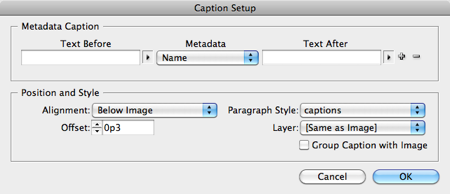
So when you select an image and choose Object > Caption > Generate Static Caption (or Generate Live Caption), you get the whole name! Here’s an example:

As long as you use a static caption (not live), you can edit the text any way you want. For example, you could just delete the .jpg at the end. But that would be tiresome if you had to do it a lot. Instead, if you want the file name, but not the dot-extension at the end, you could apply a GREP style to the paragraph style:
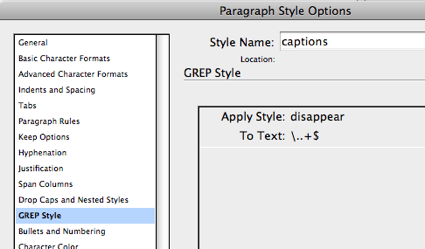
What the heck is that disappear character style? Basically, I just made a character style defined as: color = none, size = .1 pt, and horizontal scale = 1%. Anything you apply that to will virtually (not entirely, but good enough) disappear. In this case, the style is being applied to backslash-period-period-plus-dollar, which means, “all text from the last period to the end of the paragraph.”
Waalahhh! (Clearly, French isn’t my first language.)
Unforunately, this will not work on live captions or text variables because those are literally treated as a single character — InDesign can’t “see inside” them to see the text or edit it.
However, if you have already created a lot of live captions, you will be happy to hear that there’s a script that can convert them to static captions for you. It’s called Convert Variables to Text. When you run the script, it instantly converts all variables—including captions— to live text. Download the script here.
(Okay, before someone else chimes in with this: Yes, I know you could also just use that grep code in the Find/Change dialog box to literally delete the text. But why delete if you don’t need to? Maybe tomorrow your client or art director will suddenly change their mind and want them there after all.)
This article was last modified on December 21, 2021
This article was first published on November 17, 2011
Commenting is easier and faster when you're logged in!

Recommended for you

What to Know Before Using Live Captions and Text Variables
Text variables and live captions give you a way to make certain content in your...
Speed Up Your Image Workflow With CC Libraries
Monica Murphy shows how to save a huge amount of time and effort when placing im...
Adding the Last Page Number in a Book to Text
It’s probably a bad idea to write blog posts on an empty stomach because a...