



I love guacamole. I love making it and I love eating it. But as much as I love me some guac, I wouldn’t put it in my coffee. For everything, even awesome things that we love, there is a time and a place. That’s why despite the fact that I love CC libraries and use them regularly, sometimes I just want to get that pesky panel out of my face.
See also: InDesign Magazine Issue 83 – CC Libraries
In the past, you may have heard that the CC Libraries panel will pop open every time you create a new swatch or style unless you turn off the checkbox at the bottom of the panel.

But even if you do turn off all the checkboxes and close the CC Libraries panel, it may still reappear unbidden when you restart InDesign. This phenomenon was driving me crazy until I found a simple step that will keep the CC Libraries panel closed until I choose to open it.
In a nutshell, I noticed that if I close the panel while it’s minimized and undocked, and then quit InDesign, the panel reopens automatically when I restart InDesign. When I say “minimized,” I mean that the panel display is reduced to either the icon and name or just the icon.

The automatic reopening happens if I click the close button at the top of the panel, or if I switch or reset workspaces. Other InDesign panels do not behave the same way. If you close them in this fashion, they stay closed until you choose to open them again.
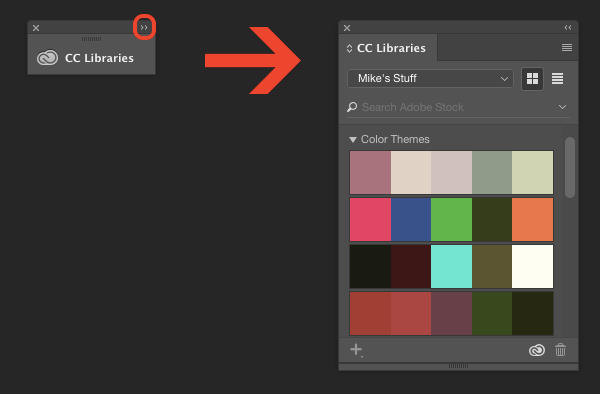
The simple way to prevent the CC Libraries panel from reopening automatically is to expand the panel by clicking on the double arrows at the top right, then close it.
I’m not sure if the behavior of the minimized CC Libraries panel is a bug or a feature, but either way, now you know how to deal with it, and we can move on to more important things in life, like perfecting a recipe for guac.
This article was last modified on July 25, 2019
This article was first published on August 14, 2017
Commenting is easier and faster when you're logged in!

Recommended for you

Collaborating Through Cloud Services
Conrad Chavez shows how to improve creative workflows with resources like Dropbo...

The Perplexing PDF Contest Answer and Winner
Solve this InDesign mystery for a chance at winning a great prize.

The Digital Art Studio: 5 Favorite Illustrator CC Features
If you’ve ever experienced a power outage, you’ve also likely found yourself ref...