




If you want to run scripts from within Adobe Illustrator, the first step is to install them in the right location.
Start by going to the Illustrator application folder. Inside, you’ll find a Presets folder, and within that, a folder for the language you’re using for the Illustrator interface. For example, en_US is US English.
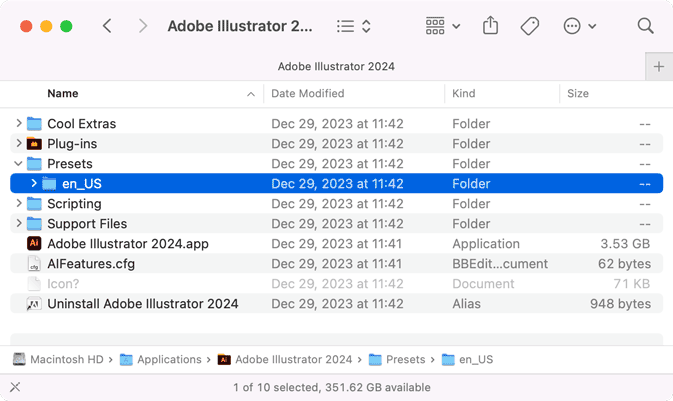
Inside that folder, you’ll find several subfolders containing items such as Actions, Brushes, Graphic Styles, and Scripts.
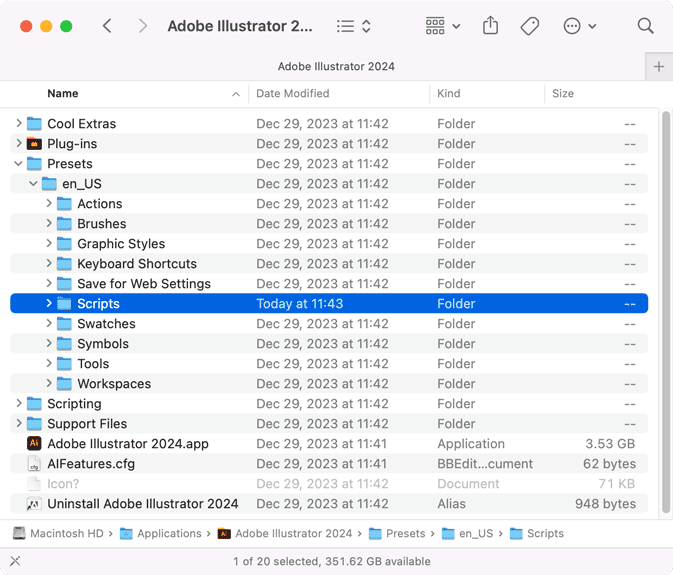
You can put the scripts you want to install directly in the Scripts folder. (Note: you may need admin access to modify the contents of the Scripts folder.) Or, you can organize your scripts into subfolders within the main Scripts folder.
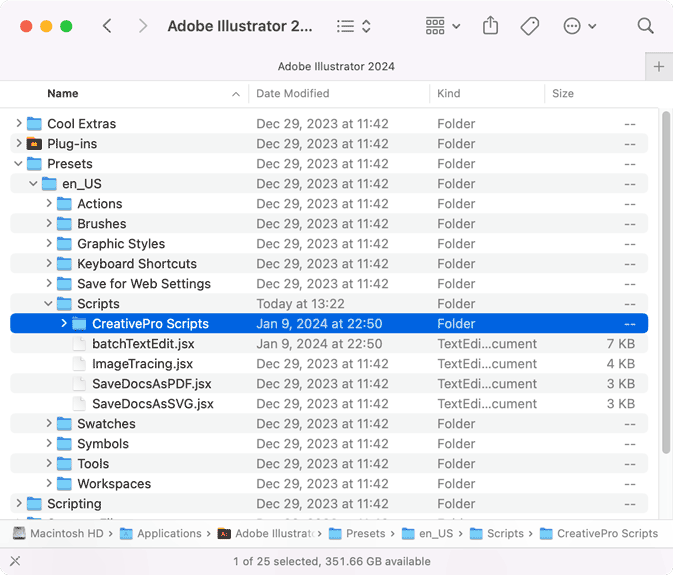
If Illustrator is running, quit and restart the program.
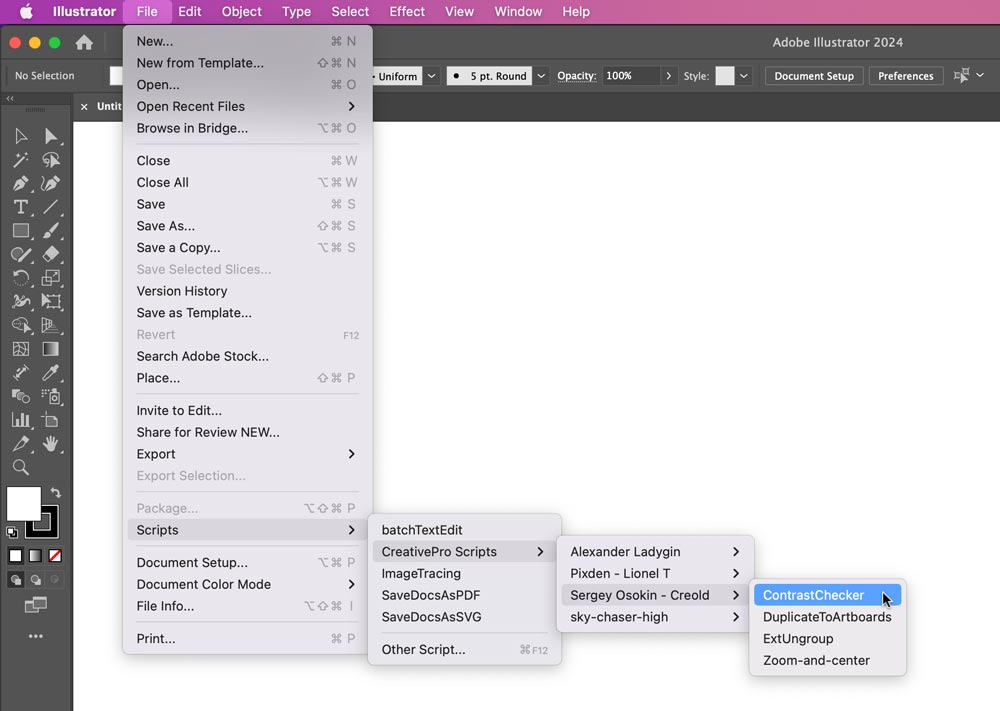
Then, you can see and run the scripts you installed by choosing File > Scripts.
This article was last modified on January 19, 2024
This article was first published on January 19, 2024
Commenting is easier and faster when you're logged in!

Recommended for you

Merge Ahead: Choosing the Right Tool for Variable Data Jobs
Which tool will smooth the road for the variable data that drives your customize...

Interview with Monika Gause, Print Designer and Illustrator Expert
Q&A with Monika Gause, who is presenting at the 2026 Design + AI Summit for Crea...

Livestream Video: Creating 3D Lettering Using Illustrator’s Inflate Tool
Join Khara Plicanic as she shows how to create stunning 3D lettering with Illust...