



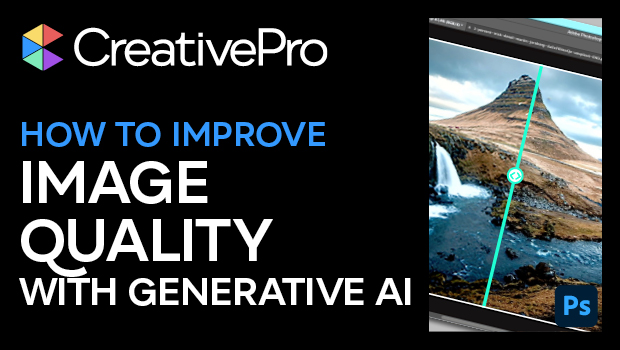
In this “Three Minutes Max” video, Rob de Winter uses Photoshop’s generative AI to improve the image quality on an existing photo. Using an opacity trick and good ol’ Quick Mask mode, he easily enhances the quality, without changing the overall look and feel of the photo.
Three Minutes Max comes from a fun—yet very competitive—session at our annual CreativePro Week conference. Speakers have three minutes to wow the audience with the tip and win a prize for a lucky conference attendee.
Subscribe to the CreativePro YouTube channel for more helpful design tips!
This article was last modified on August 29, 2025
This article was first published on November 9, 2024
Commenting is easier and faster when you're logged in!

Recommended for you

How to Fix SVG Images That Look Blurry in InDesign
How to edit code to improve the appearance of SVG images placed in InDesign.

Enlarging Images in Photoshop with AI Partner Models
A comparison of techniques for increasing the resolution of images with the help...

Controlling Publish Online Image Resolution
The beauty of InDesign’s Publish Online feature is its simplicity. Click t...