




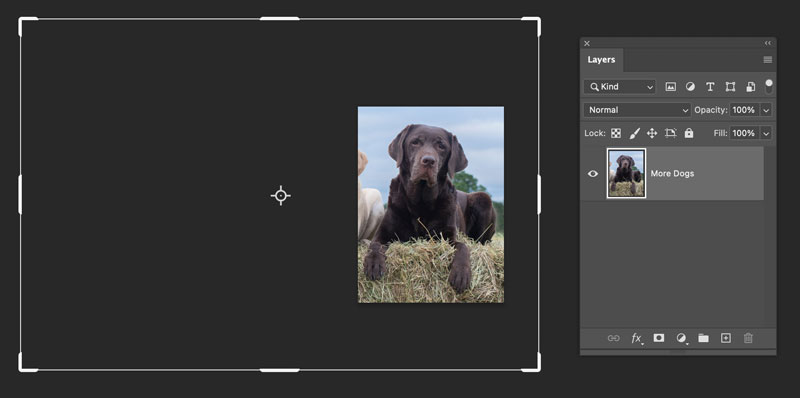
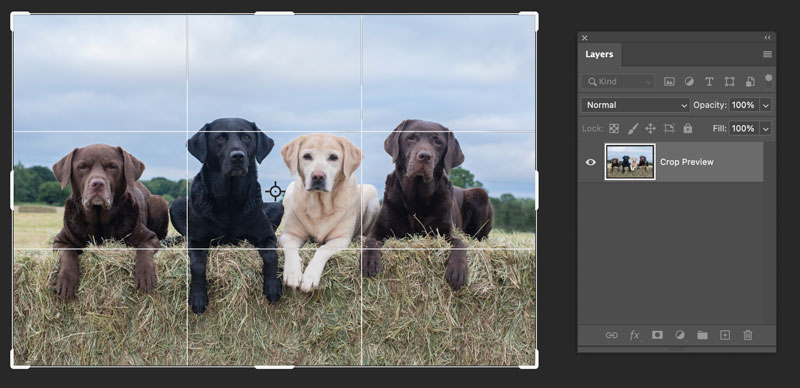
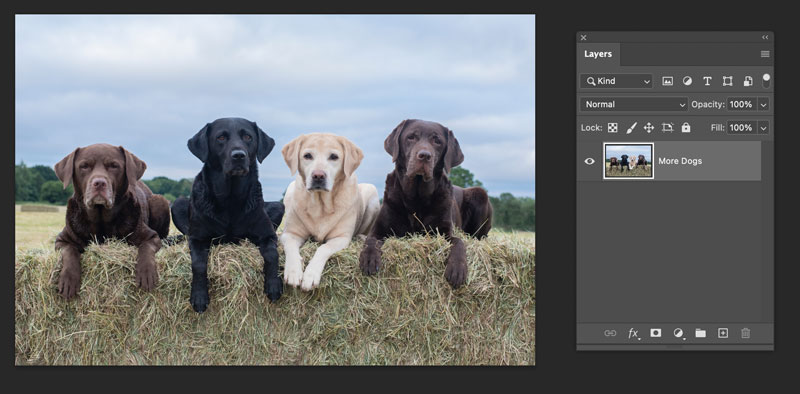
Here are a two quick tips for when you want to crop a Photoshop document so the canvas is resized to match the dimensions of a specific layer.
If the layer is smaller than the canvas, Command/Ctrl-click on the layer thumbnail to make an active selection of the layer. Choose Image > Crop.
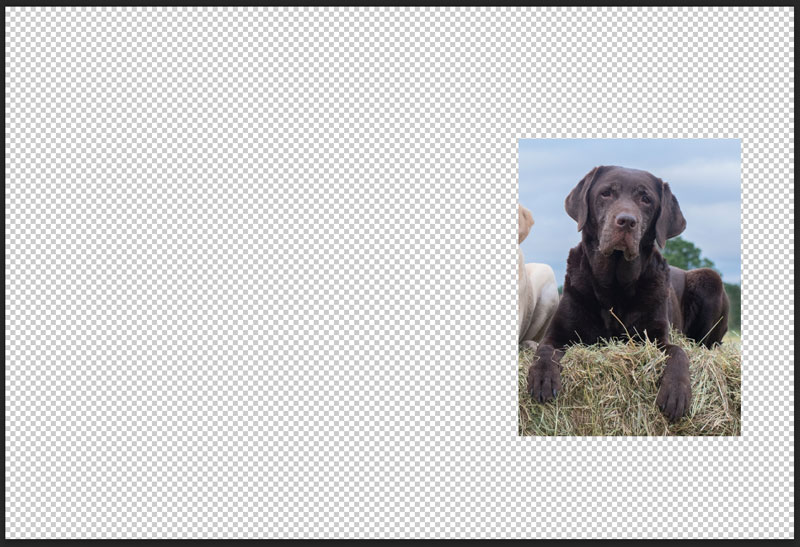
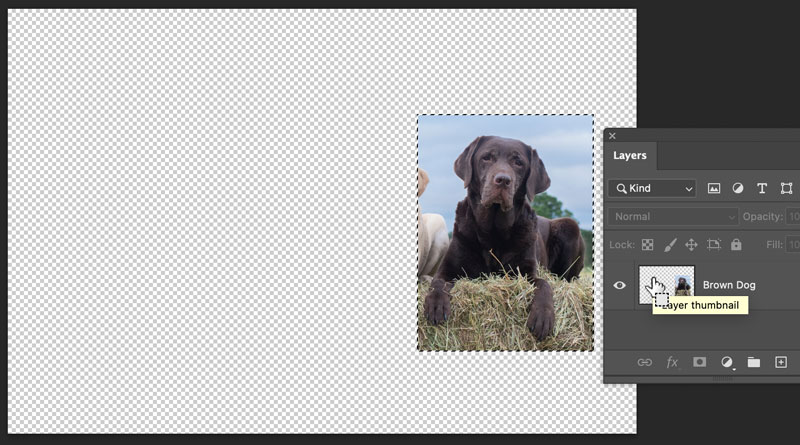
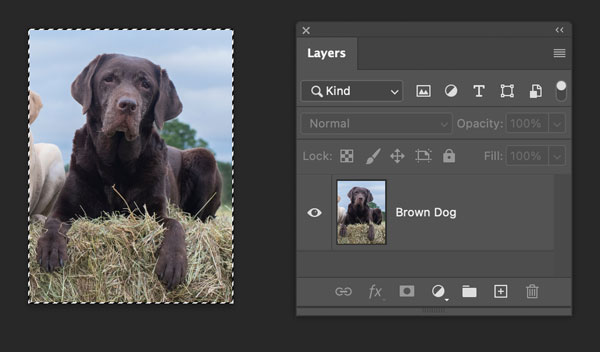
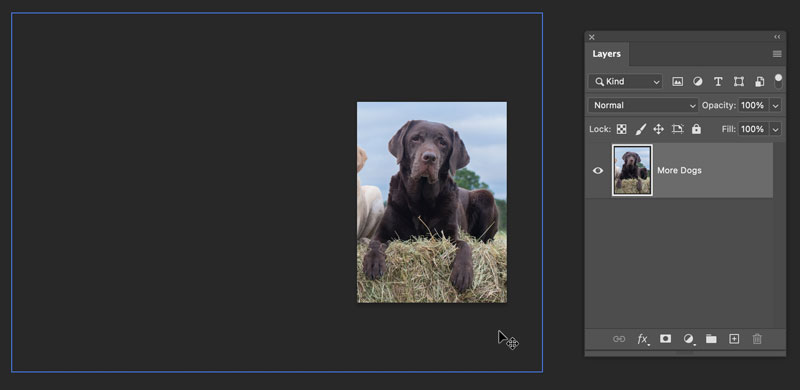
If the layer is larger than the canvas, Command/Ctrl-click on the layer thumbnail, then press C to switch to the Crop tool. Press Return/Enter.
This article was last modified on February 28, 2025
This article was first published on February 28, 2025
Commenting is easier and faster when you're logged in!

Recommended for you

Animating a Photoshop Document with Premiere
Put your Photoshop files in motion with Adobe Premiere!
Accessing Photoshop Layers in InDesign
Khara Plicanic shows how to access Photoshop layers from within InDesign.

Livestream Video: How to Design a Photo Book in InDesign
Watch Khara Plicanic demonstrate how to design a beautiful a photo book in InDes...