




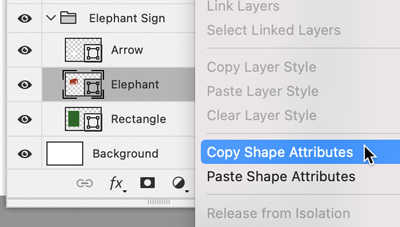
If you have fill and/or stroke formatting applied to a shape layer in Photoshop and you want to apply it to other shape layers, it’s an easy copy and paste operation. Just right-click the shape with the desired formatting in the Layers panel, and choose Copy Shape Attributes. 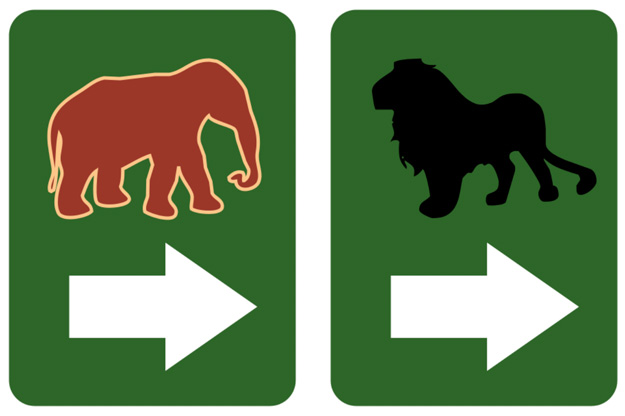
 Then, right-click the other layer and choose Paste Shape Attributes.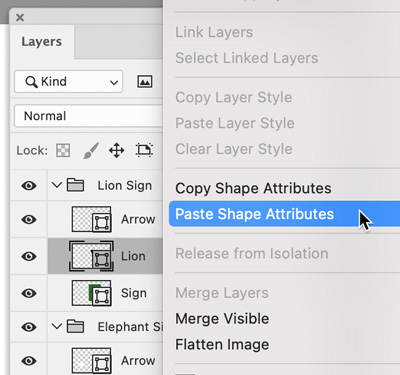

Copying and Pasting Fills and Strokes Separately
Want to apply just the fill or just the stroke? Click the first shape layer in the Layers panel. Then, go to the Options bar or Properties panel and click either the fill or stroke box. Click the gear icon and choose Copy Fill/Stroke. 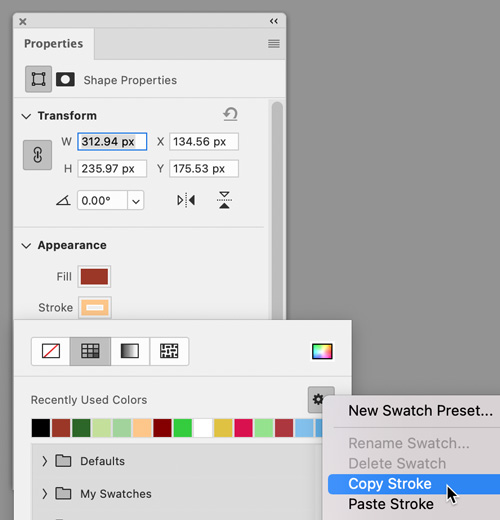 Select the other shape layer, click the fill or stroke box, click the gear icon, and choose Paste Fill/Stroke. Note that when you use this method, only the stroke color is pasted, not the width. However, there is another method for copying and pasting both the stroke color and width. Click the shape layer with the desired formatting in the Layers panel. Then, using the Path Selection tool (black arrow), right-click on the shape and choose Copy Complete Stroke.
 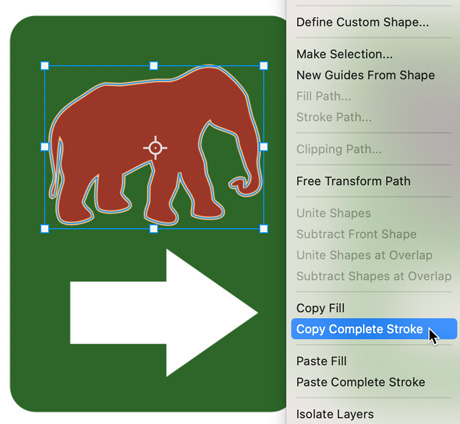 Target the shape layer you want to change in the Layers panel. Then, right-click on the shape and choose Paste Fill or Paste Complete Stroke.
 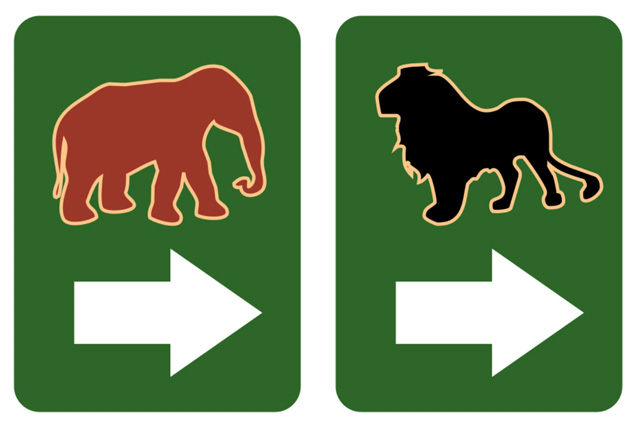 You can also copy and paste the
fill using the Path Selection tool method.
Commenting is easier and faster when you're logged in!

Recommended for you

Work Week Projects: Get Get a Grip on Photoshop’s AI Tools
Five quick exercises to do while you're at work to get comfortable using the gen...

Livestream Video: Creating 3D Lettering Using Illustrator’s Inflate Tool
Join Khara Plicanic as she shows how to create stunning 3D lettering with Illust...
How to Work with Illustrator’s Effects
Learn how to work with effects in Illustrator and make further adjustments, incl...