




InDesign’s Paste Into feature lets you nest one object (or a group of objects, which acts like a single object) inside a frame. It’s essential that you master the concept of pasting into. For example, if you want to move a picture from one graphic frame to another, you should select the image with the Direct Selection tool, cut it (Edit > Cut), select the new frame, and choose Edit > Paste Into (Command-Option-V/Ctrl-Alt-V). If you use the regular Paste, you’ll get a new frame, and the image won’t go into the frame you wanted.
Here’s another often-confusing aspect of Paste Into: Where does the object go? That is, sometimes the image (or other frame, or group, or line, or whatever you’re pasting into another frame) is centered in the new frame… and sometimes it ends up somewhere else!
The trick is that Paste Into pays attention to the bounding boxes of the two objects (the original object that you cut or copied to the clipboard, and the frame you’re pasting into). If the bounding boxes don’t overlap, the object is centered in the new frame. If they do overlap, even a tiny bit, InDesign maintains the object’s page geometry (its x/y “location” on the page).
(The “bounding box” is the smallest rectangle that can fit around the object)
This can cause problems especially when you have non-rectangular objects, it’s sometimes hard to tell where the bounding box is.
For example, if I cut this text frame:

and paste it into this elliptical frame, it seems to disappear, but it really is inside that frame:
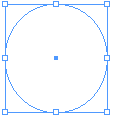
If I choose Object > Select > Content, I can see the frame nested inside the other one, but invisible (masked).
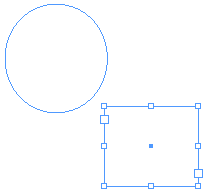
This oddity is due to the first frame having been inside the bounding box of the original text frame on that page. (This only happens when the objects are on the same page; if you switch to a new page before pasting-into, the object always gets centered in the frame.)
How to move that nested frame, now that’s it’s hidden? You can use the selection tools to drag the little black center point! Or you can select the “container” (in this case, the ellipse) and choose Object > Fitting > Center Content.
I’m sure there are more paste into tricks I should point out, but my 4-year-old just came over and is pounding on my arms trying to get breakfast, so it’s clearly time to stop typing for now…
This article was last modified on December 18, 2021
This article was first published on April 3, 2008
Commenting is easier and faster when you're logged in!

Recommended for you

PePcon Speaker Dossier: Laura Brady, Ebook Converter Extraordinaire
Fun facts about some of our favorite people, the speakers at our upcoming PePcon...
The Ultimate Backpack for Photographers
A new Kickstarter project by MindShift Gear aims to fund the development of the...
Enfocus Enhances Functionality Provided for PitStop Server, PitStop Professional and Neo
Enfocus announces key updates to its most popular products: the company’s...