


GREP of the Month: Negating Characters
Learn how to exclude a single character (or a range of them) with these handy GREP expressions.


This article appears in Issue 88 of InDesign Magazine.

Learning how to use the absence or negation of a certain character as a search criterion will give you a powerful way of finding what you want. And you can use two different expressions for this for maximum flexibility.
Negating character classes?The first expression is really simple to use. Capitalize the common character classes like d (any digit), u (uppercase), or s (space) to invert their effect. Thus, D will find everything that’s not a digit, and S will find anything that’s not a space. For example, this is especially useful when searching for words that aren’t capitalized, but should be.
Negating specific characters?You can also negate certain characters in your search by using the [^] pattern. To use it, type all the characters you want to be excluded after the ^ symbol without spaces. Don’t worry, InDesign will treat all characters as individual entries and not as one combined search. For example, you can use the expression [^abc] to find any character except for a, b, and c. If you need to negate a range of characters, you can use the usual character range expression (such as [^0-6]) to exclude all numbers from 0 to 6.
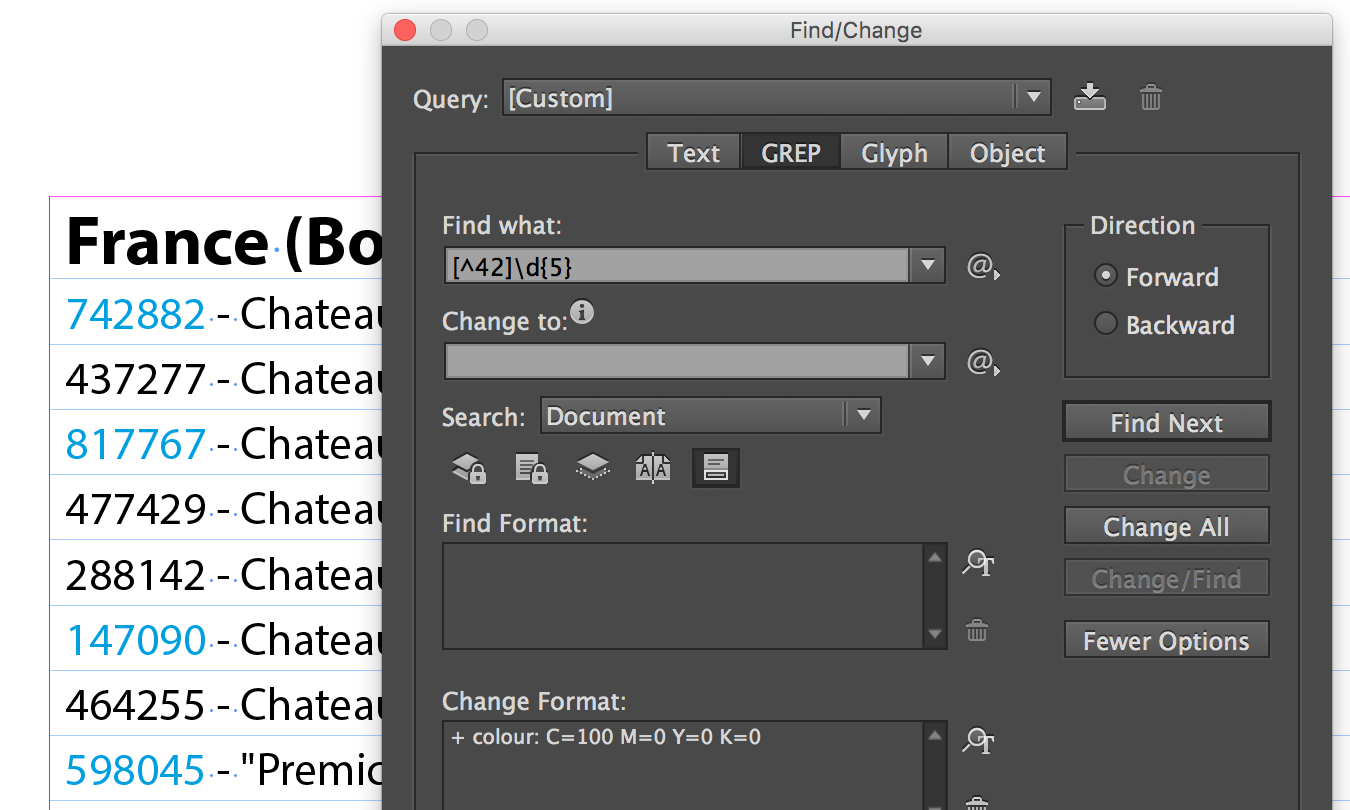
Here’s a more complex example. The expression [^42]d{5} will find a six-digit number. The first character can be anything as long as it isn’t 4 or 2, followed by any five regular digits. Below, you can see the found entries in cyan.
Be sure to experiment with this technique; it’s too powerful not to use!
—Bart Van de Wiele
Commenting is easier and faster when you're logged in!

Recommended for you

InDesign Magazine Issue 148: Designing for Social Media
Issue 148 has articles on designing for social media, dielines for creative fold...

5 Ways to Get Pie Charts into InDesign
In an analytical world, pie charts can help to serve up your data in a tasty way...

GREP Style Report
Print a report of all GREP styles defined in a document's paragraph styles (CS4...