


GREP of the Month: Locations
Tips on how to narrow your GREP searches and styles to specific places in a paragraph or story in InDesign.


This article appears in Issue 67 of InDesign Magazine.
Where you search is sometimes just as important as what you’re searching for. When it comes to GREP queries, InDesign will look through an entire paragraph unless you include code to narrow the search to a specific location. If you know that what you’re looking for is at the beginning or end of a paragraph, you can use the ^ symbol (Beginning of Paragraph) or the $ symbol (End of Paragraph), found in the Locations metacharacter submenu. So if you want to remove all white space at the start of each paragraph, use ^s+ and keep the Change to: field empty. You can find trailing white space at the end of paragraphs using s+$. The ability to target the beginning or end of a paragraph allows you to easily add desired content in those places. Just remember that to add new content with Find/Change, you need to first find some existing content. Using only ^ or $ will place your cursor at the right location, but it will not select anything. For example, to add an em dash followed by a thin space at the beginning of a paragraph, you need to find ^. (the period matches any single character), and replace with ~_~<$0. Here, the $0 stands for Found Text (everything we find, we put back in after the em dash and thin space).
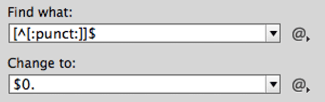
This GREP search adds a period at the end of each paragraph that doesn’t end with any punctuation. In this example, the ^ means “not” because it is inside brackets.
that don’t have any punctuation. For that, you can use
[^[:punct:]]$ which translates to “anything that is not punctuation at the end of the paragraph” and change to $0. If you want to search for something at the beginning or the end of a story, you can also use special metacharacters (not available in the Locations submenu): A for the beginning of story and z or Z for the end of a story.
Commenting is easier and faster when you're logged in!

Recommended for you

Love Letters by Tony Di Spigna
I was lucky enough to come of age, typographically speaking, in the 70s – an era...

How to Create a Single-Image Book Promotion eBlast
Here are step-by-step instructions so you can make a single-image graphic that c...

New Zealand Crowdsources New Flag Design
What if Twitter had been around in 1776 when the Founding Fathers asked Betsy Ro...