




Most of us know that scripts are really nothing more than plain text files. In fact, many times in a user forum I’ll see a simple script typed out with the instructions to copy it to a plain text file and save it in the InDesign scripts folder with a JSX extension. Another use for this is the placeholder.txt file that can be saved in the InDesign application folder to allow the use of your own custom placeholder text when using the Type > Fill with Placeholder Text command.
While that seems to work just fine on the Mac and even on Windows XP, Windows 7 in an effort to prevent you from messing things up, won’t allow saving files in application folders or subfolders. When trying to save into the InDesign application folder you’ll get this alert:
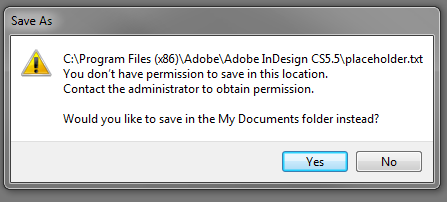
Windows 7 does not allowing saving intop application folders
That alert is a bit misleading because I’ve yet to find a direct way around this even with administrator rights. The solution is to click Yes and save it in the My Documents folder. Once saved, browse to the file in using Windows Explorer and copy it to the clipboard. Browse to the InDesign application or script folder and paste. At this point, Windows will make one more effort to warn you:
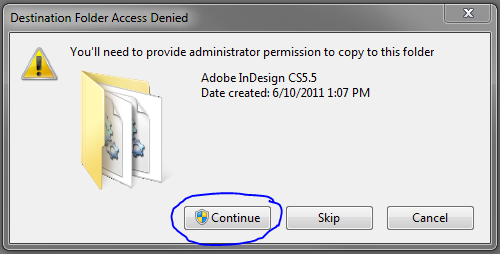 Select Continue and your file will pasted into the folder. It’s a few extra steps but it will allow you to install scripts that haven’t been provided to you as JS or JSX files.
This article was last modified on December 21, 2021
This article was first published on February 11, 2012
Commenting is easier and faster when you're logged in!

Recommended for you

InQuestion: Making Colors Match Between Photoshop and InDesign
Q. My company is printing promotional brochures for an upcoming trade show. Beca...

For Position Only: Drupa Wants to Pump Printing Up
If you thought your feet got tired walking around Moscone Center during Seybold...
Vintage Photos of People and Places
This article is taken from Creativeprose: The weekly newsletter of CreativePro.c...