



Okay, raise your hand if you use the Pencil tool. Not many folks out there, I know. But it it can be useful in some circumstances, especially if you use a tablet and stylus. So here are two Pencil tool tricks you should know about.
First, you can draw all day with the Pencil tool and not figure out how to close the shape into a frame (a closed path). When you let go of the mouse button, it always seems to result in an open path! The trick is the “make better” key: Hold down the Option/Alt key after you start drawing, and don’t release it until you’re done (release the mouse button first). This forces InDesign to close the shape, even if ou end the path far away from where you started.
Second, if you find the Pencil tool leaves you with far too many points on the path, you probably need to double-click on the Pencil tool before using it. That opens the Pencil Tool Preferences dialog box:
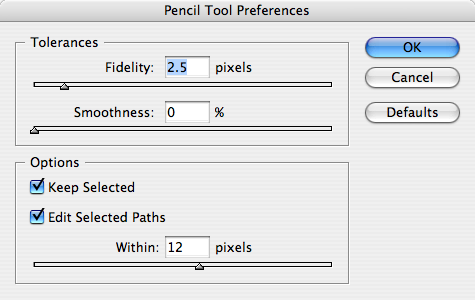
Try dragging both the Fidelity and the Smoothness sliders all the way to the right and click OK. Now the freehand paths you draw will contain as few points as possible. Then if you need to fine-tune it, you can always either drag over the path again a bit, or add/remove points with the Pen tool.
(Hey, that’s a third tip… You can replace a part of any path with the Pencil tool just by dragging over it… did you know that? Anne-Marie mentioned it back in this post.)
This article was last modified on December 15, 2023
This article was first published on September 1, 2008
Commenting is easier and faster when you're logged in!

Recommended for you

5 Ways to Find Creative Inspiration
Finding inspiration is one of the most challenging things that designers and art...

Spaced out dots…
I love my dots, but want more from InDesign when it comes to dots. Let's space o...

How to Smooth and Refine Paths in Illustrator
Learn how to easily smooth rough or bumpy paths in Illustrator using the Smooth...