



Dan, the pre-press operations manager at a B-to-B magazine publisher (whom I taught InDesign to last summer) recently e-mailed me:
In some of our templates, whenever we place text, InDesign automatically applies the sub-subhead character style. How do we get InDesign to stop doing that?
It’s aggravating when that happens, isn’t it? Luckily it’s an easy fix.
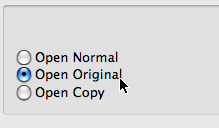
First, open the template’s original file to edit the template itself. To do this, choose File > Open, find and select the INDT file (the InDesign template) and then choose Open Original from the radio buttons at the bottom of the dialog box before clicking the Open button. Open Original is for editing saved templates.
After the file opens, choose Edit > Deselect All to make sure nothing is selected.
When nothing is selected in the layout, many choices you make in the program become the default settings for that document. That’s actually a feature, but it can easily become a glitch if, while you’re working on it, you accidentally choose something (while nothing is selected) that affects the document from then on.
For example, in Dan’s case, he probably had the sub-subhead style selected in his Character Styles panel. I told him to open the panel and click the [None] style, which is the InDesign default.
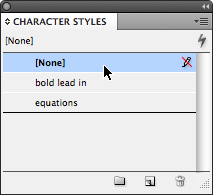
If this happens to you, you might as well check your Paragraph Styles, Object Styles, Table Styles and Cell Styles panels too. Make sure they’re set to the InDesign defaults of [Basic Paragraph], [Basic Text Frame], [Basic Table], and [None], respectively. If you see a plus symbol appear after any of these, Option/Alt-click the style name to clear any unwanted overrides.
Custom styles are notorious for accidentally becoming the default setting, because people often edit styles while nothing is selected. When they’re done, the style they just edited is still selected in the panel, instead of the original default style. If they forget to reset the panel to the original default style (by simply clicking it), then the custom style becomes the new default.
The best way to avoid this is to never edit a style by double-clicking it. Instead, hover your cursor over the style name, right-click, and then choose Edit “[style name]” from the contextual menu. Doing so does not change which style is selected in the panel – which is always reported to you in the top area of the panel, right under the panel’s name.
For example, here I’m about to edit the “toc body” style while keeping the [Basic Paragraph] style selected.

One other thing: If you’re placing text into an existing text frame (from a master, or one you drew on the document page) that’s saved with the template, click inside that frame with the Type tool but don’t type anything. Once again look at the Styles panels and make sure the default styles are set correctly.
Now, close the template, saving changes at the prompt.
Open the template normally so it opens an Untitled document, and see what happens when you place text. It should come in using your default styles.
Epilogue: Dan replied the next day:
Anne-Marie,
We tried this on several templates and it worked on them all. Thanks!
This article was last modified on December 19, 2021
This article was first published on February 23, 2009
Commenting is easier and faster when you're logged in!

Recommended for you

Auto-Reflowing Images in a Grid
How can you make a grid of images reflow automatically around a page when you ad...
Making Your Own Pantone Swatches When Libraries Aren’t Available
Elizabeth wrote: We recently printed a piece that used a metallic silver spot on...
Add Custom Text at the Beginning of Each Line
When you need to add text to the beginning of each line automatically, this tric...