



I’m a big fan of using scripts (Window > Utilities > Scripts) to help automate tasks in InDesign, but sometimes I just don’t have time to hunt down the script I need. And, not everyone in corporate America can find, install, or use scripts without running the IT Dept. gauntlet first.
So here are three quick, script-less techniques you can use to keep your text looking great. I’ll assume you’re using paragraph and character styles to keep your formatting consistent throughout a document. Now you’re at that stage in production where you need to comb through all the text and make sure there are no errant local text formatting overrides – perhaps you don’t care about locally-formatted italics or bolds, but you probably do want to find and fix subtle, accidental “in the throes of production” changes in type size, typeface (Officina Sans Medium instead of Book), tracking and such.
Remove Local Overrides button
Of course you know the technique for removing local overrides from text one paragraph at a time (Option/Alt-click the appropriate paragraph style’s name), but what if there are many paragraph styles used in a story, and all of them need cleaning up? Do you need to tediously click in one paragraph at a time, Option/Alt-click its style name, click inside the next paragraph, Option-Alt-click on its style name, and so on?
No you do not. The beauty of the little Remove Local Override button at the bottom of the Paragraph Styles panel is that it can work on a mixed selection. It lets you remove all local overrides without specifying any particular paragraph style name. So you can select all the text in a frame, if you want, or just make any selection of a bunch of paragraphs in a row that have pesky local formatting, as below, and then click the button once to remove all the local formatting in the selection, leaving each paragraph’s originally-applied style intact.

Before: Selection of text with local text formatting overrides

The cursor is pointing at the Remove Local Overrides button

After: Local overrides removed (character-styled text remains)
BONUS TIP: If you select multiple frames with the Selection tool, the Remove Local Overrides button still works! So you can clear all local text overrides in every text frame on a page or spread with one little click.
Use Find/Change for multiple pages or more control
Though I love it to death, the Remove Local Overrides button is limited to working on a selection. If you need to take a vacuum cleaner to the local formatting throughout all the text frames in your publication (think captions, sidebars, headlines, etc.) on every page, you’d have to select all the text frames on every spread, click the button, go to the next spread, select all the text frames, click the button, gah.
An alternative is available to you in Find/Change. If you’re certain that a particular paragraph style should never have a local text override, no matter where it’s used in your document (and it’s used in multiple stories scattered throughout) then you can take advantage of one of my favorite “thatsnotabugthatsafeature” InDesign offers.
Open the Find/Change dialog box (Edit > Find/Change), but don’t enter any text in the Find What or Change To fields. Click the More Options button if you don’t see the Find Format and Change Format fields in the bottom half of the dialog box. With no text strings entered in Find/Change fields at the top, you can use the Find Format/Change Format to change formatting alone.
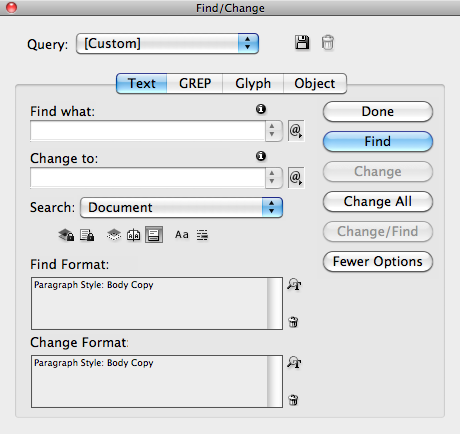
Specify the same paragraph (or character) style name for both of these fields. In the screen shot above I’ve specified the Body Copy paragraph style for both. Change the Search scope to Document, and then click Find (or Change All, if you like to live dangerously).
InDesign hunts down that style in your document (Find Format) and wherever it finds it, reapplies that style (Change Format) with a virtual finger holding down the Option/Alt key, clearing out local overrides. It’s a miracle to behold. Just change the specified style in Find/Change Format to target the two or three styles that are used most often or are most likely to have local formatting, and you’re done. (Of course, if you ever do want to retain your local formatting, don’t Find/Change for the same paragraph style without entering some text in the Find What or Change To fields!)
Use a Preflight Profile to flag all local overrides
Here’s a neat trick: Create a Preflight Profile that only searches for local overrides. (Or I guess you could add this flag to the Profile you normally use, but I like having single-purpose profiles for different tasks.) To create a custom profile, choose Define Profiles from the Preflight panel menu (Window > Output > Preflight) and click the Plus button at the bottom left of the panel. The attribute for Paragraph and Character Style Overrides is in the Text section. Enable it by clicking its checkbox.

Save the profile with a custom name, and then when you want to check your document for local text overrides, select that profile name from the Preflight panel’s Profile menu.

What’s cool is that not only does the profile tell you how many instances of local formatting you have, but it also shows you which text is affected, and clicking the page number next to each entry brings you to that text and highlights it!
Using the custom Preflight Profile method is a great way to do a final check of a document. I love how easy it makes it find each instance, giving you the chance to fix or ignore each one.
This article was last modified on December 21, 2021
This article was first published on April 16, 2012
Commenting is easier and faster when you're logged in!

Recommended for you

Turn a Photo into a Planet Using Photoshop
We’re all familiar with panorama photography, and you may have used Photos...

What’s New in Illustrator: The July 2022 Release (Version 26.4)
Numbered and Bulleted Lists, a History panel, and new 3D features have been adde...

What Designers do for Fun: InDesign Music Videos
A rap song about InDesign and professional typography -- yes, that's what I said...