




RGB Shadows
With the highlight aimpoints properly established, it’s time to turn our attention to the other end of the brightness scale, where the optimal shadow aimpoints are also determined by the characteristics of the output device.
In theory, the darkest areas in an image should be solid black, which would mean RGB values of 0R 0G 0B. In practice, however, virtually all output devices are unable to accurately reproduce shadow tones, so that everything darker than, say, 90 percent gray appears as black.
As a result, we need to use a standard RGB shadow aimpoint that’s slightly lighter than black, knowing that all of the shadow tones will appear noticeably darker when printed. For instance, for display on a monitor or output to a desktop inkjet or color laser printer, you’ll obtain the best results by using an RGB shadow aimpoint between 5R 5G 5B and 15R 15G 15B.
The color separation engine built into Photoshop understands that detail in the shadow tones can plug up if allowed to print too dark and so automatically converts RGB files so that shadow aimpoints in this range produce dark but detailed shadow areas.
To more precisely find the optimal shadow aimpoints for a particular output device, repeat the test procedure described earlier for determining highlight aimpoints, but this time use patches containing RGB values between 0R 0G 0B and 20R 20G 20B. The objective is to find the smallest value that retains important detail in the shadow tones.
Throughout the exercises in this book, we’ll use 10R 10G 10B as the RGB shadow aimpoint, though if your tests produce better results with a higher or lower value, feel free to use that instead.
PDF Download. To find the optimal shadow point for an RGB-based output device, print a test target (see the PDF download aimpoint.sh2.pdf) containing color patches ranging from 0R 0G 0B to 22R 22G 22B in 2-point increments. At first, it may appear that all of the patches are equally black, but on closer examination you will usually be able to discern some lighter patches, gradually building to a maximum of solid black.
Now that we’ve set the highlights and shadows, we can move onto curves in our next installment.
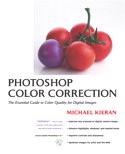
Peachpit Press is offering this book at a discount to creativepro.com readers. Follow this link.
This article was last modified on January 3, 2023
This article was first published on October 29, 2002
Commenting is easier and faster when you're logged in!

Recommended for you

How to Create a Burnt Paper Effect in Photoshop
Creating a burnt paper effect in Photoshop is much easier than you might think....

Photoshop Power Shortcuts on Adobe TV
After the conclusion of the Adobe MAX conference in May, I posted a news item ab...
Capture the Look of Classic Analog Photography With VSCO Film Emulations
If you were an avid photographer in the analog days, you probably had a few favo...